

-- Stripe - Tap to Pay Option Setup
Note: If you do not have a Stripe account and want to set up a New Stripe payment Account, go to https://dashboard.stripe.com/login. Refer to Stripe Payment Processor for further details
Stripe Payment Processing Tap to Pay option can be enabled for the Agiliron POS channel.
For that you need to:
- Navigate to Settings -> Channels in the back office.
- Click the "Edit" button next to the channel.
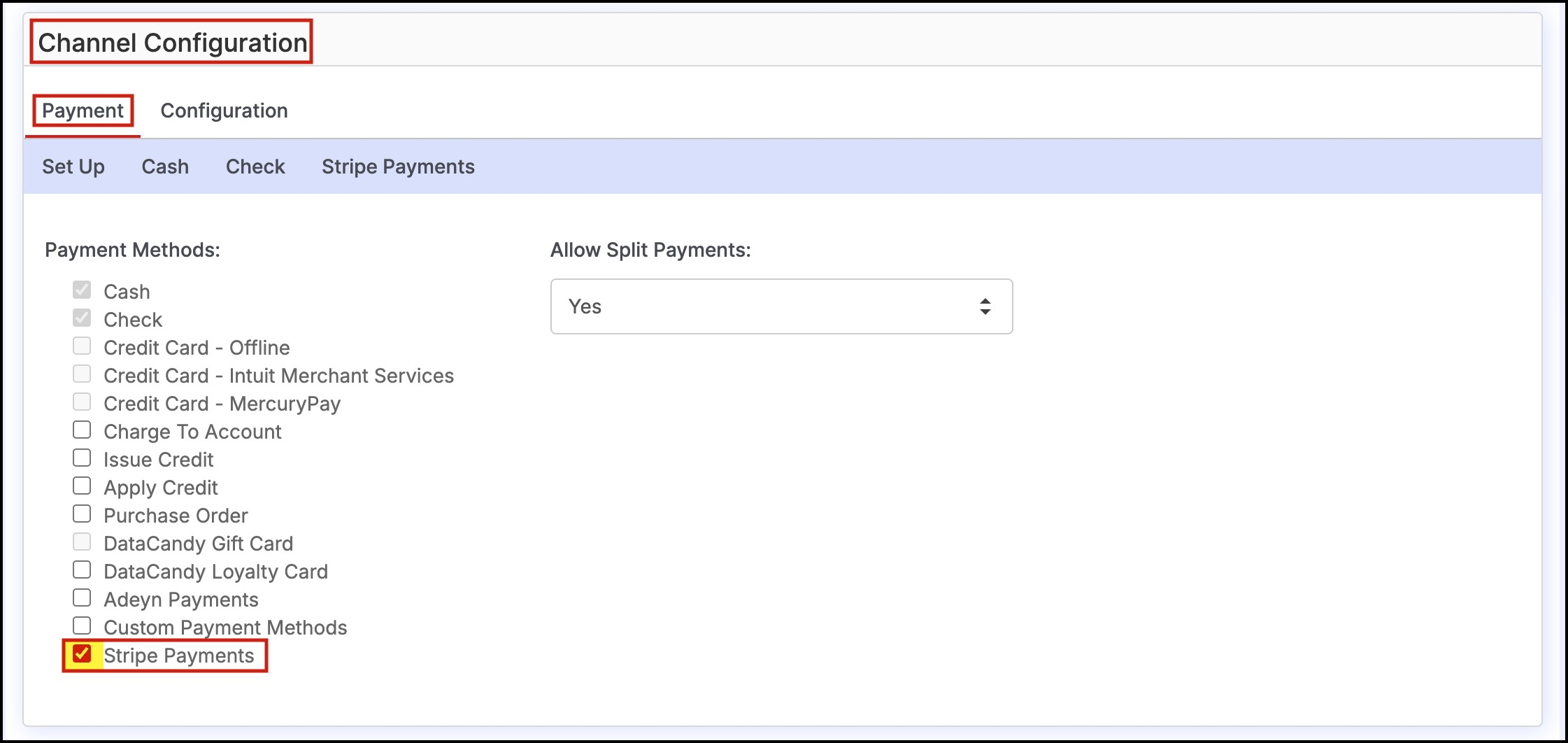
- Verify that Stripe Payments is selected as a payment processor on the "Payment" tab.
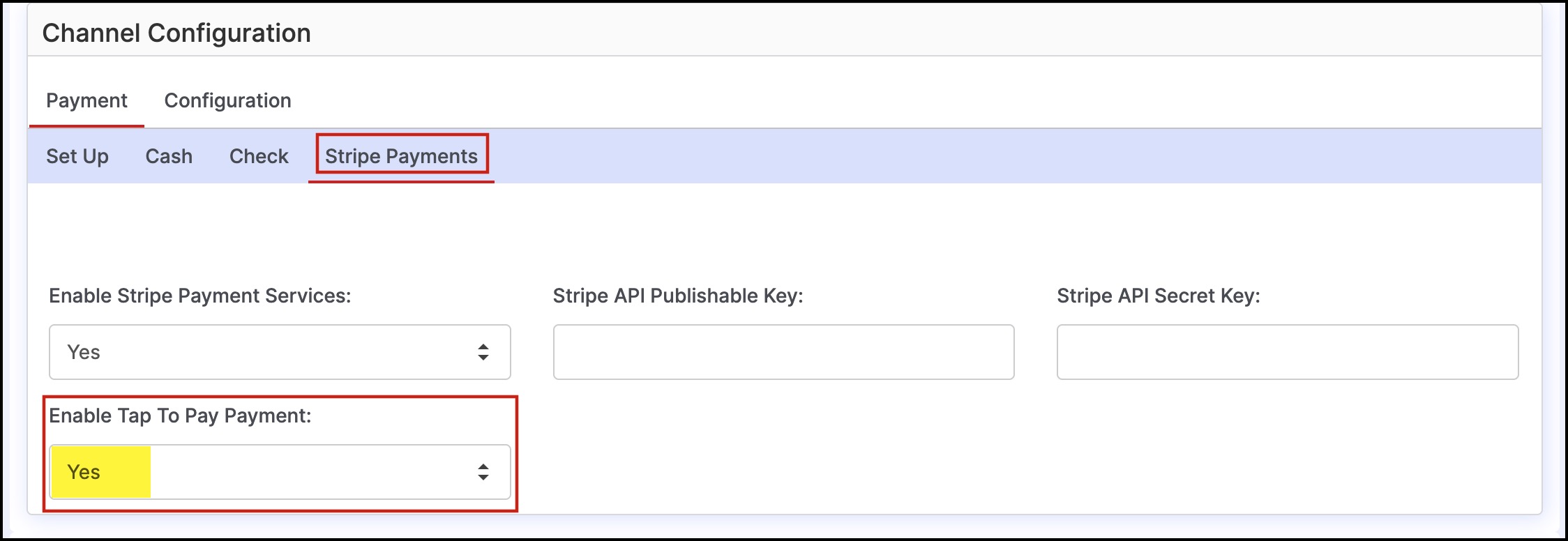
Now switch to the Stripe Payments tab and set Enable Tap to Pay Payment to Yes.
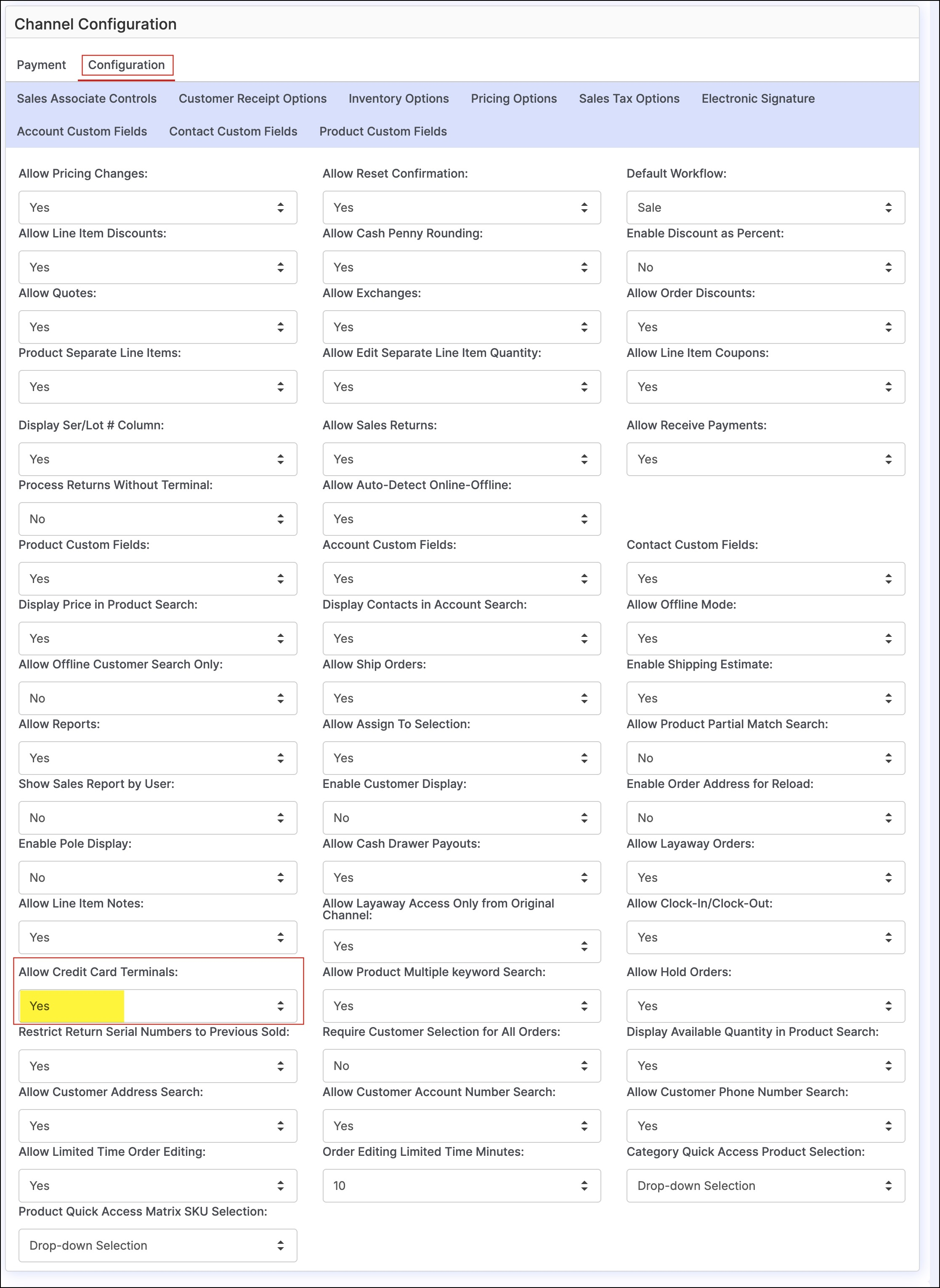
- Next, click on the "Configuration" tab.
- Scroll down to "Allow Credit Card Terminals" and set to "Yes".
- Click "Save" to finish.

Device Pairing and Setup
- Log in to the POS Channel to pair the device.
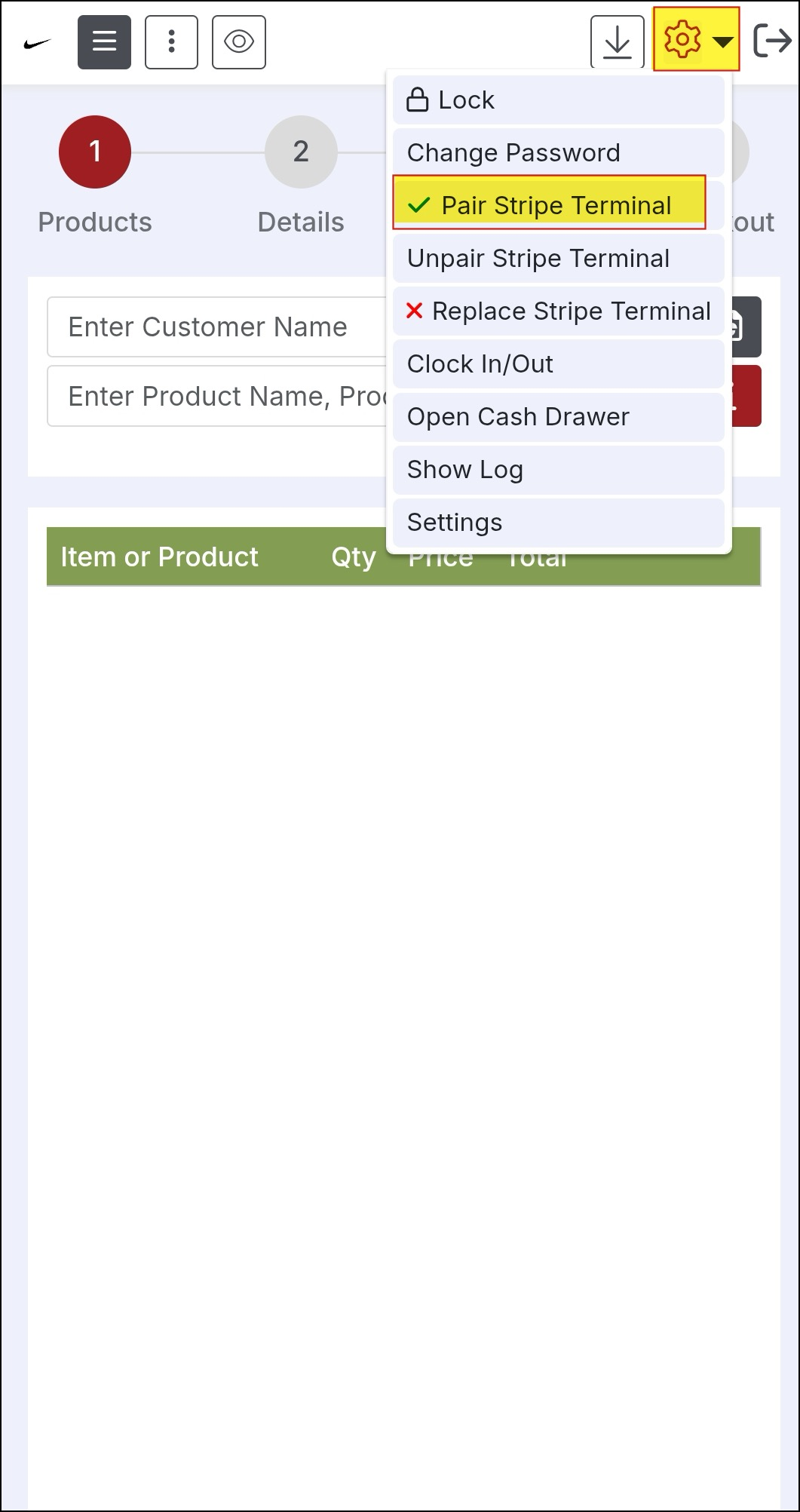
- Click on the gear icon on the top right side of the screen.
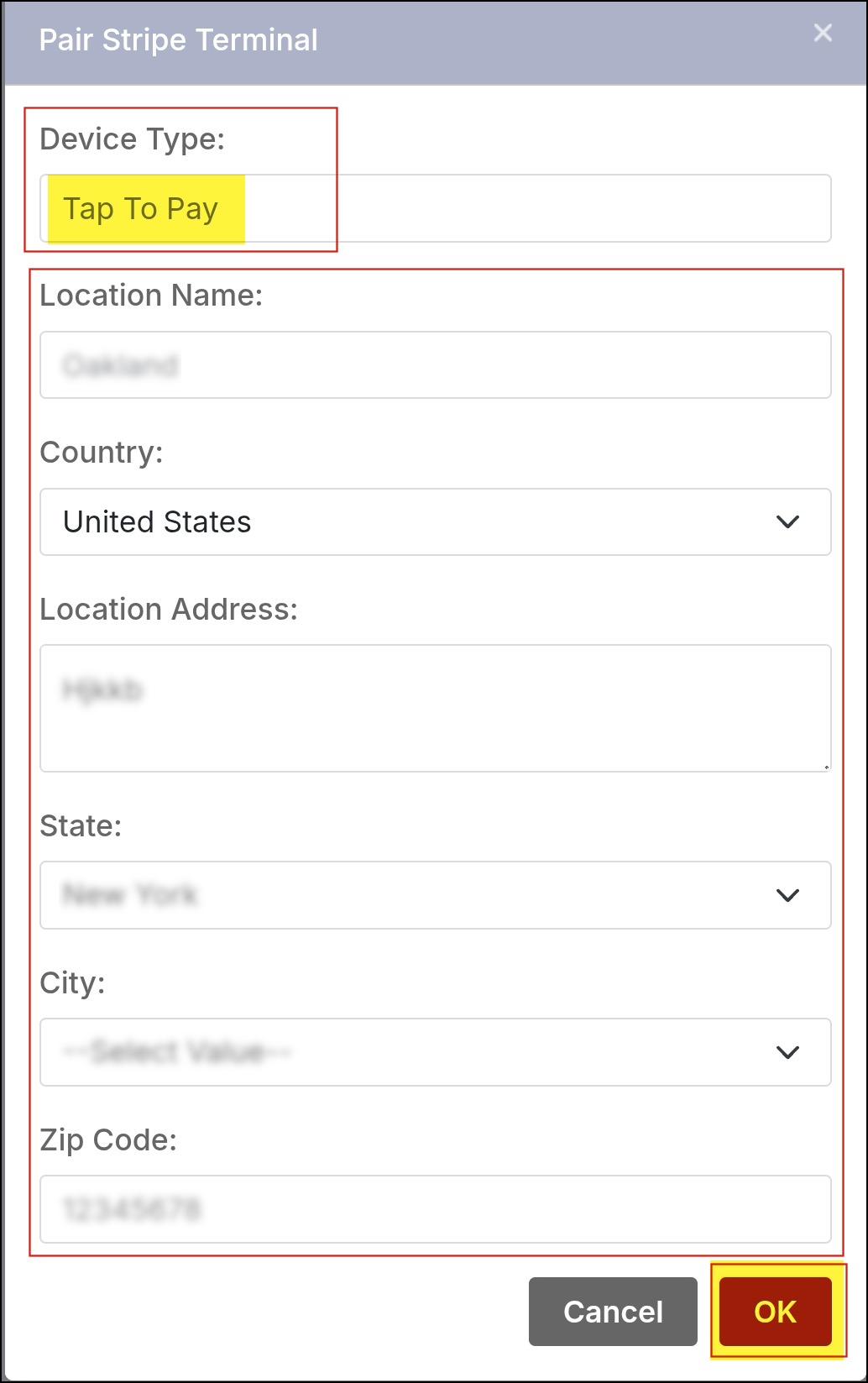
- Select "Pair Stripe Terminal".
- A pop-up box will appear where you can see the Device type set to Tap to Pay
- Verify your contact information (please make sure to enter the contact information that is the same as in your Stripe account).
- Click "OK".
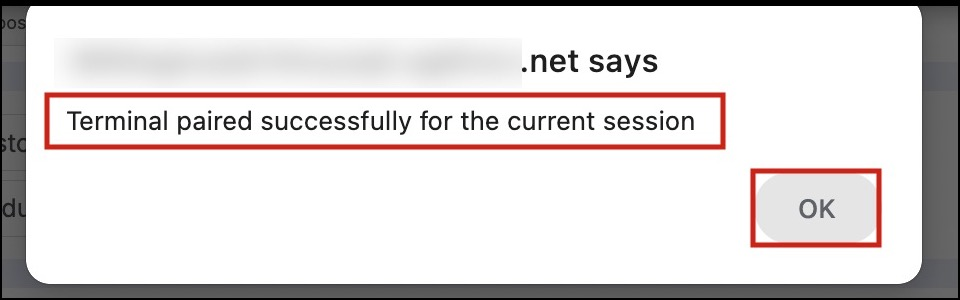
- Once the device pairing is successful, you'll see the message below on your device.
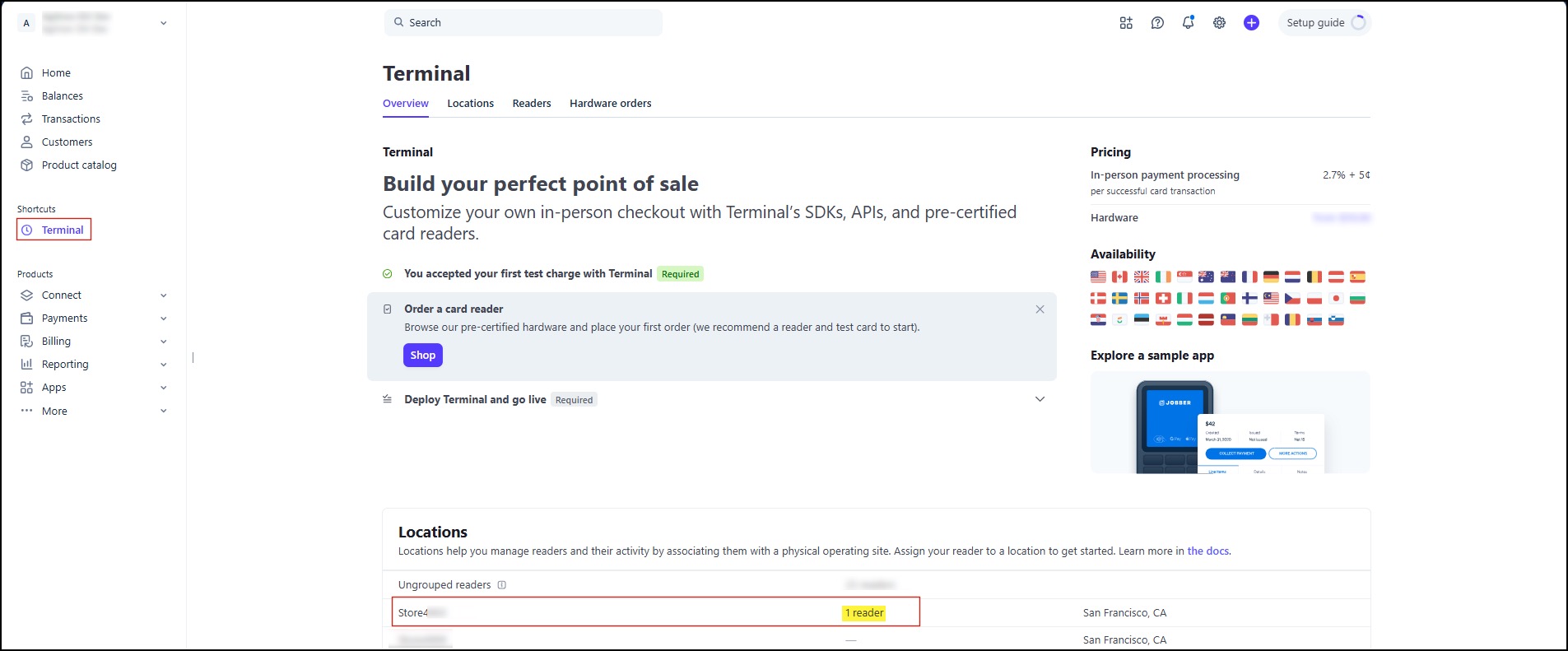
You can also check on your Stripe account, if the connection is successful.
- On the dashboard, when you go to the Terminal tab, you can see the location you added and the assigned reader.
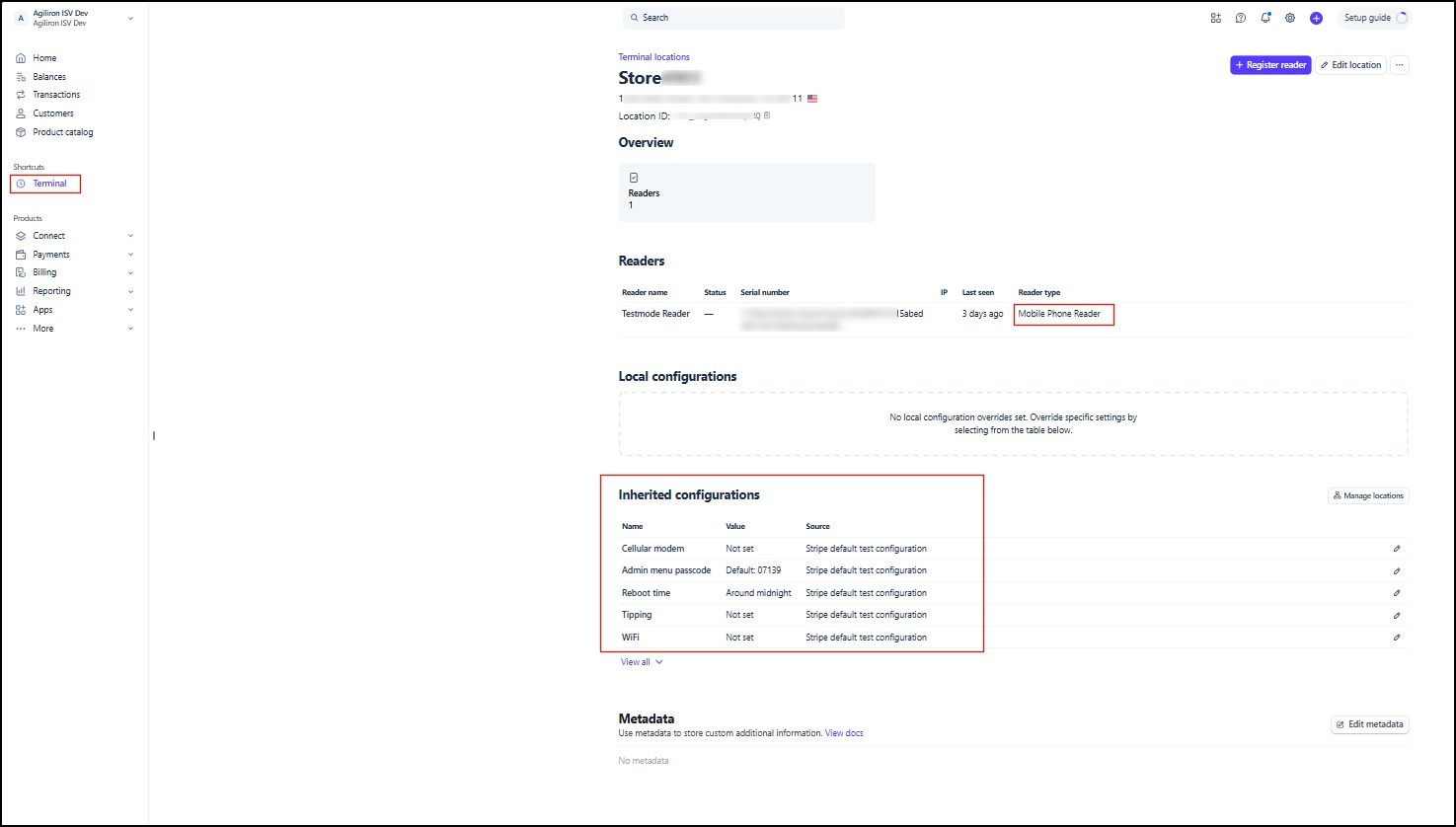
- Clicking on the location will display further details. Here you can see your registration code, listed under Readers-> Label. Click on it.
- This will bring up a screen with more information.
You can now add products in the POS app, select a credit card payment method, and click on Checkout.
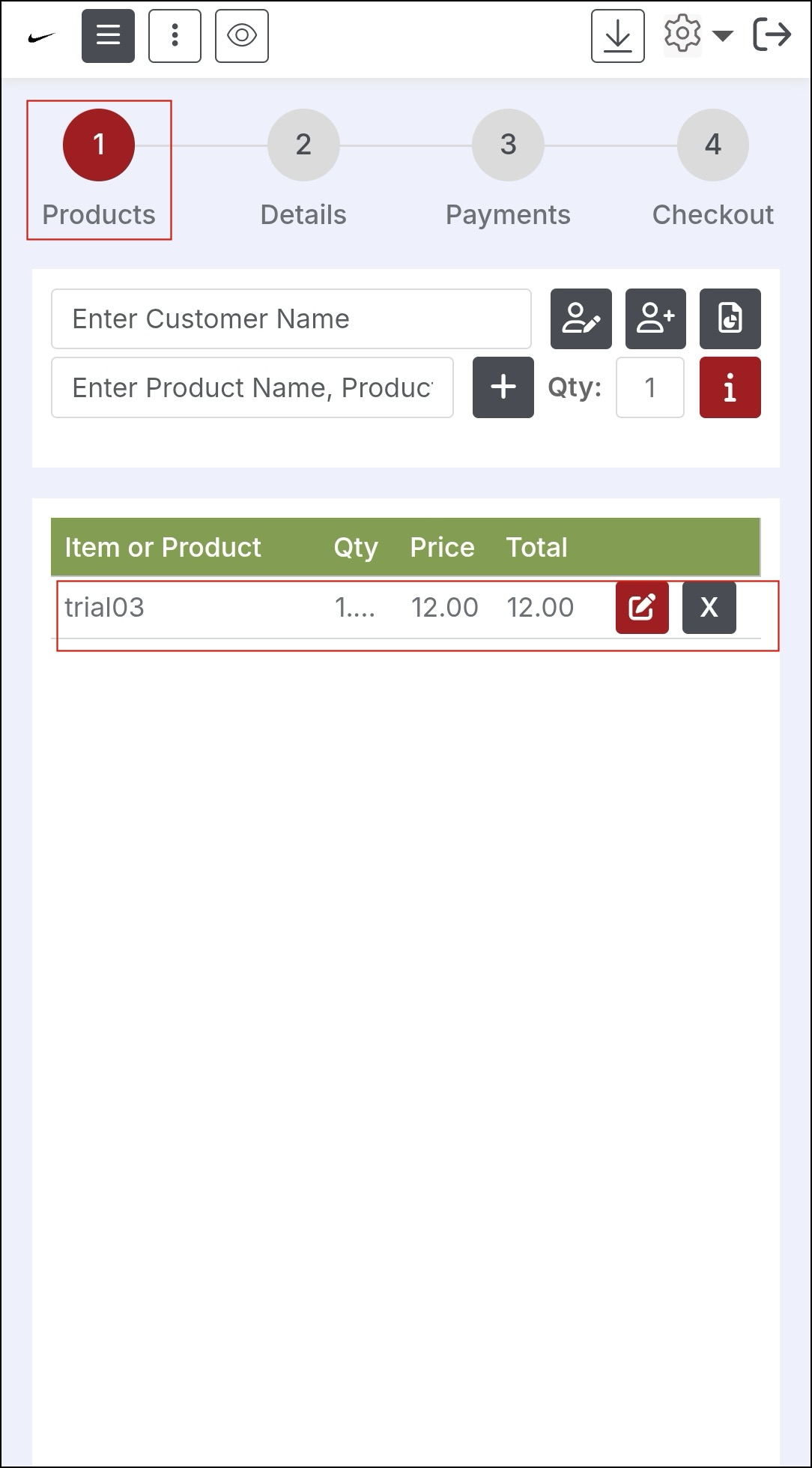
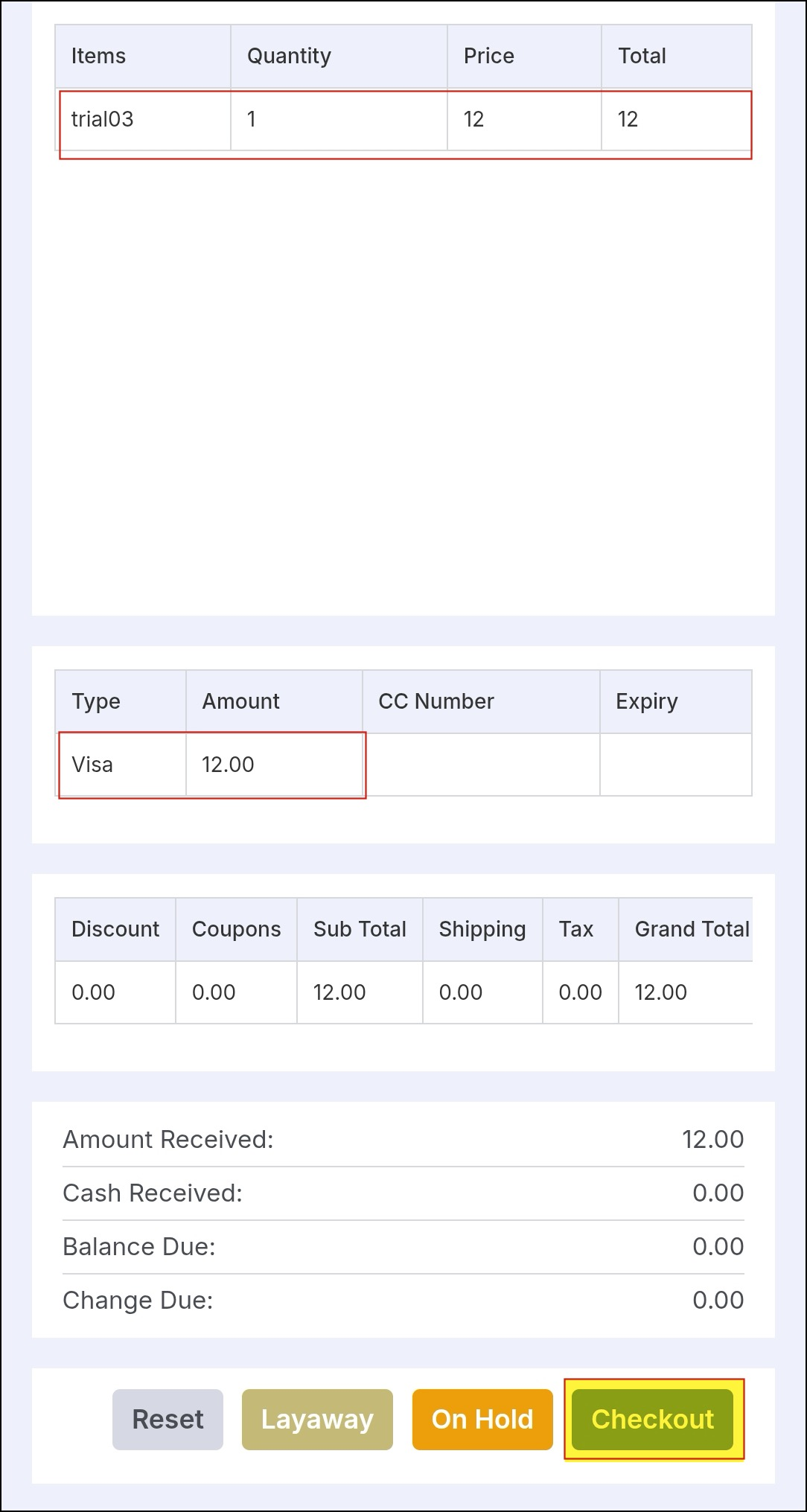
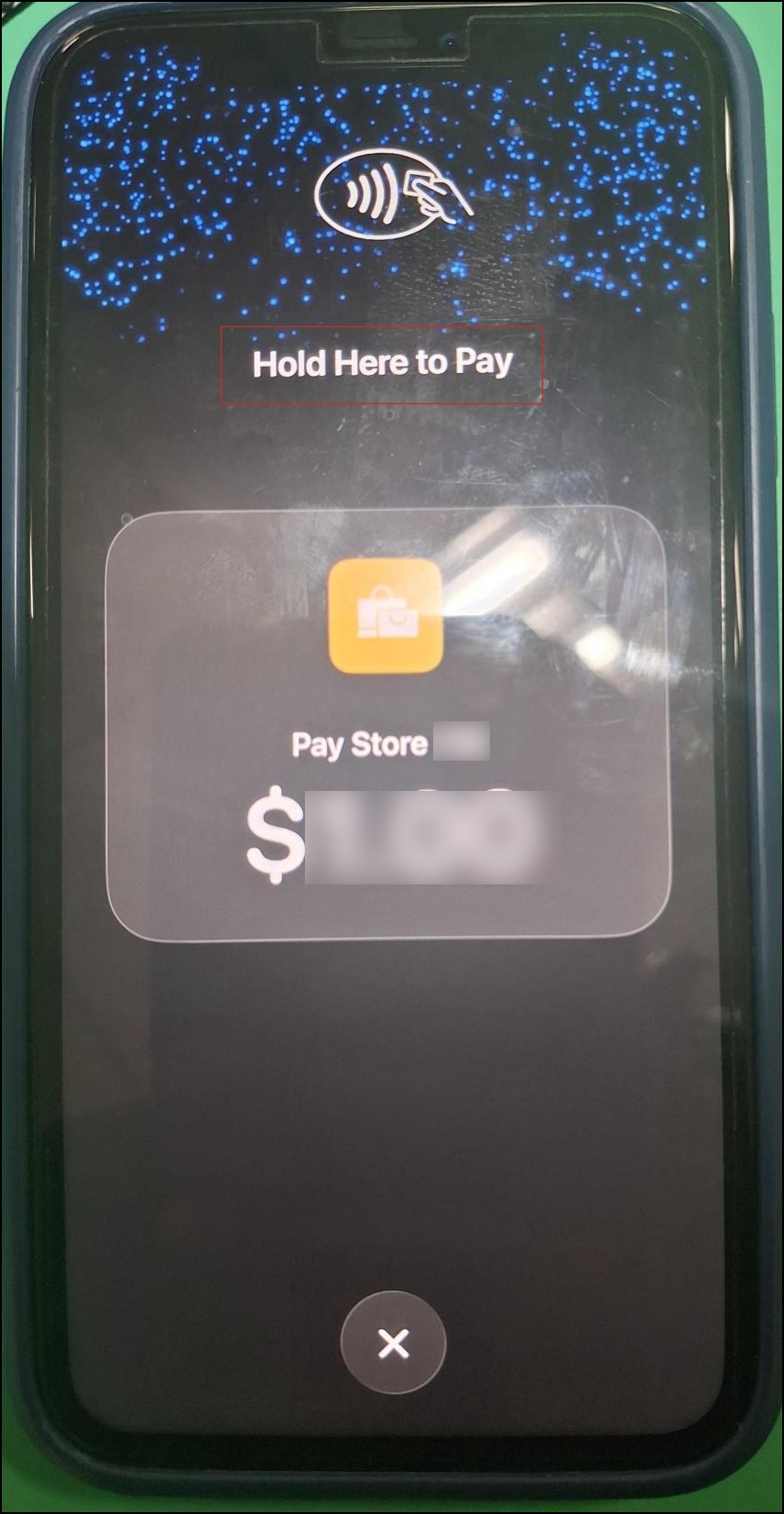
When the payment request is initiated, you will see a pop-up on your device (Android or iPhone) with the payment to be made and a message displayed, "Hold here to pay. ". Please tap the card here, and your payment will start processing.
This is an iPhone device message screenshot
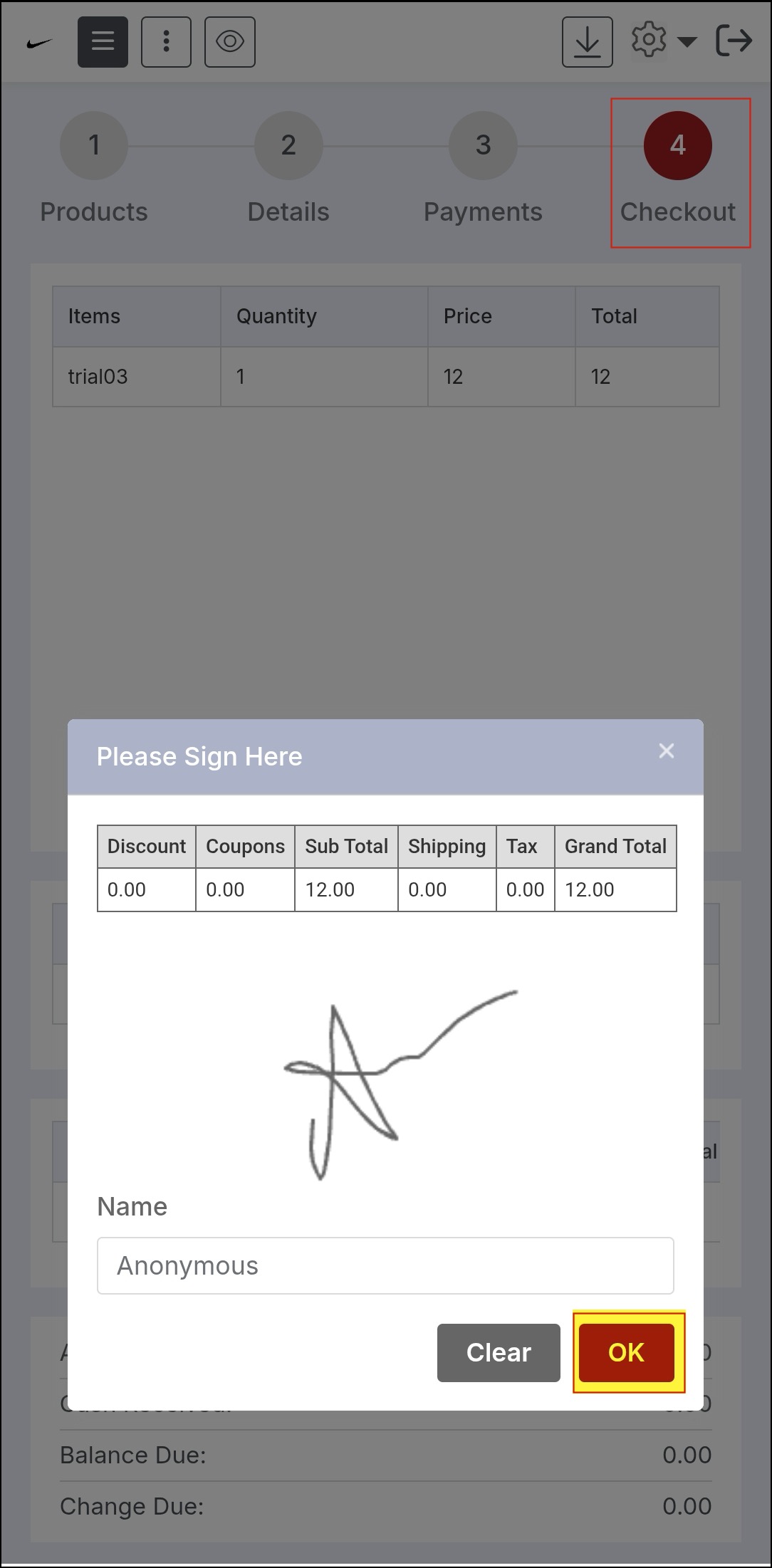
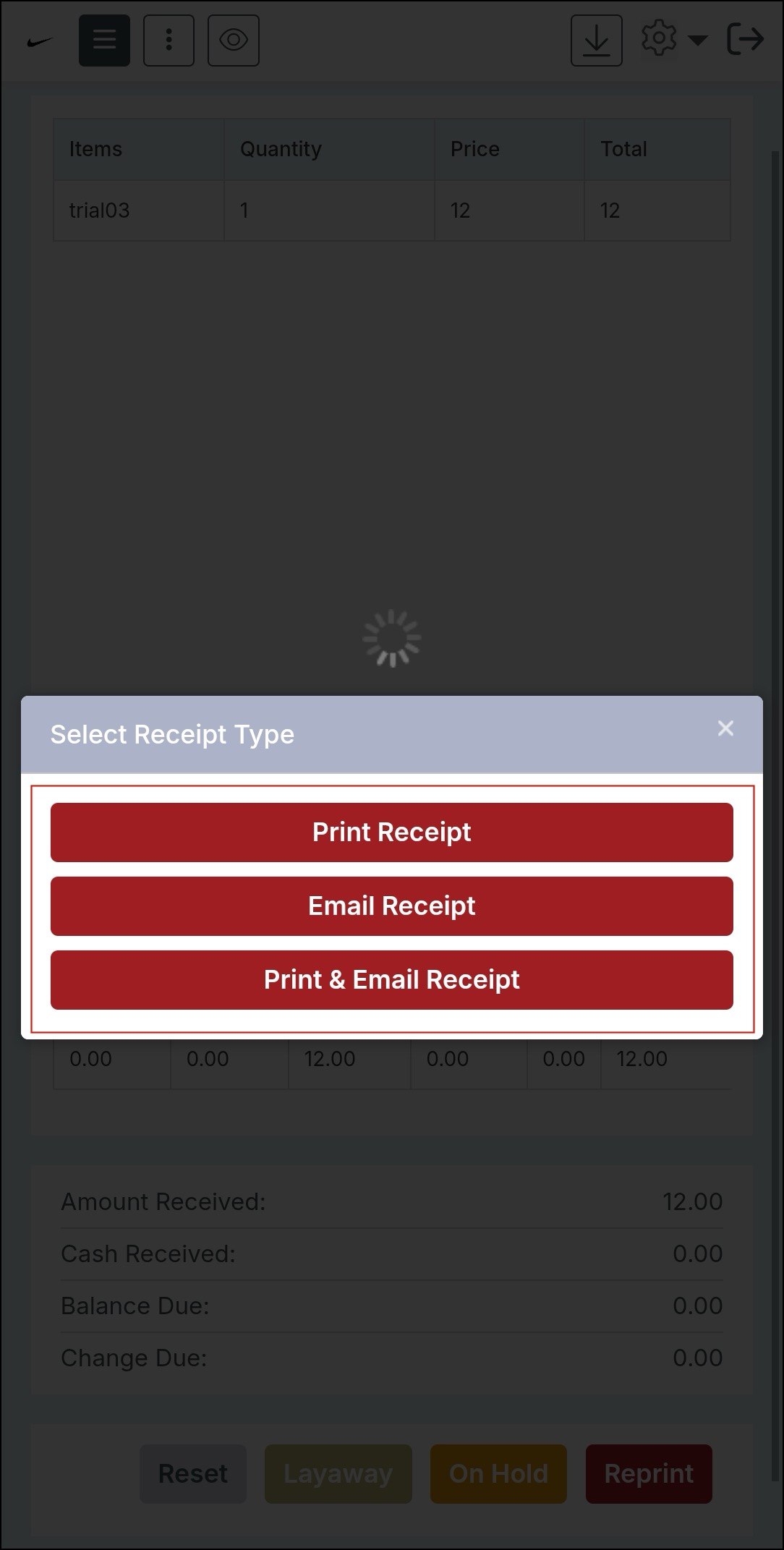
- After payment processing is complete, the POS dialogue will automatically close, and the usual signature and print/email receipt will be displayed.
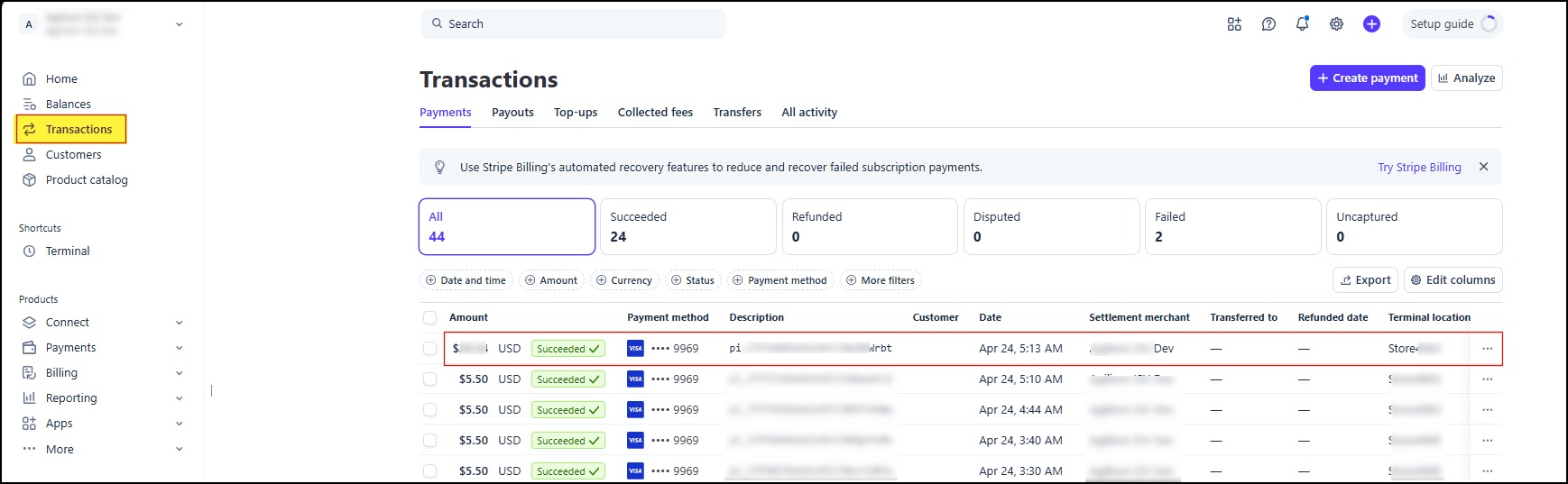
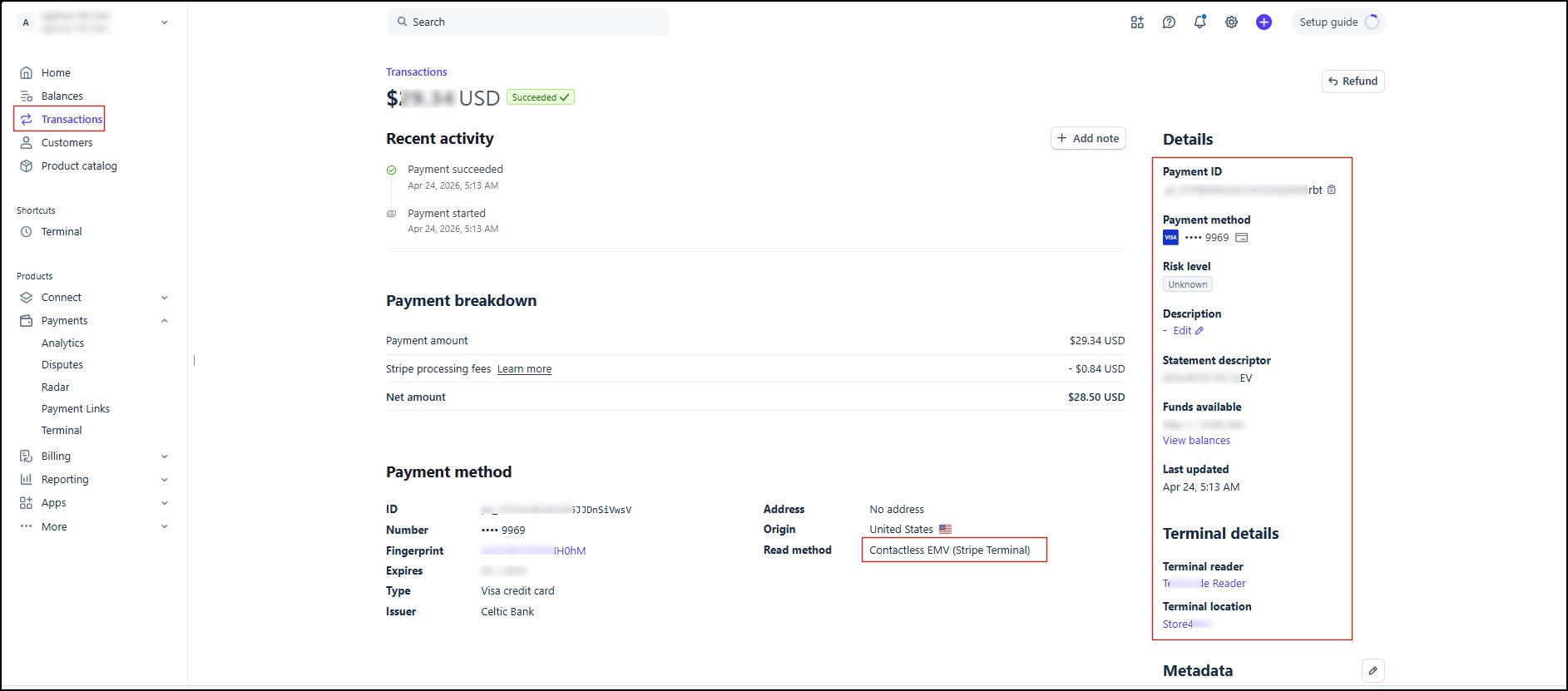
After checkout, similar to the Reader S700 and the Reader M2, you can view the transaction history in your Stripe account.
Updated 6 months ago