

Basic Loyalty/Rewards Capability
Agiliron has implemented the Basic Loyalty/Rewards capability.
To add Basic Loyalty/Rewards:
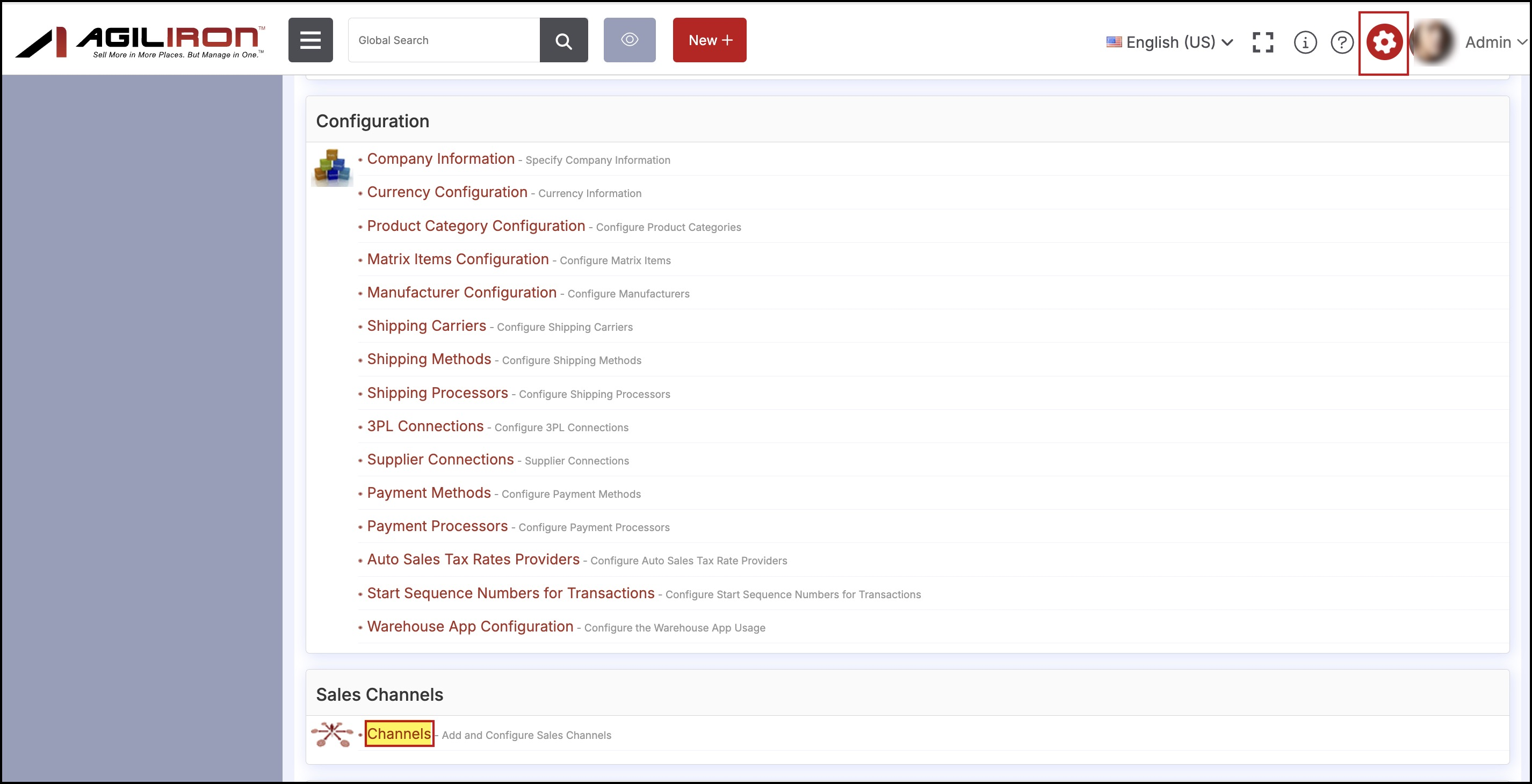
- Go to Settings -> Channels. The following page is displayed.
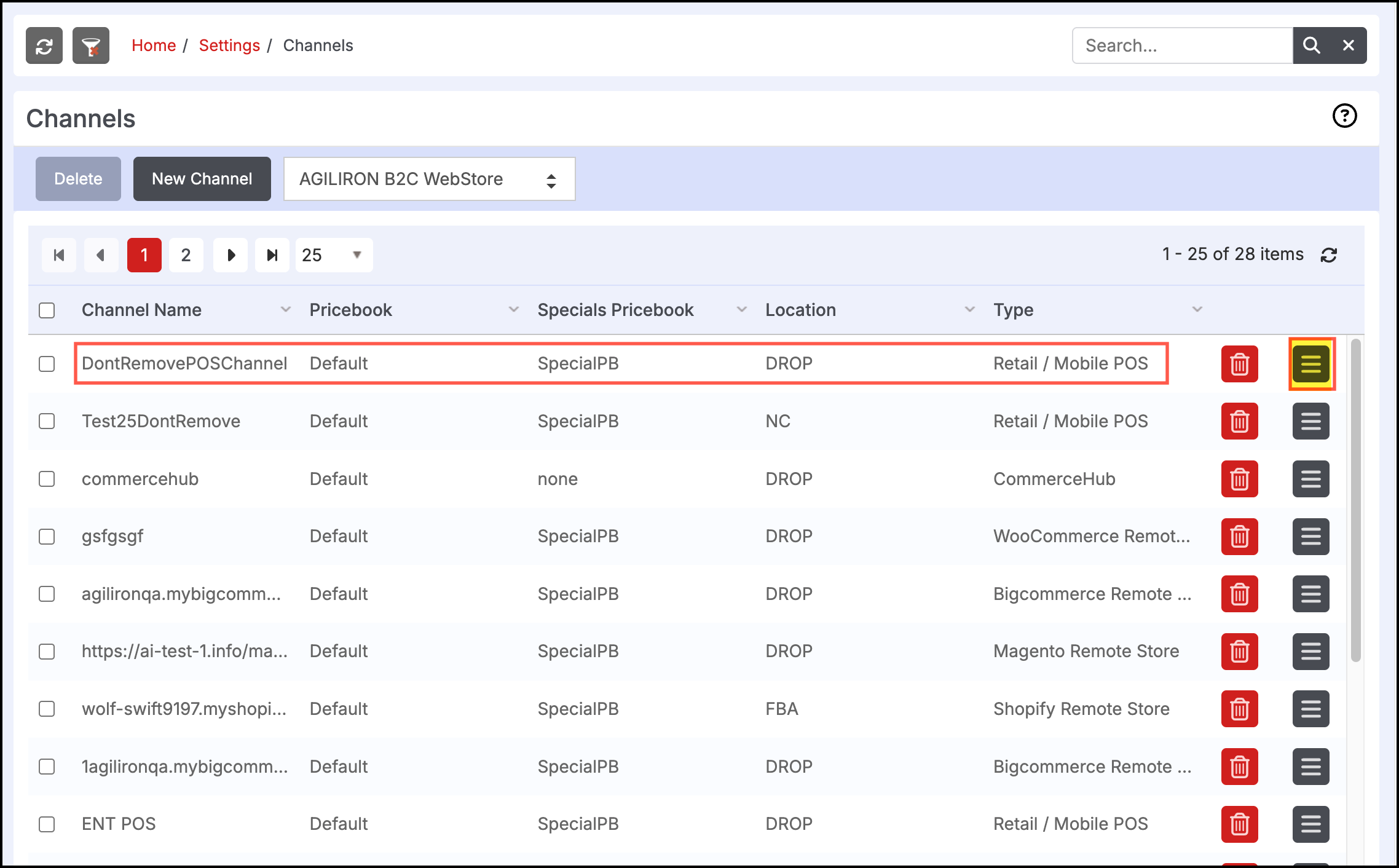
- Click Edit next to the POS channel that requires configuration.
The following page is displayed.
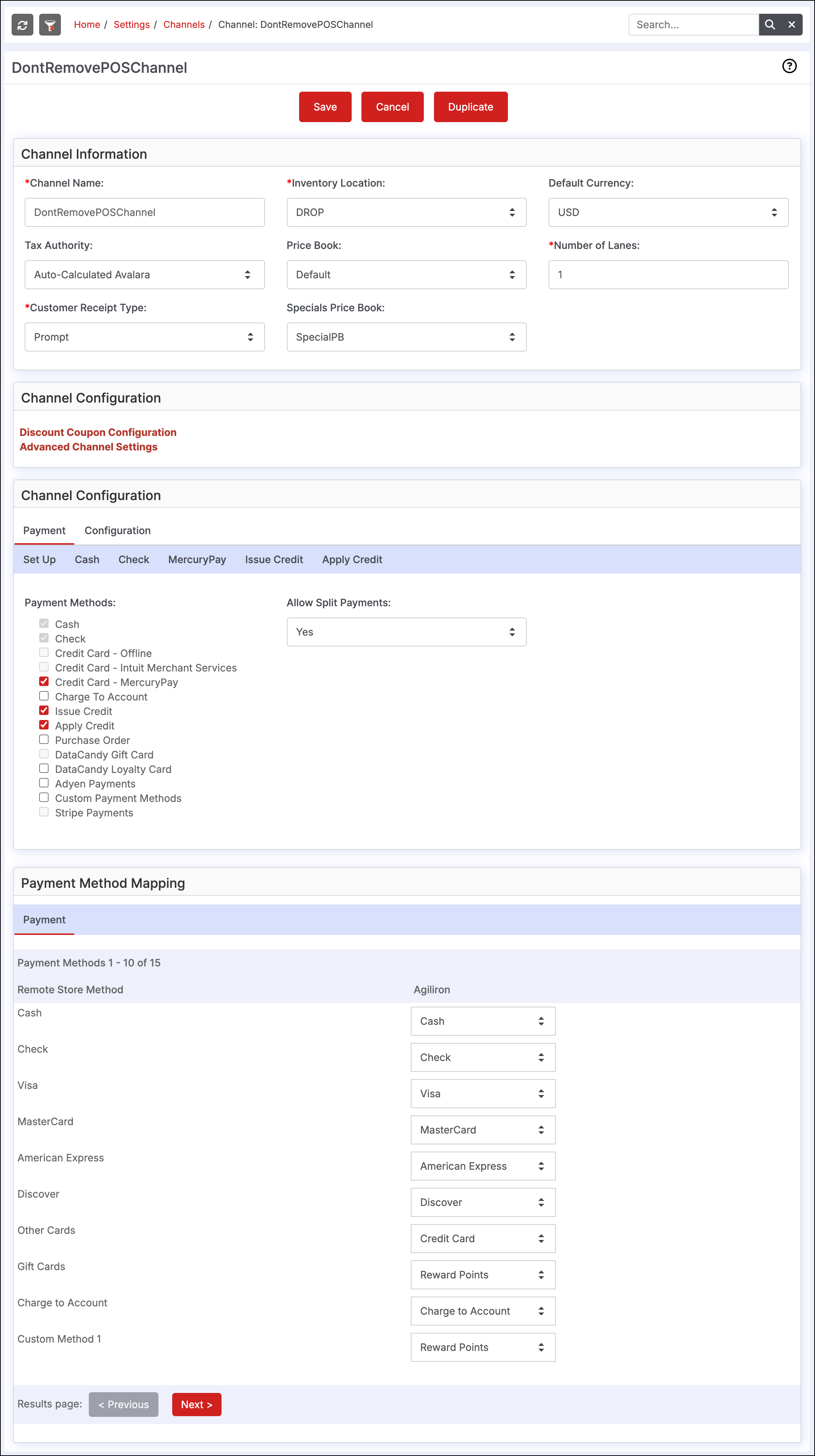
- Now, in the Channels Configuration section, switch to the Configuration tab and click on Agiliron Loyalty-Rewards.
- Here, set Enable Loyalty-Rewards to Yes. Also set the Reward % (for example, we are setting it to 10%).
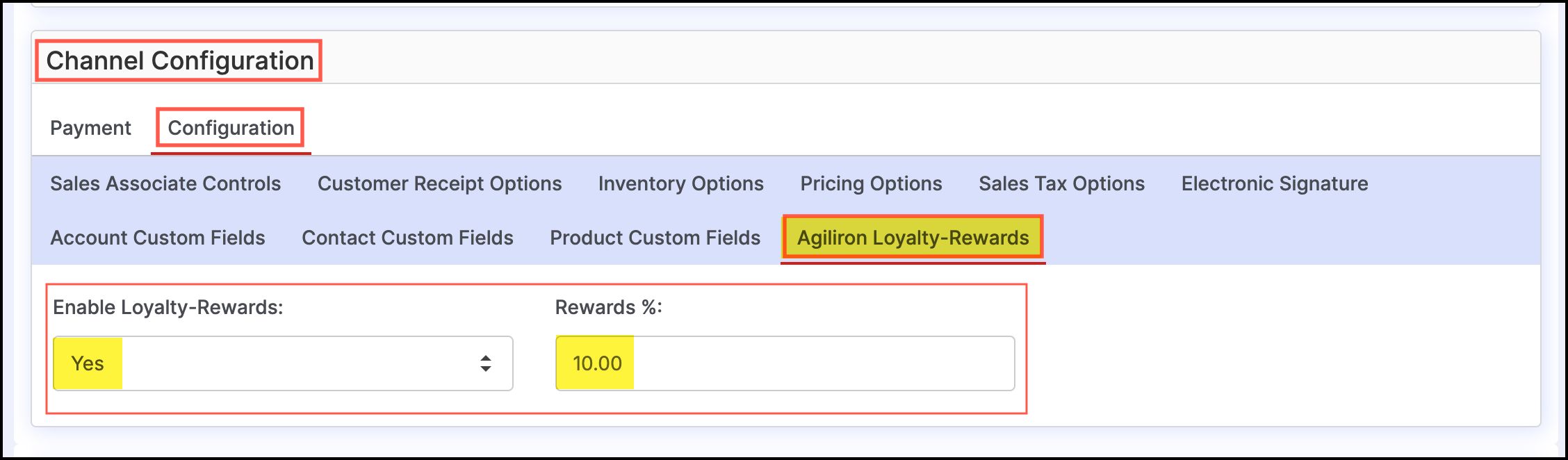
Once done, click on Save.

-
Next, login to the respective Retail POS channel account.
-
Select the Channel.
-
Enter the customer's name.
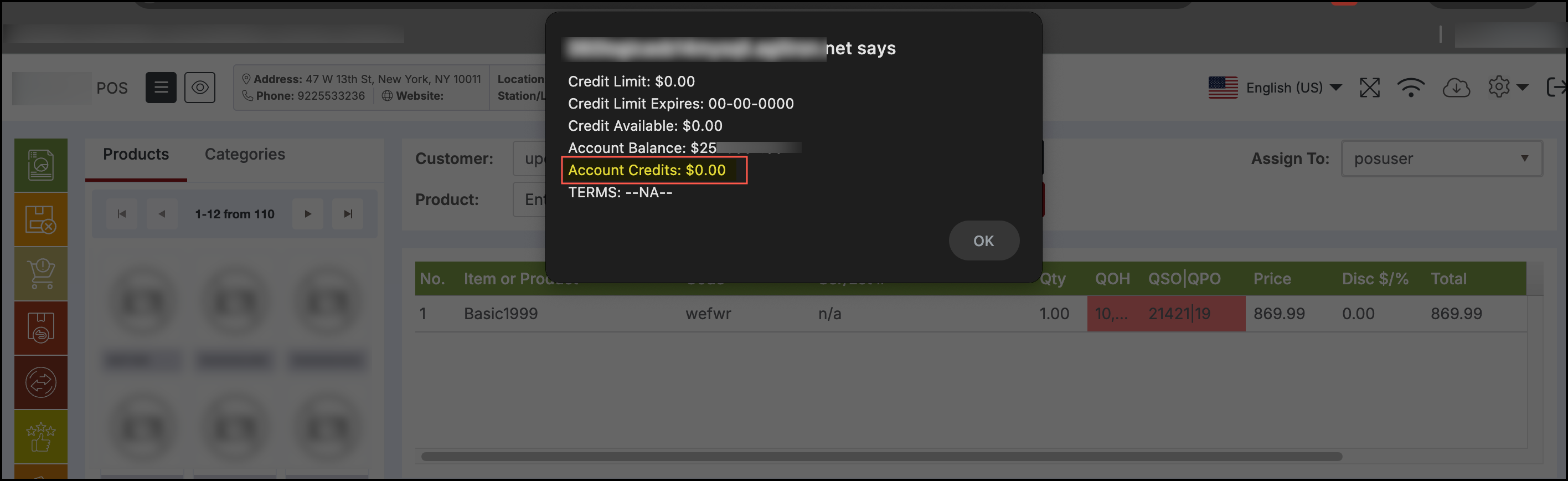
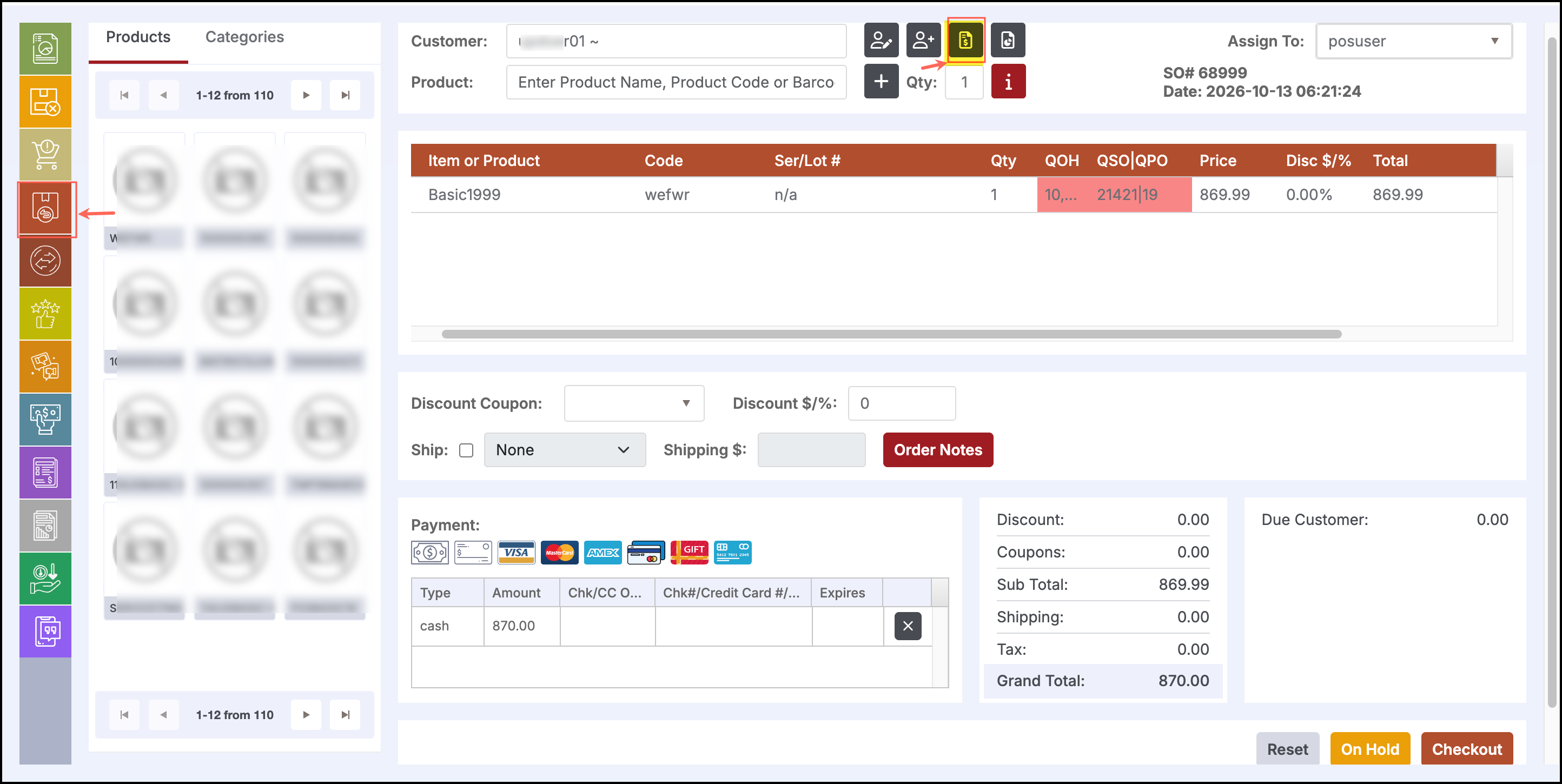
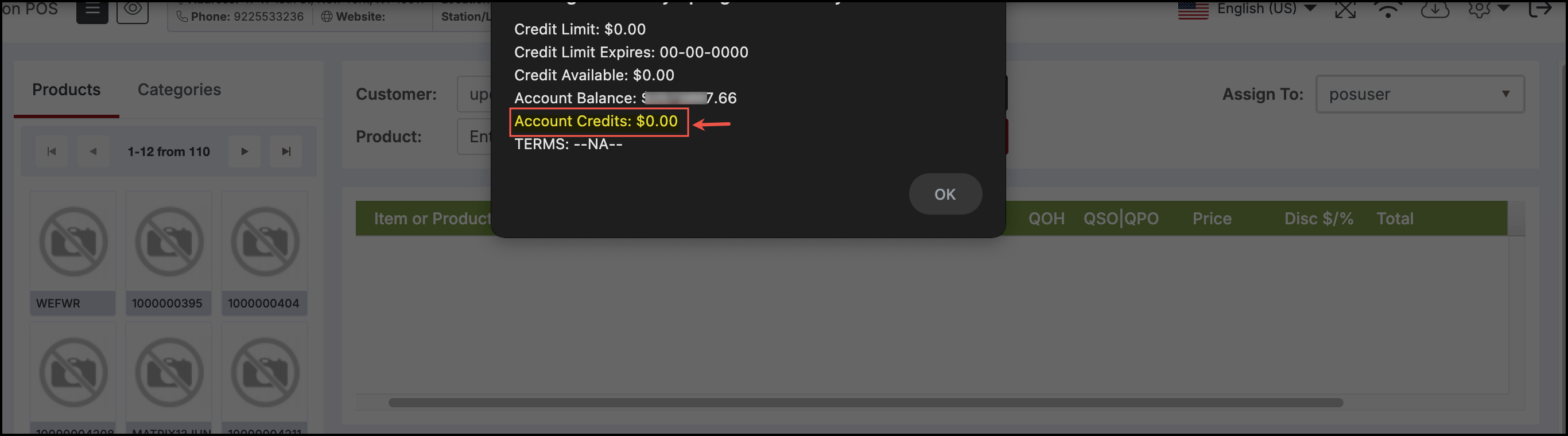
Now, when you click on Show Account Credits, you can see Account Credits (at present, it is $0)
- Select the product.
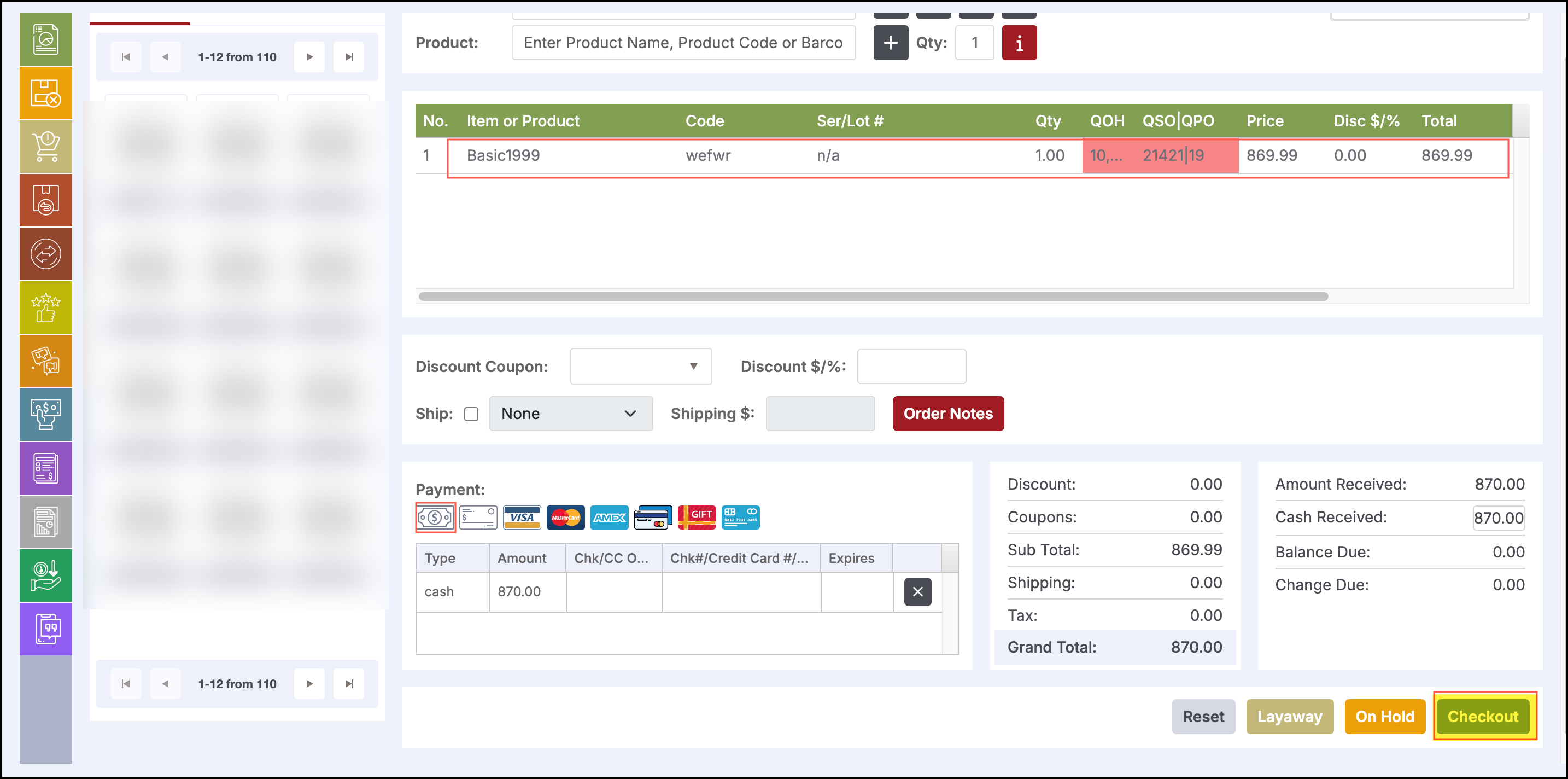
- Select the payment type.
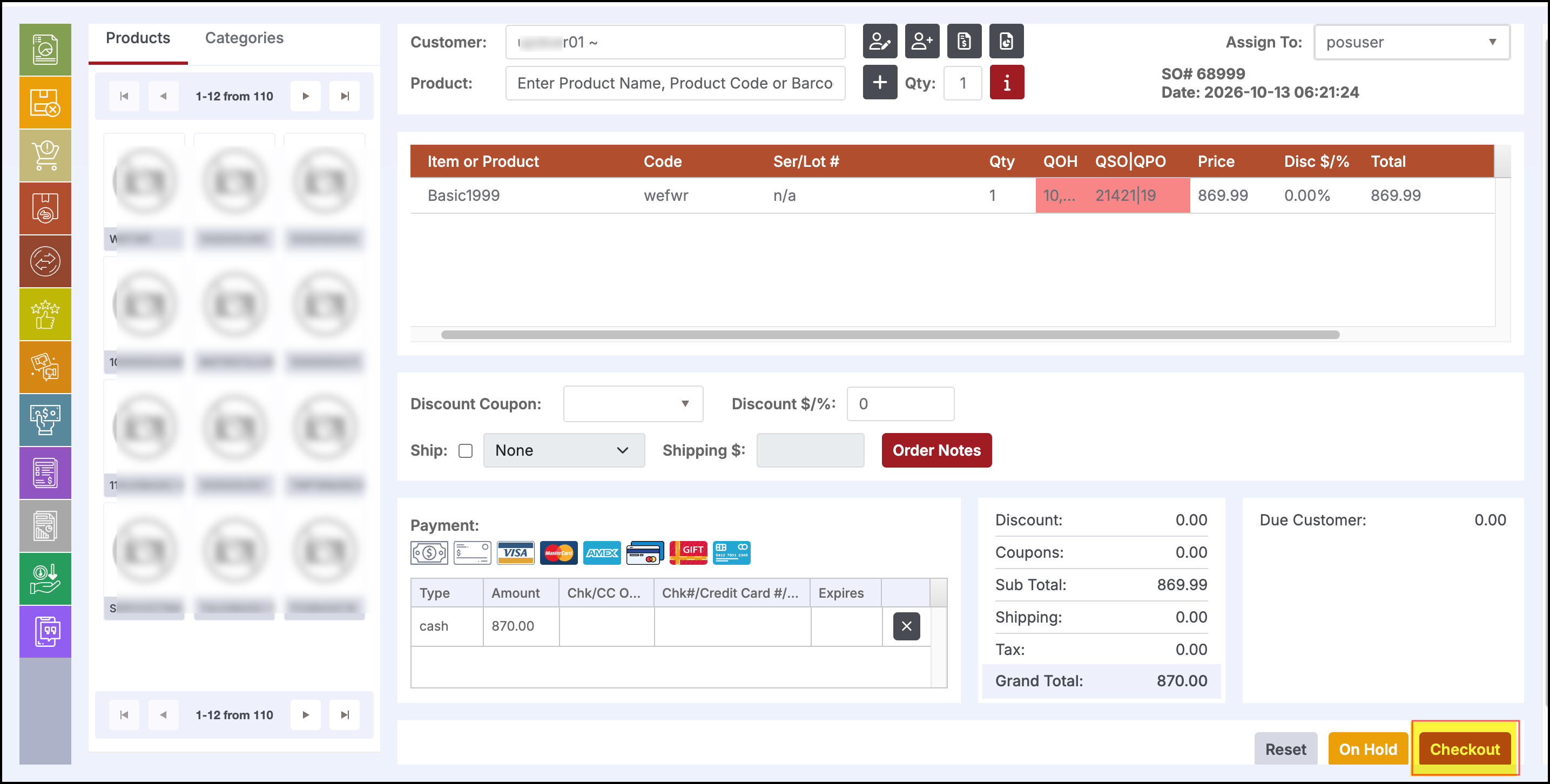
- Click on Checkout.
-
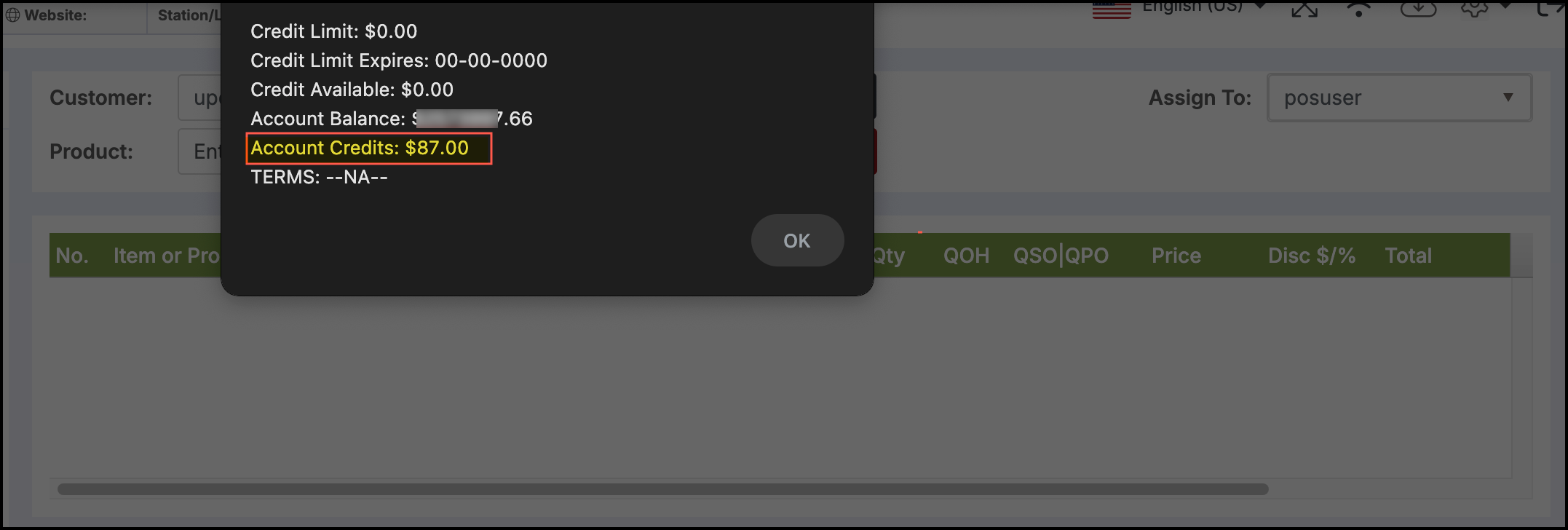
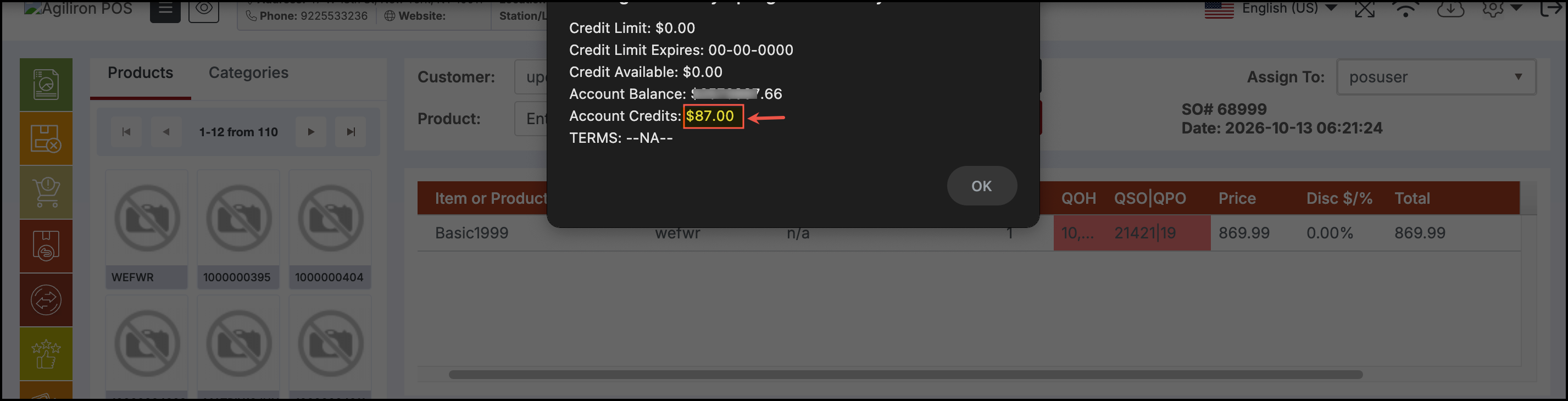
Now, when you once again enter the same customer's name and click on Show Account Credits, you can see the Account Credits updated as per the Loyalty Rewards % set.
Here, you can see that the Rewards % was set to 10%, so 10% of $870 is $87, and that is what gets reflected in the Account Credits.
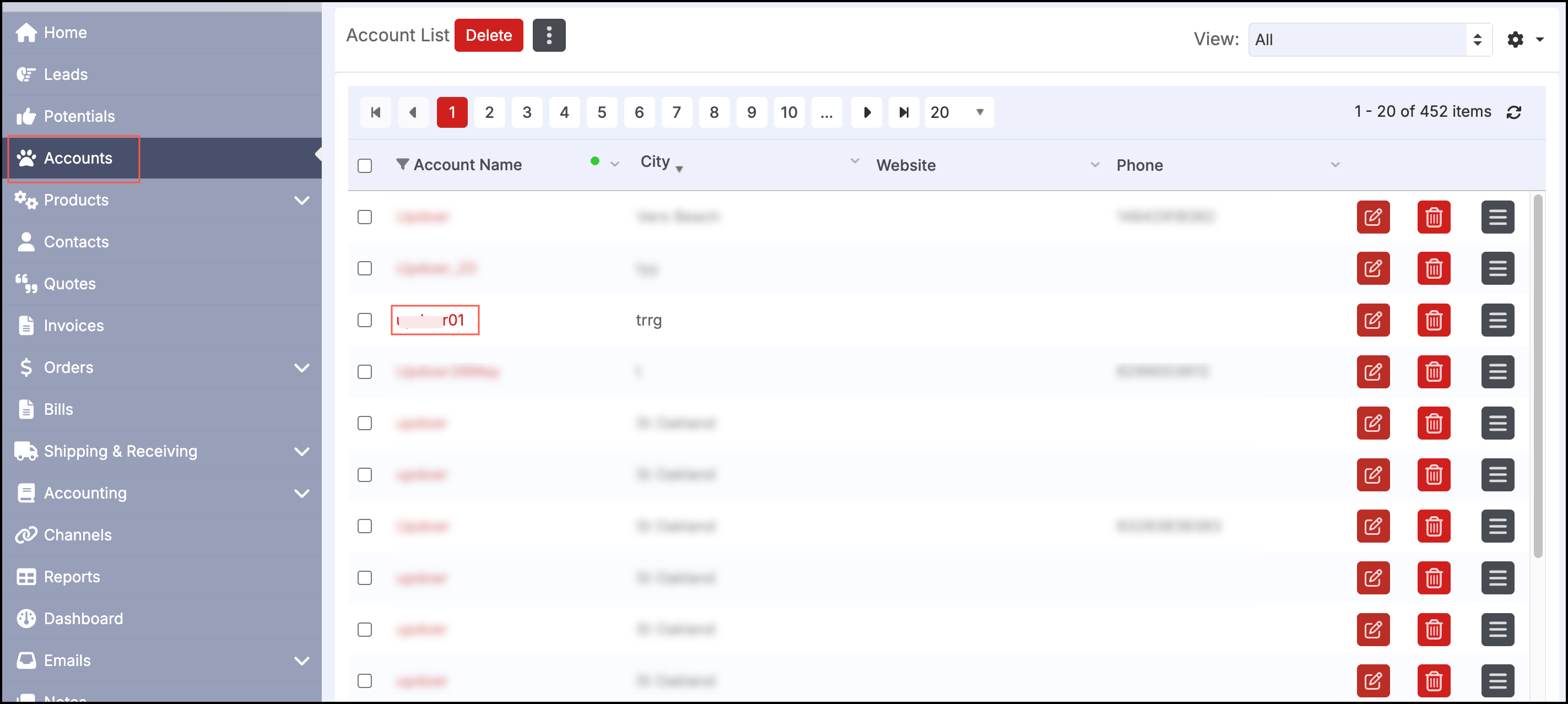
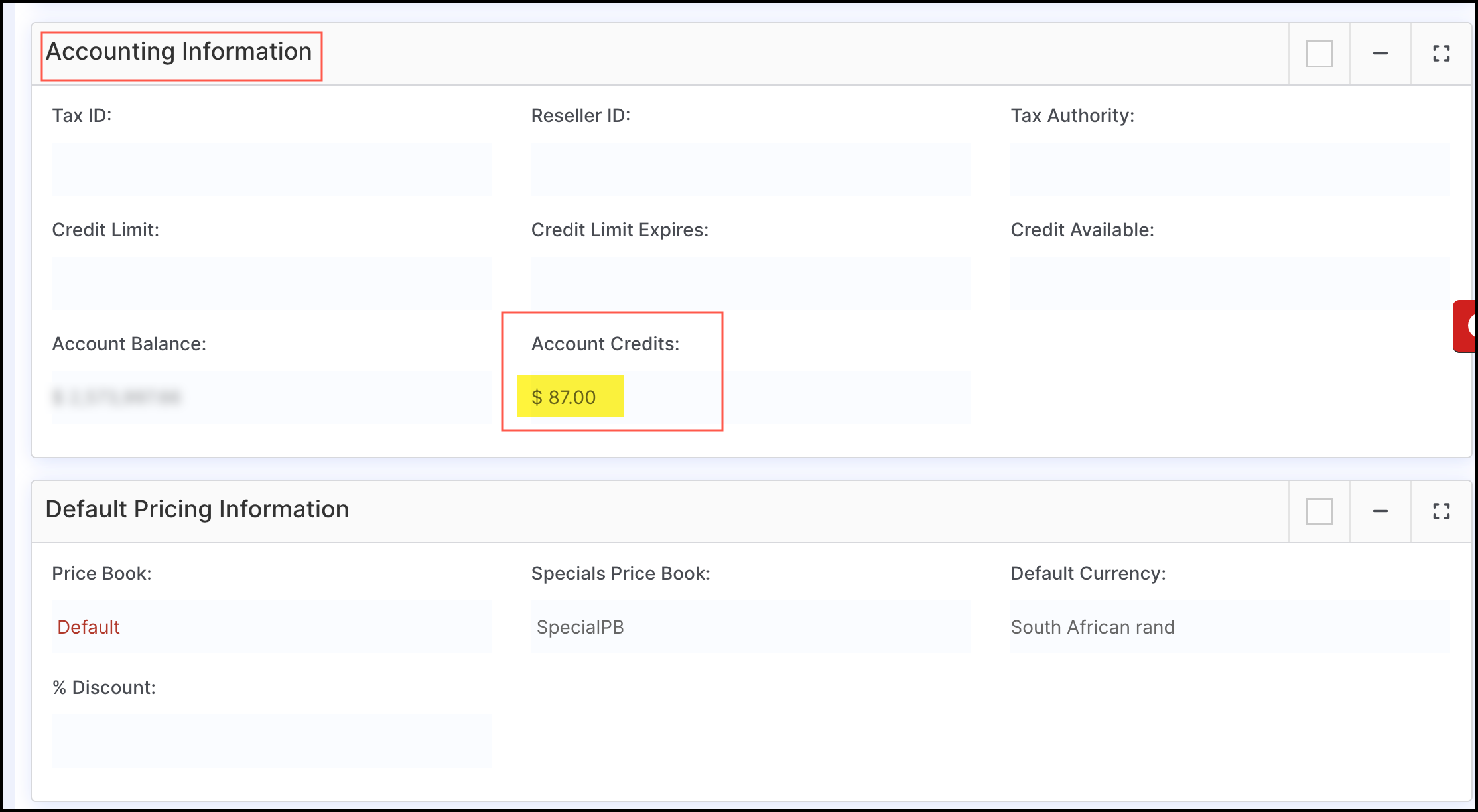
Similarly, when you go back to the backoffice and check the Accounts, you can see the Account Credits and Credit Available updated.
In POS, in case of Sales Return or Exchange, when the customer is selected, Account Credits is reduced as a % of Return (specified in channel settings, e.g., 10%) to the Customer Account using capability similar to the Issue Credit payment method.
NOTE:
For the same item, exchange and return cannot be done(you can either exchange or return; you cannot do both).
Updated 20 days ago