

POS Receipt Printing Settings
Note: Receipt printing must be enabled in the POS Channel settings. Please see this link for POS Configuration settings.
To enable receipt printing, log in to the Agiliron Retail POS Application on your device.
- Click on the Settings icon.
- Select "Settings".
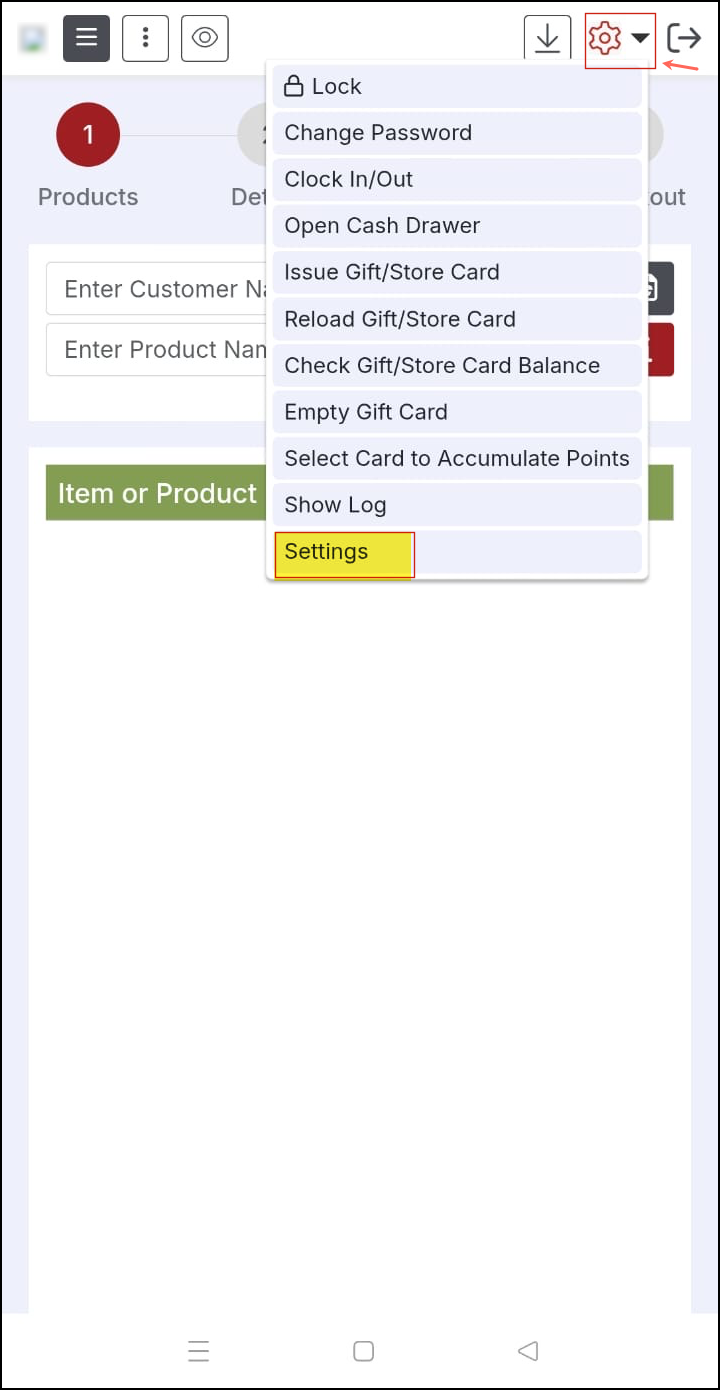
The following pop-up will appear.
- Click "Select Printer".
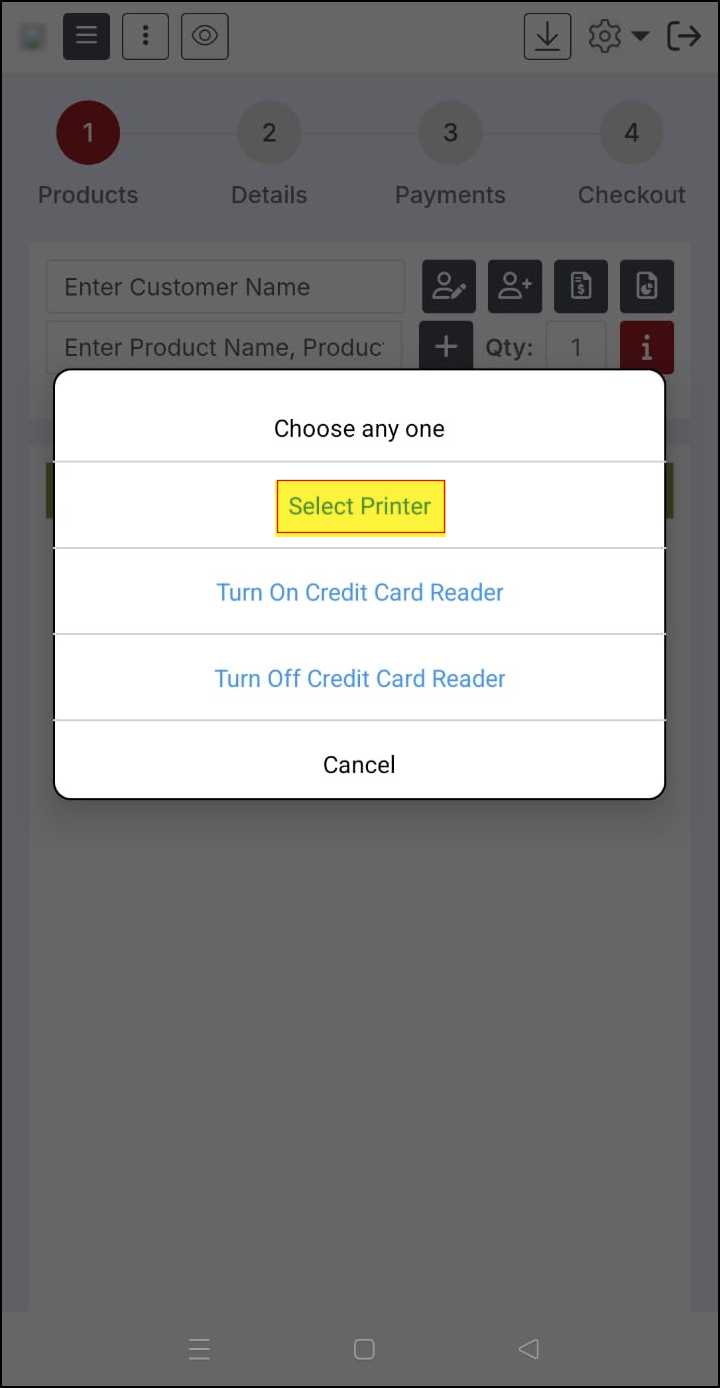
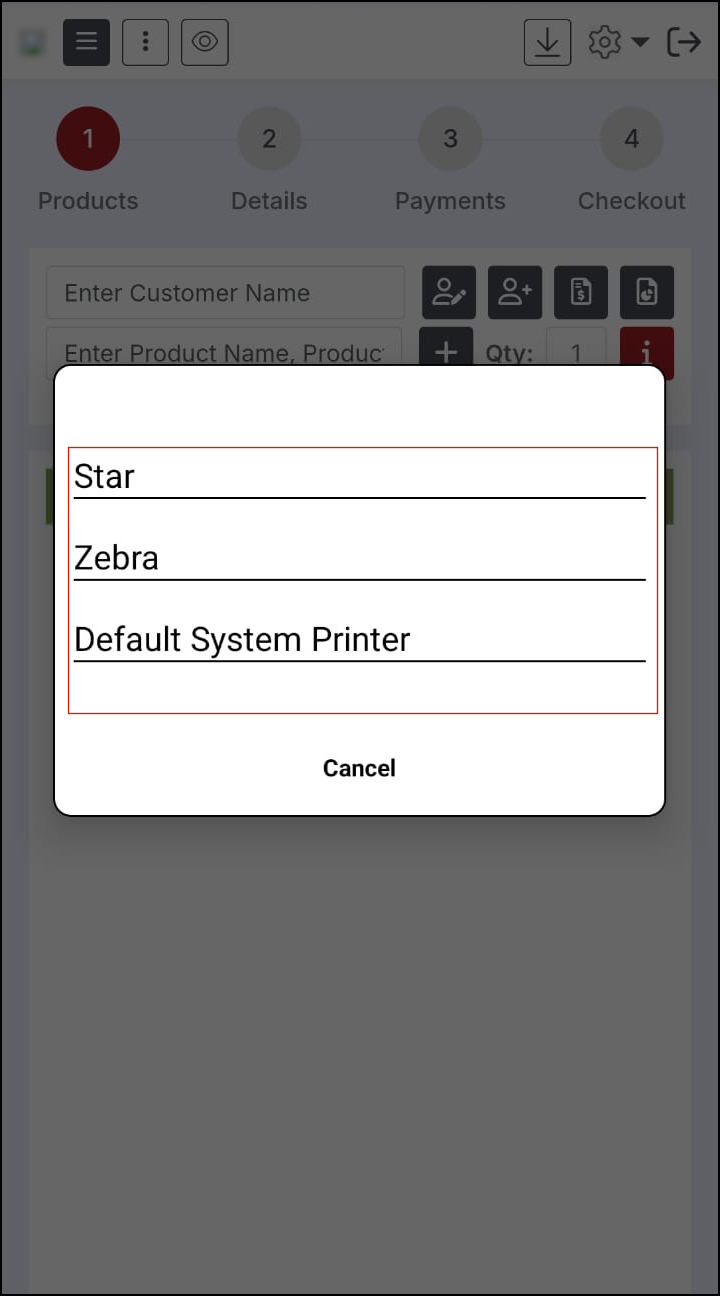
A list of printing options will appear.
- Select "Star" to search and connect to a Star Printer on the network
- Select Zebra to search and connect to a Zebra Printer on the network.
- Select "Default System Printer" to use the one your device is connected to.
Once the information has been added, receipts can then be printed from the device.
Updated 5 months ago