

Ability to Add Notes in Cycle Count Workflow
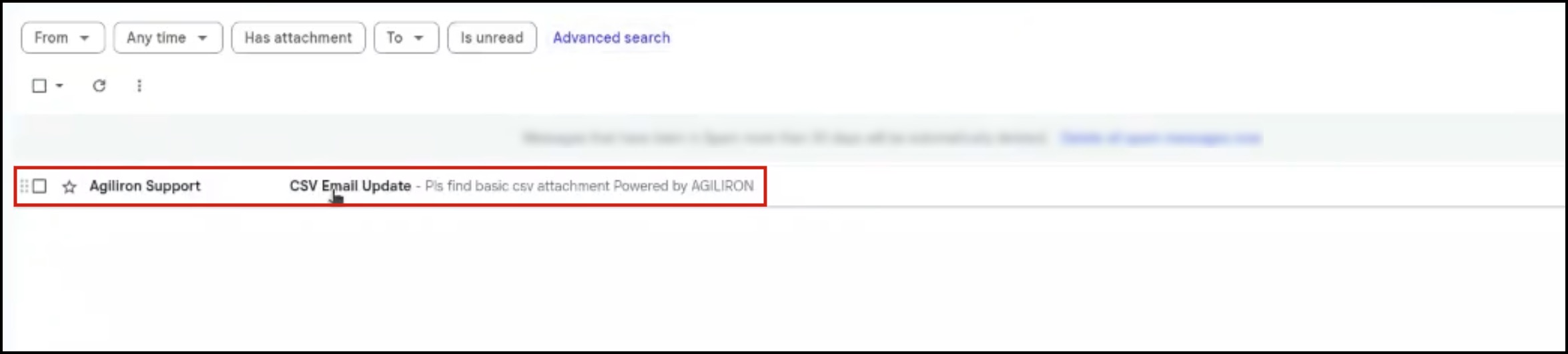
You can either add a general cycle count note or a note for each product line. These added notes will also be included in the CSV file that is emailed after the user clicks the “DONE” button.
Let's see how this feature works:
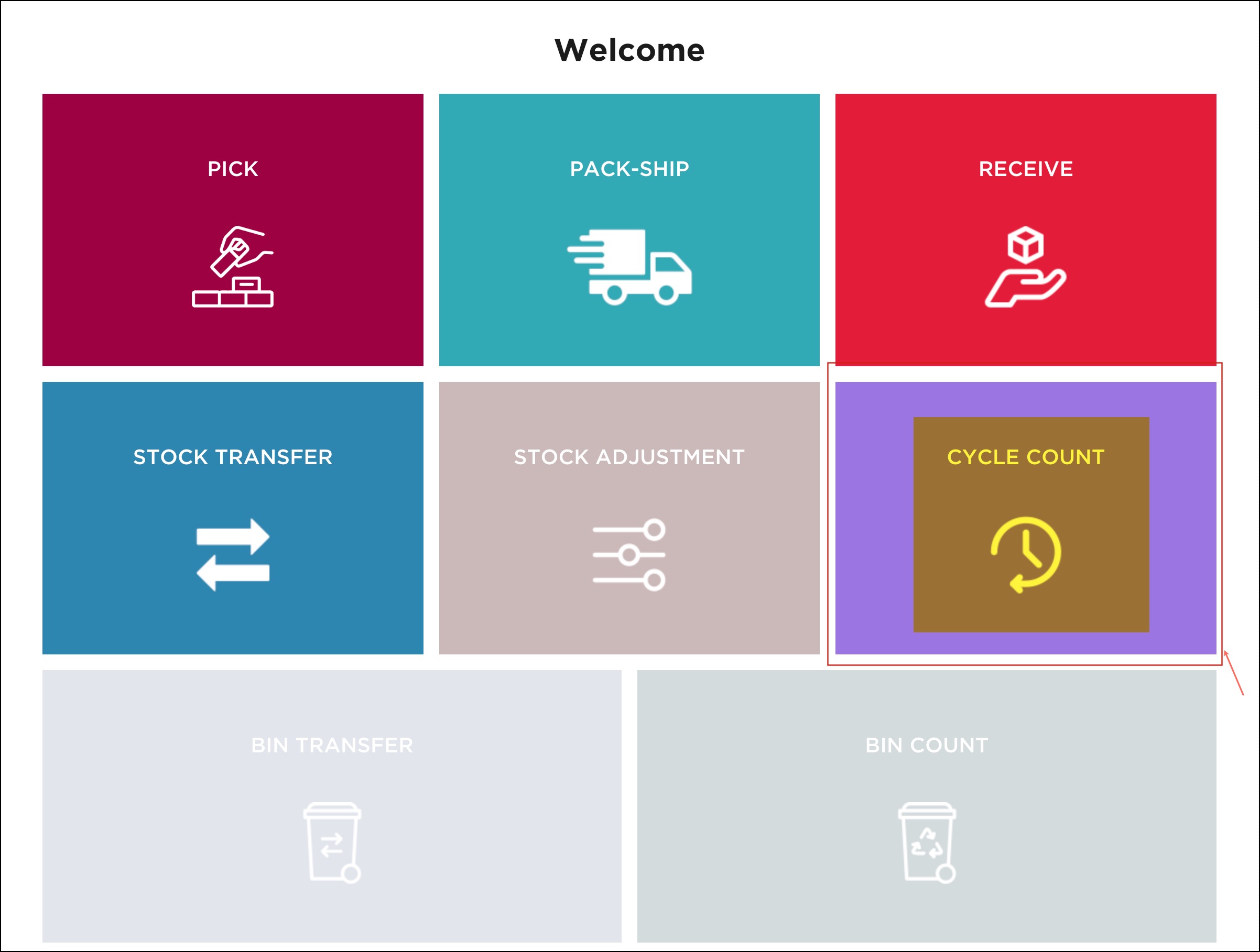
- To add a note, go to the Cycle Count workflow.
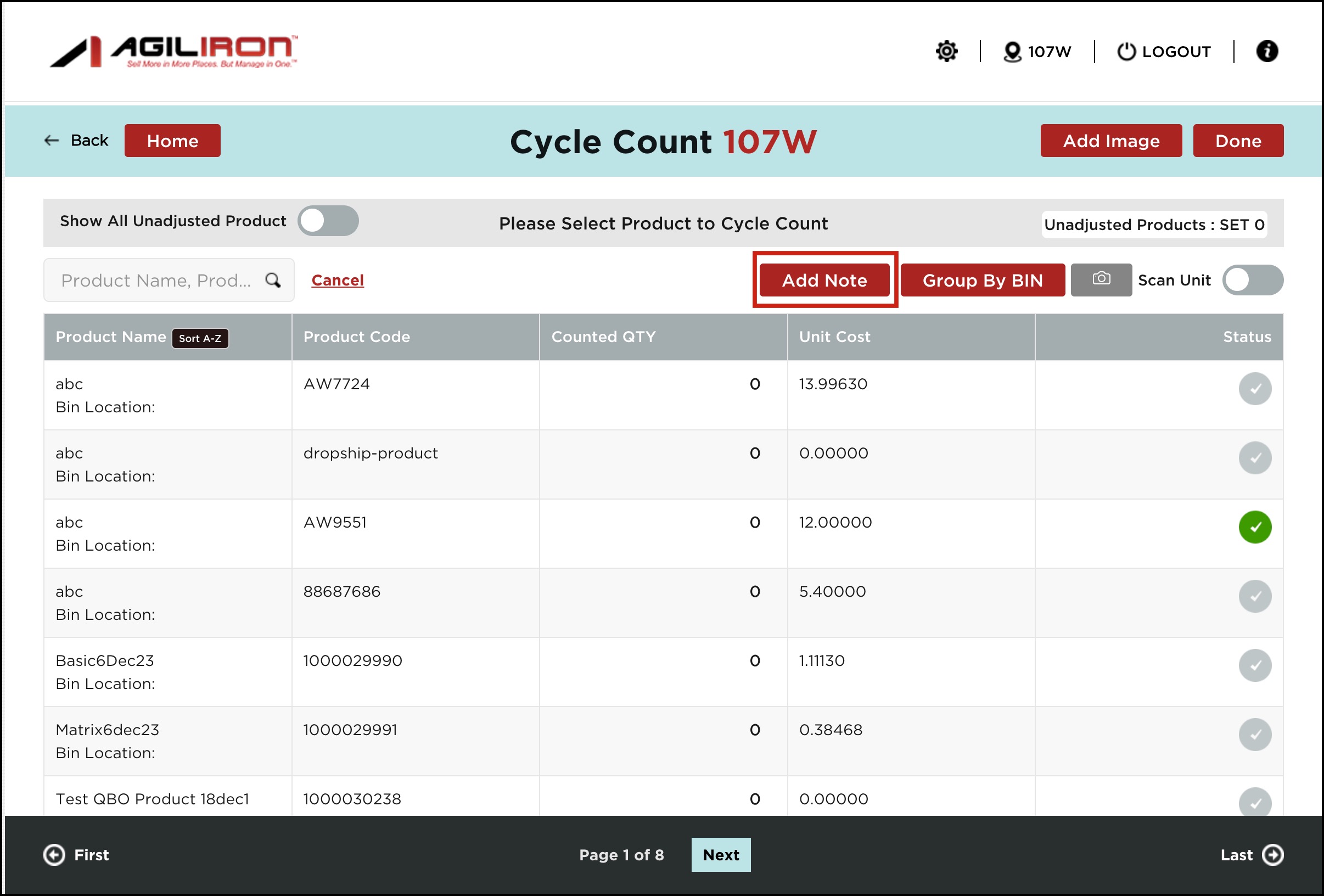
- Click on the Add Note button.
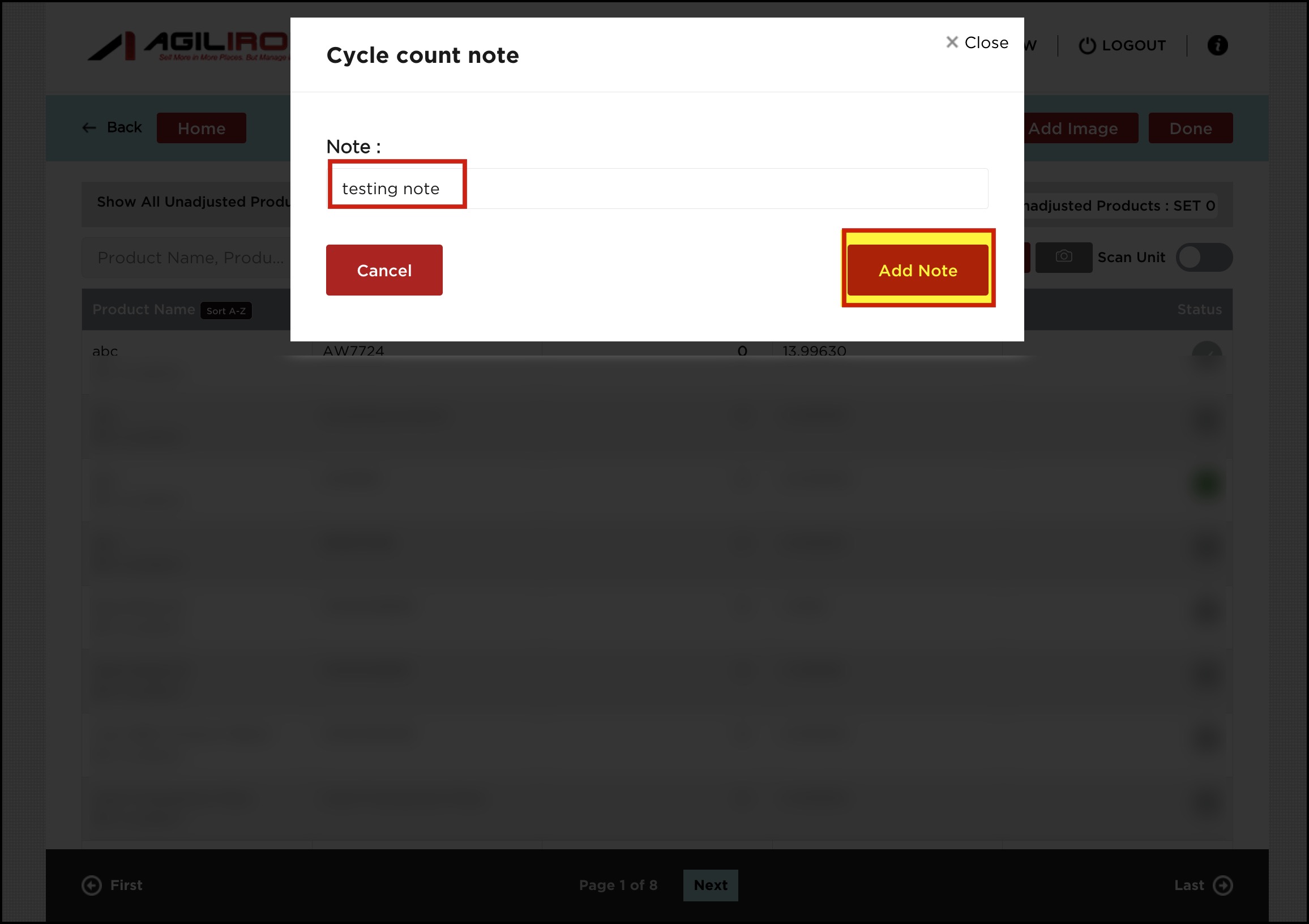
- A pop-up screen will appear where you can enter the note and click on the Add Note button.
- Next, follow the usual Cycle Count workflow process
- Once you have finished the cycle count (for 1 or multiple products), click on Done.
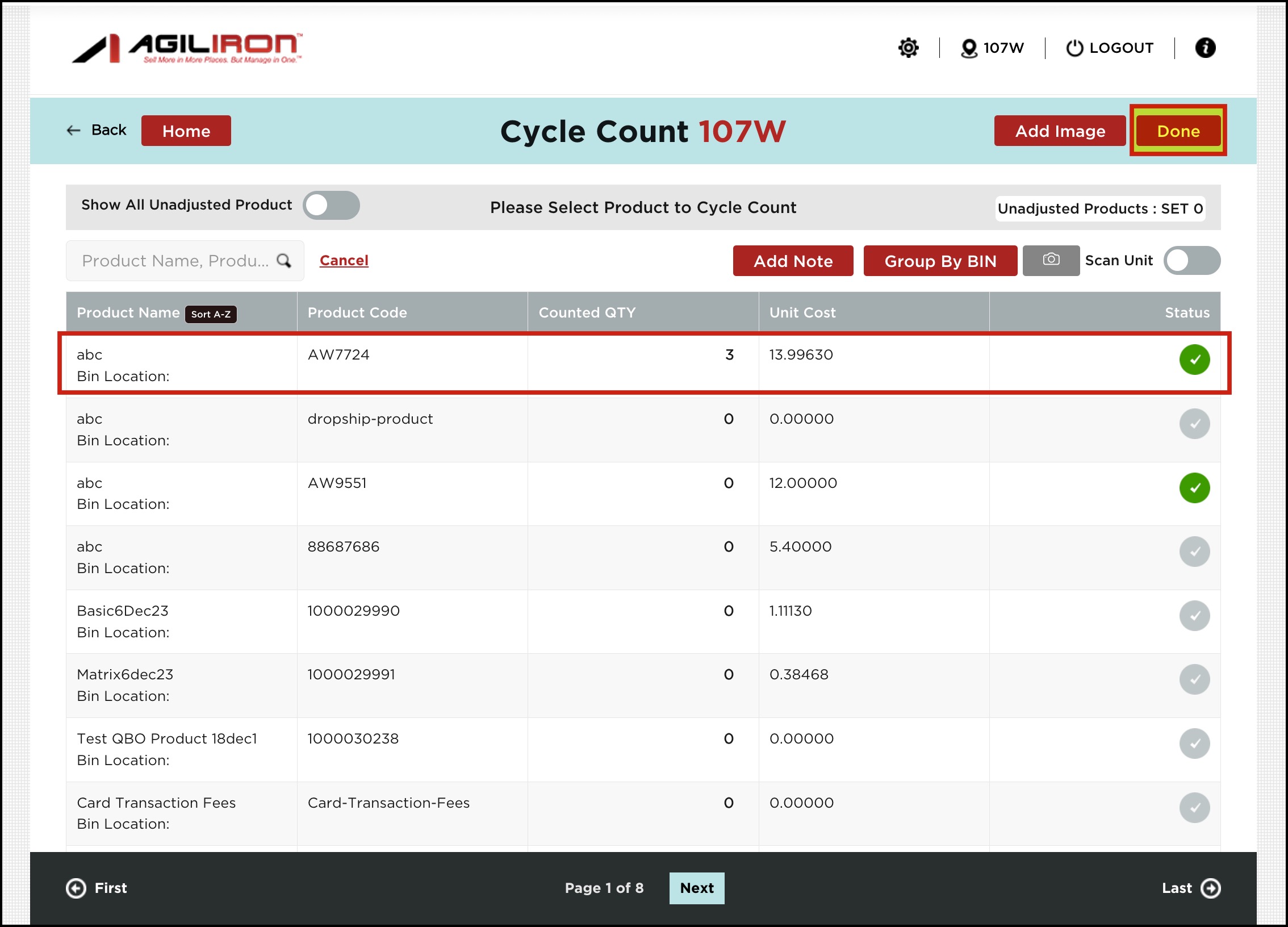
- You will see a message asking if you want to send an inventory update CSV email. Those notes will be emailed along with the list of products after clicking on OK.

The email will be sent to the email recipients added.

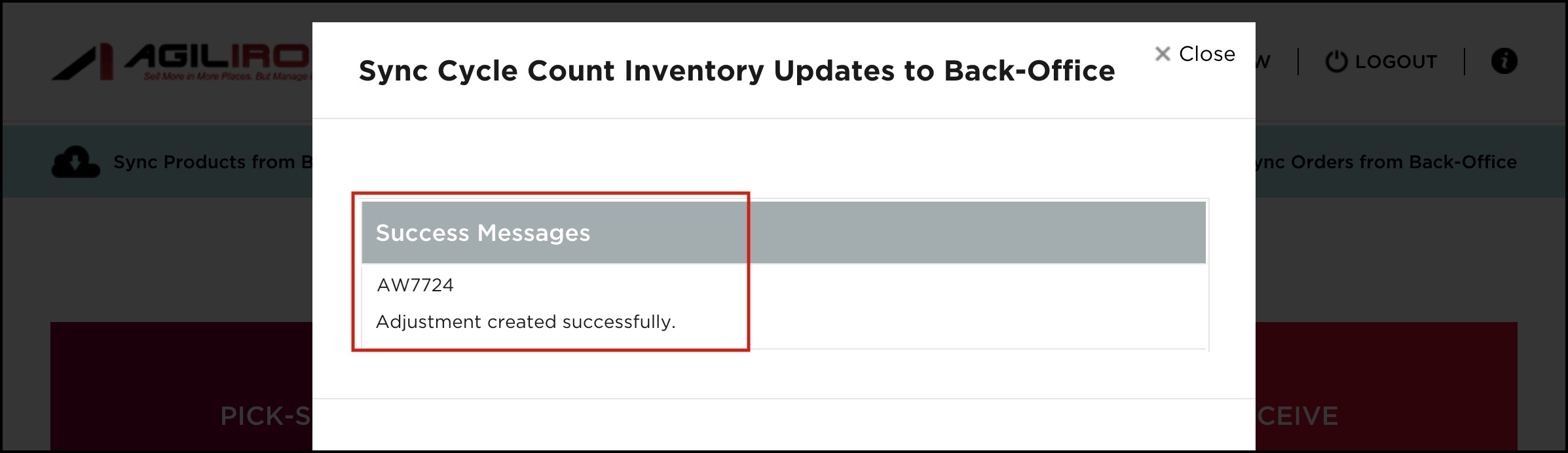
- Click on the Sync Inventory Updates to Back-Office button present on the home page.

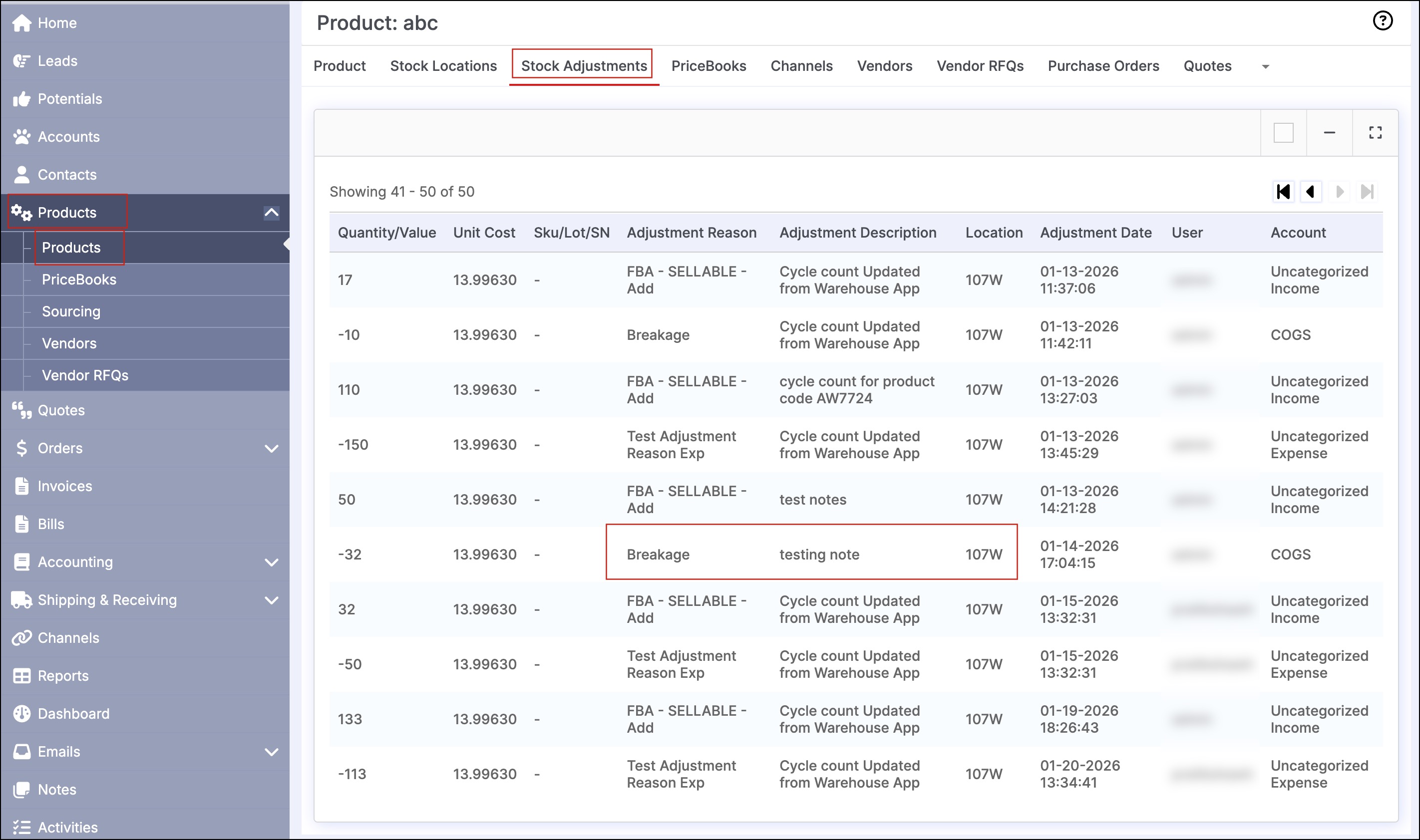
- Now, log in to the backoffice and go to the product for which you performed the cycle count.
- Switch to the Stock Adjustments tab.
- You will see the note added along with the adjustment reason.
Updated 8 months ago