

Pick-Ship Workflow
The Pick workflow is automatically changed to Pick-Ship Workflow when the Pack-Ship Workflow is disabled.
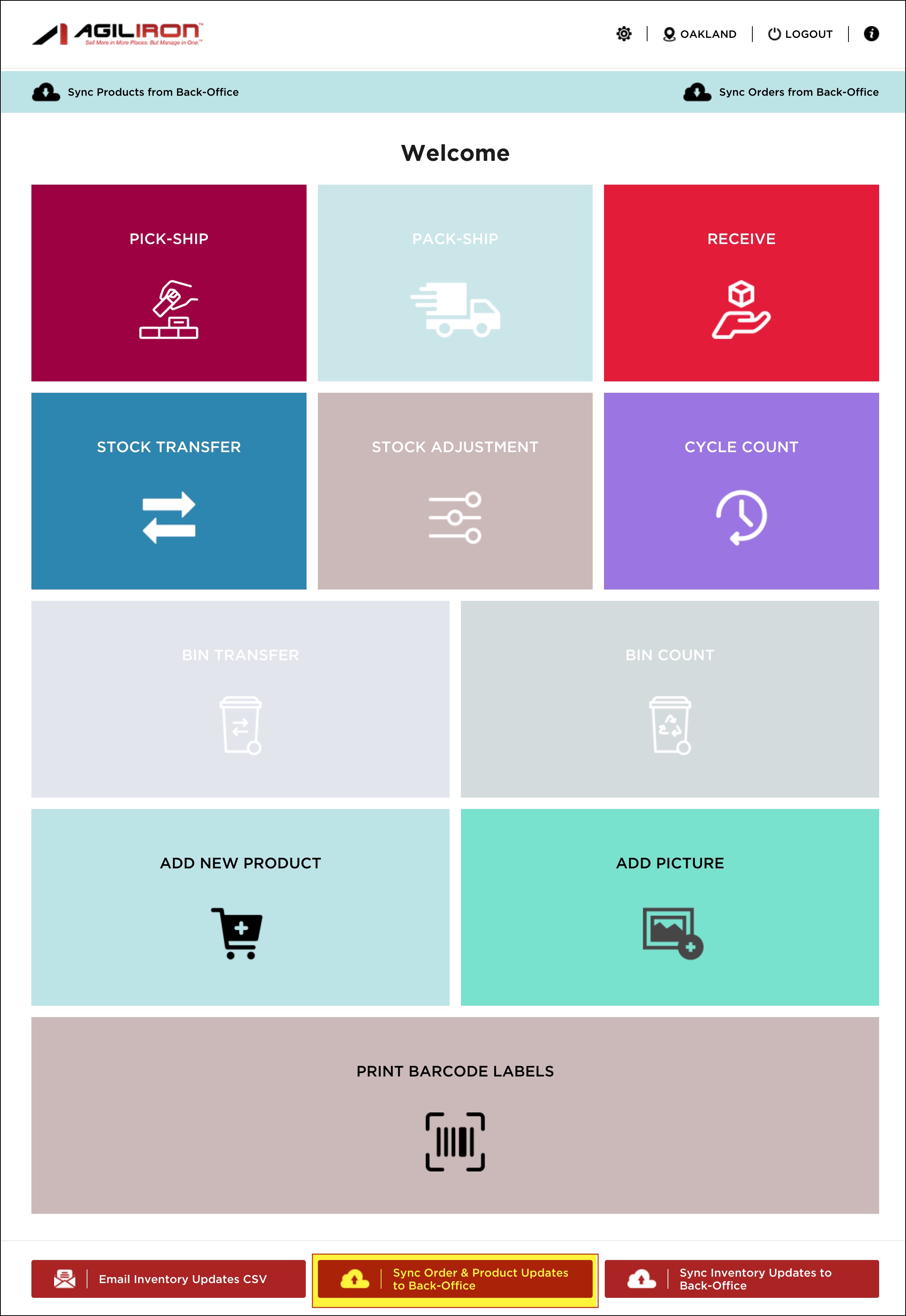
Now, in the screenshot below, you can see that the Pick button remains unchanged as the Pack-Ship workflow is enabled.
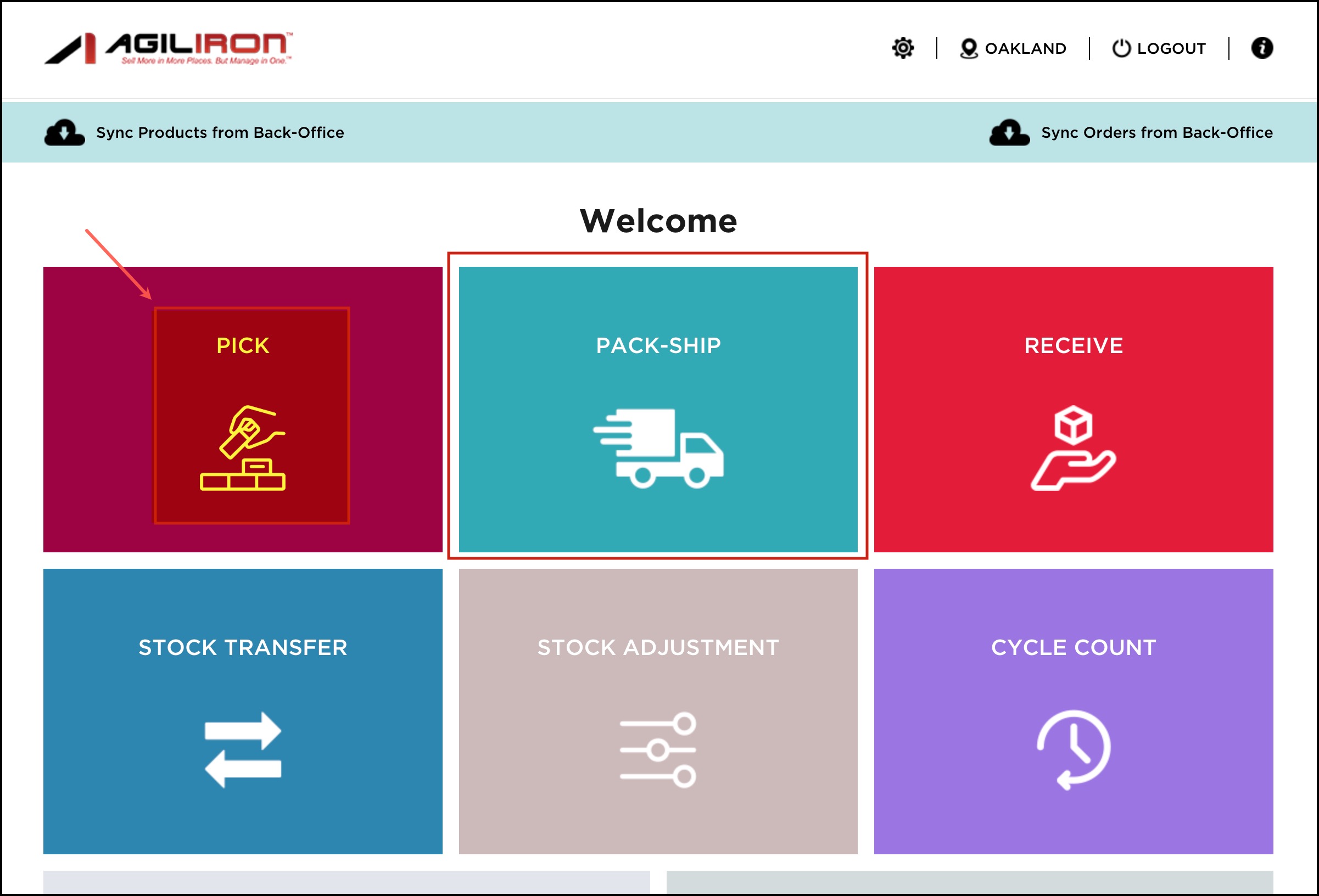
However, when you go to Settings -> Enable or Disable Workflows and disable Pack Workflow
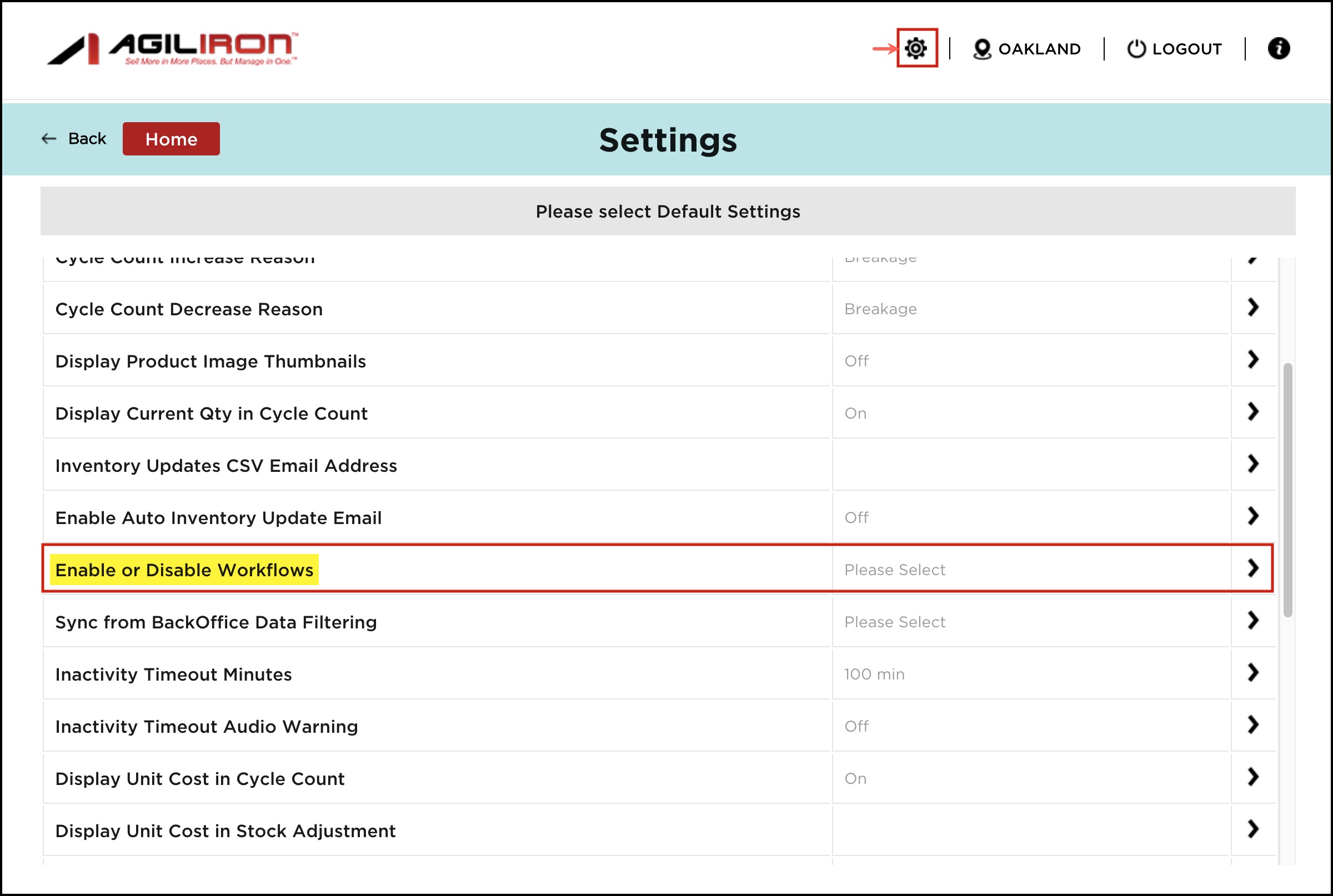
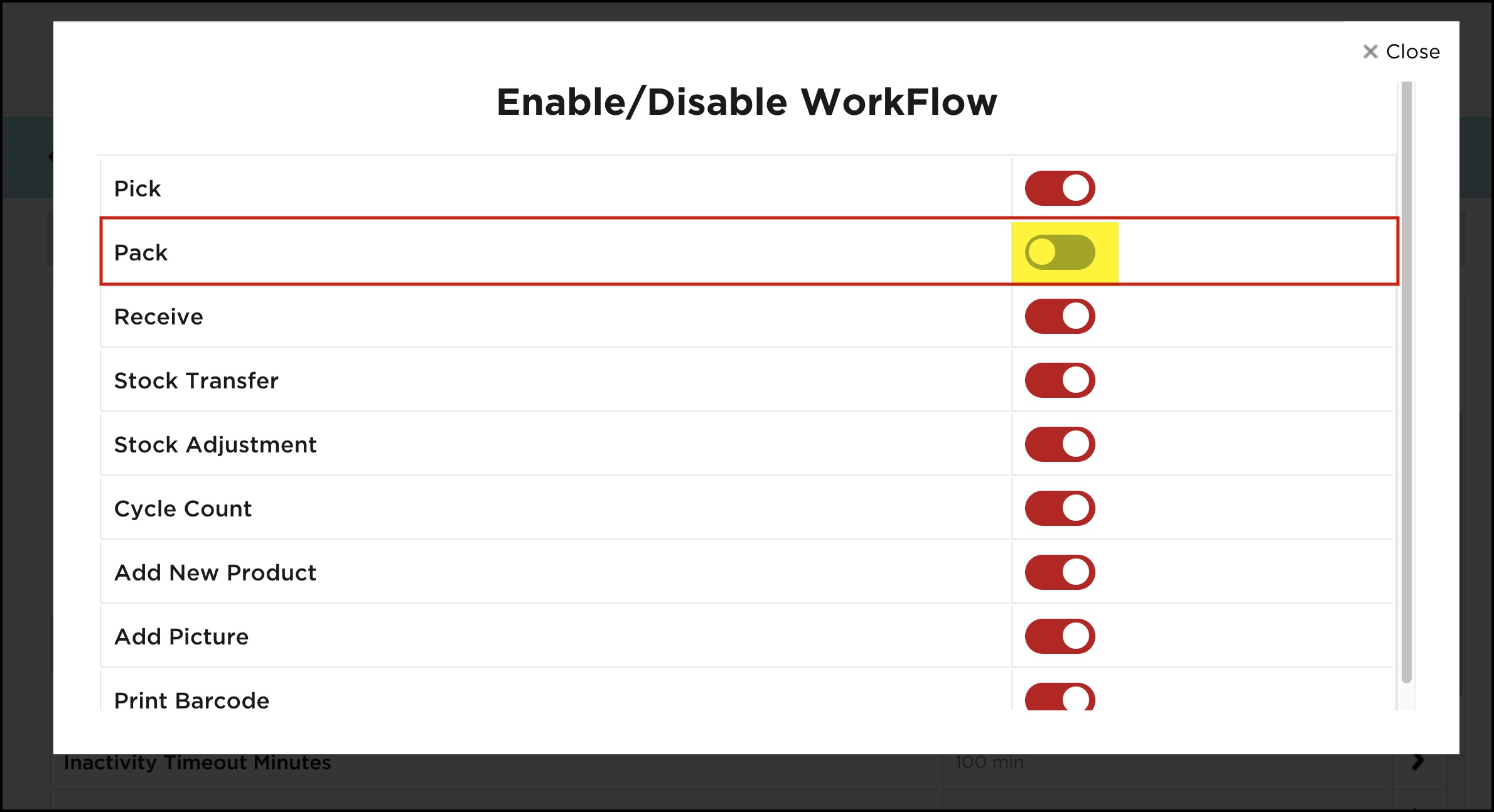
Pick button automatically changes to Pick-Ship.
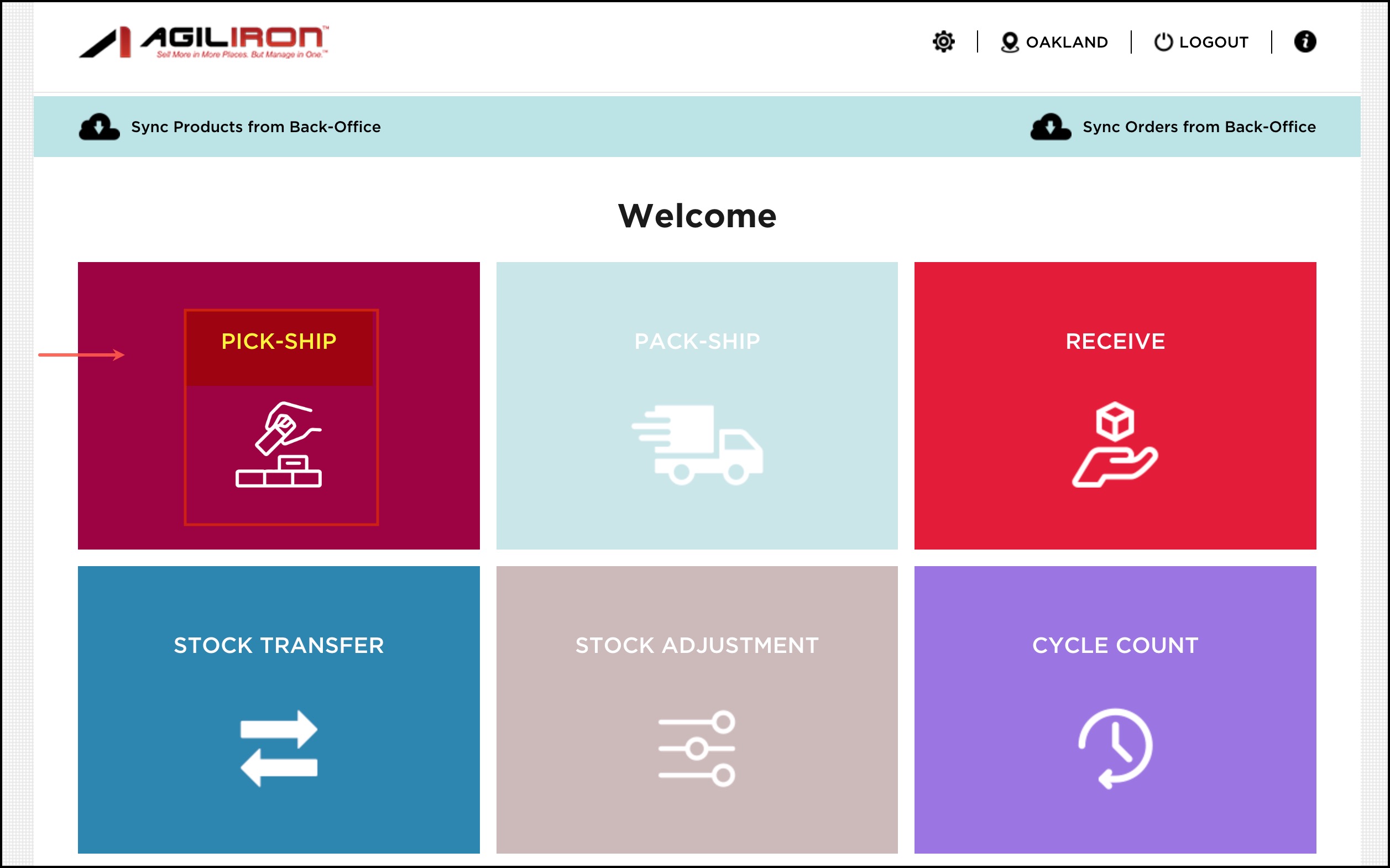
Clicking this button will start the pick-ship process. Follow the pick process as shown in the Pick Workflow guide.
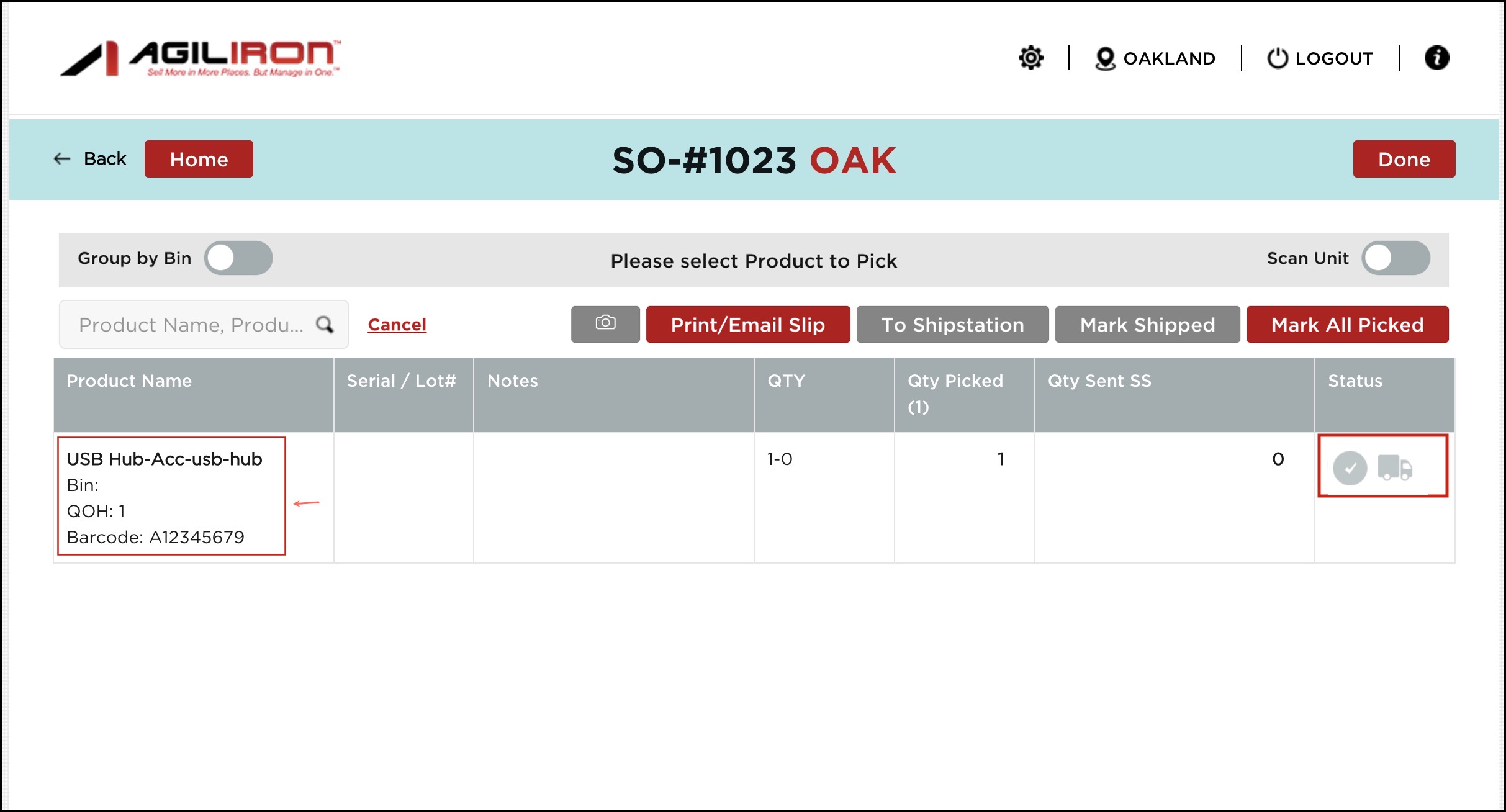
Additionally, during the pick-ship process, you will notice two buttons: To ShipStation and Mark Shipped.
-
To send the order to ShipStation, select the "To ShipStation" button. This option sends the order to ShipStation to create/print shipping labels.
-
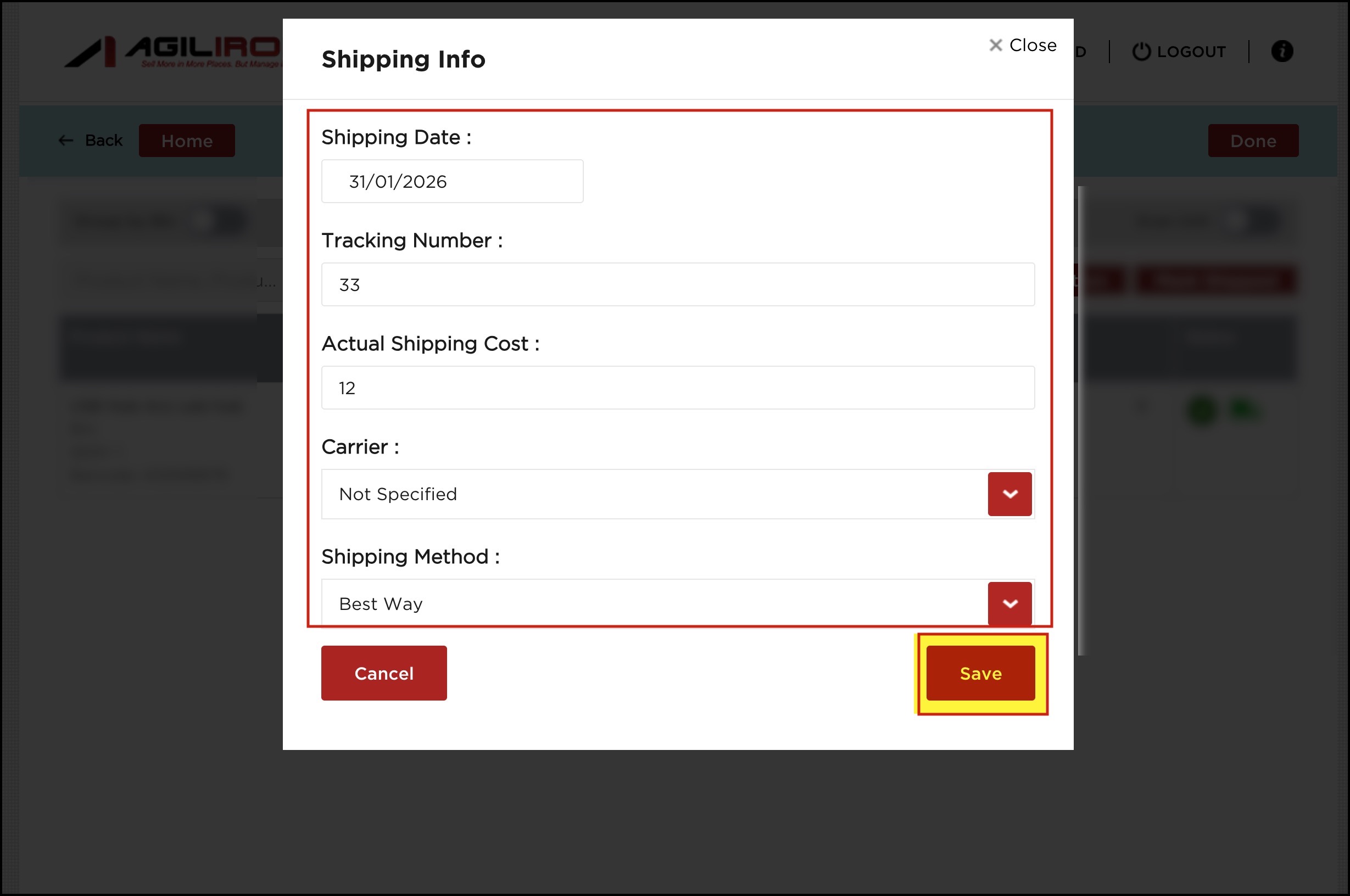
When line items are fully picked, you can click on the Mark Shipped button. A dialog will pop up where you need to fill in all the necessary information.
Mark Shipped allows you to mark an Order as shipped as applicable. This will then set the Order as Shipped in BackOffice on the next sync of the Warehouse App to the BackOffice.
-
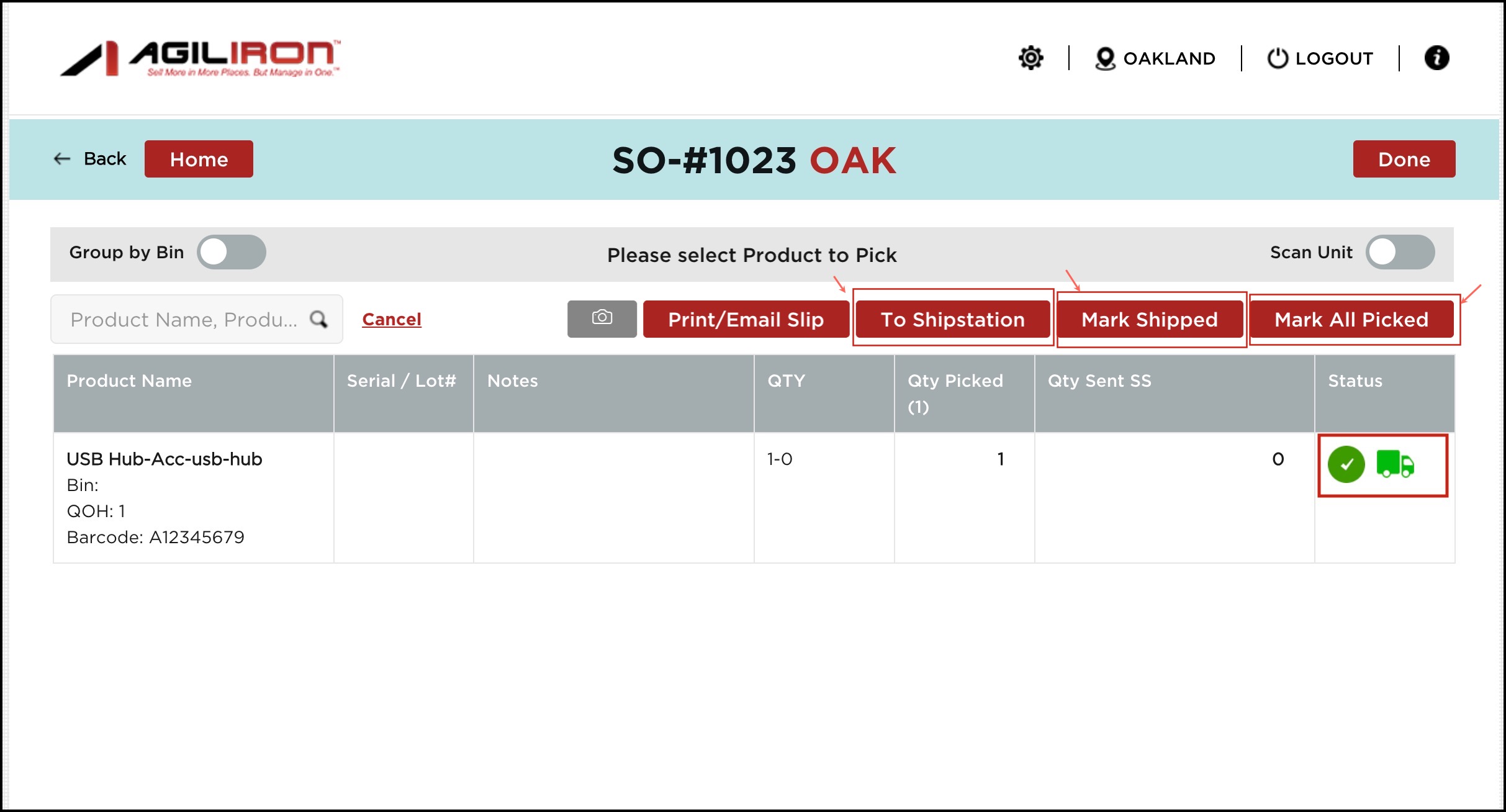
In case there are multiple products, and you wish to pick all of them, then click on the Mark All Picked button.
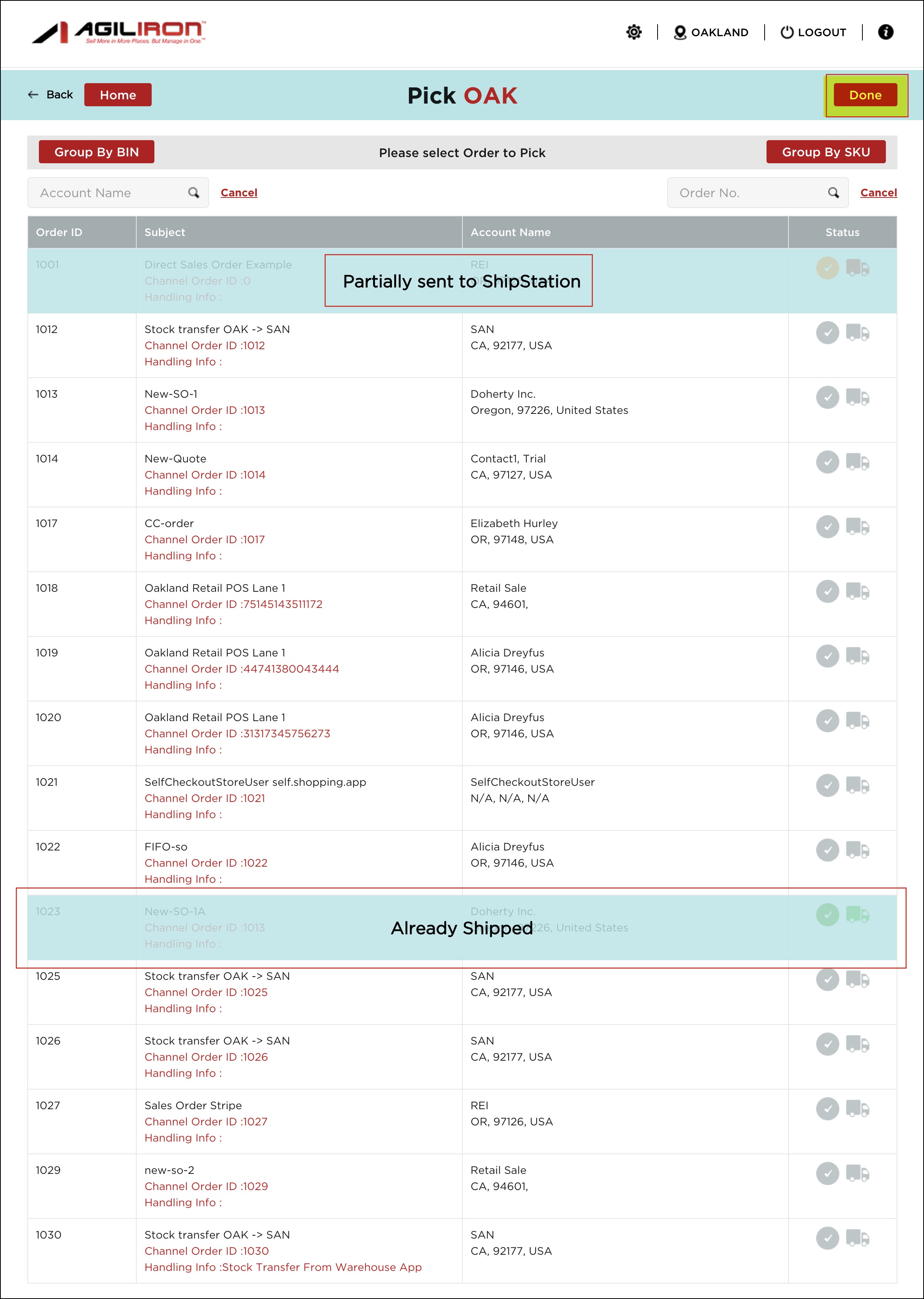
When you click on the Back button, you'll see a watermark - "Already Shipped" on the order that you had picked and shipped.
In case any order is partially sent to ShipStation, you can see a watermark - "Partially sent to ShipStation".
Note - This gives an idea to the users which orders are already shipped and which are only updated.
- Click "Done" to return to the home screen.
- Now, on the Home page, click on "Sync Order & Product Updates to Back-Office" to update all changes
Updated 8 months ago