

POS Customer - Products Sales History Support Added
In the Retail POS, a feature has been added that allows customers to view their Product Purchase History.
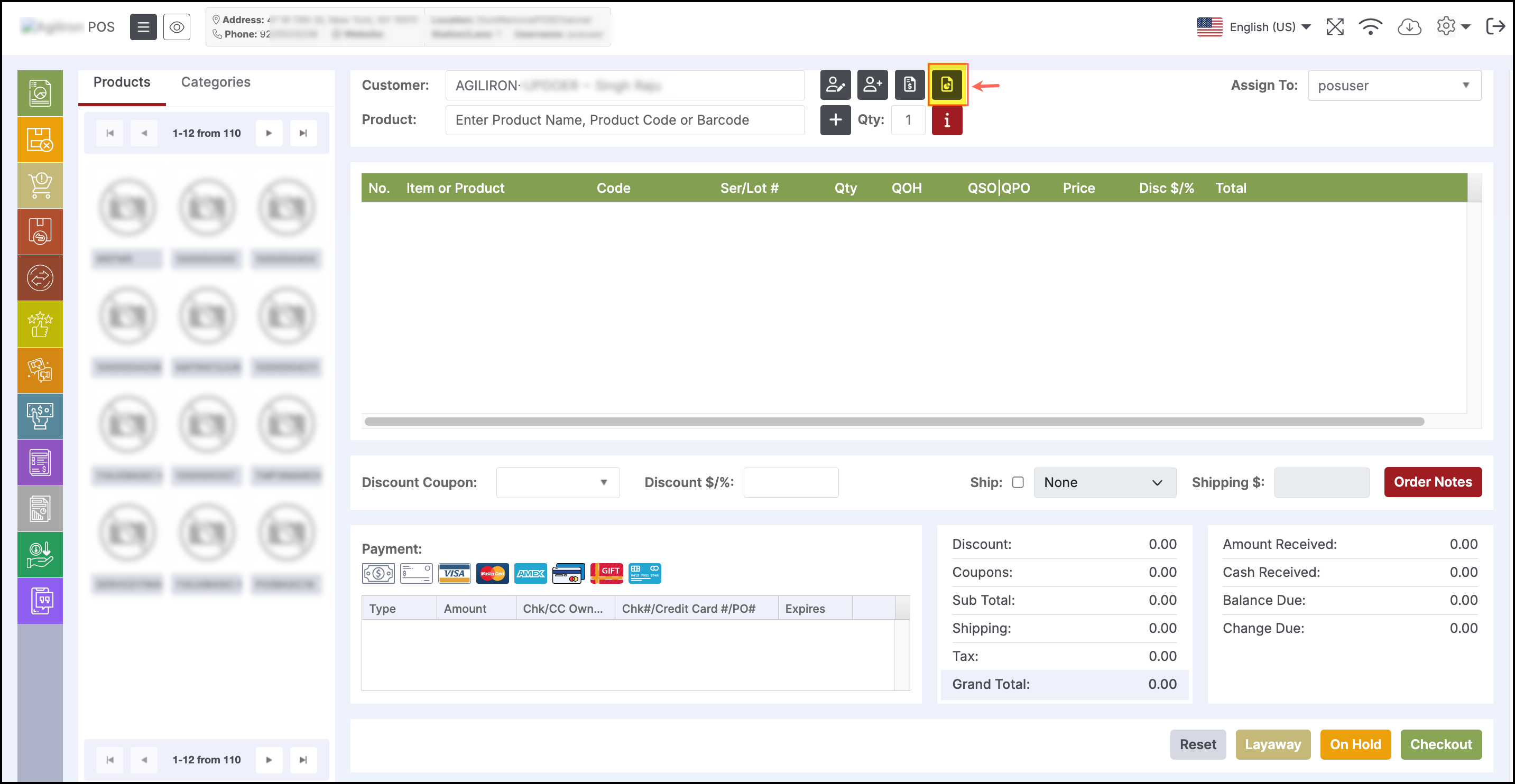
- To view the Customer Products Sales Report in the POS, login to your POS account. Enter the customer name in the Customer field.
- Click on the icon as shown in the screenshot below.
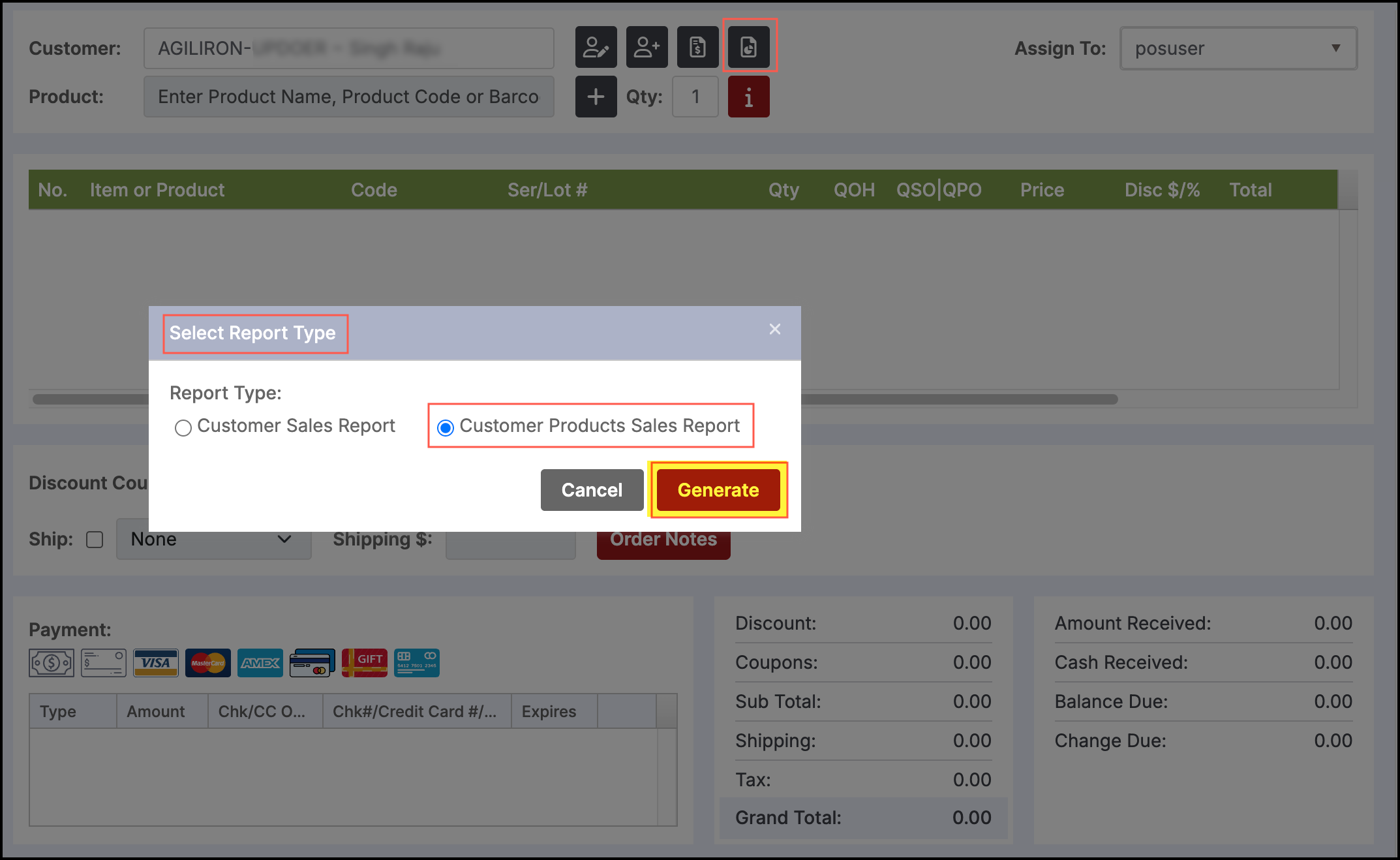
A window will appear, "Select Report Type", displaying report type options.
- Select Customer Products Sales Report and click the Generate button.
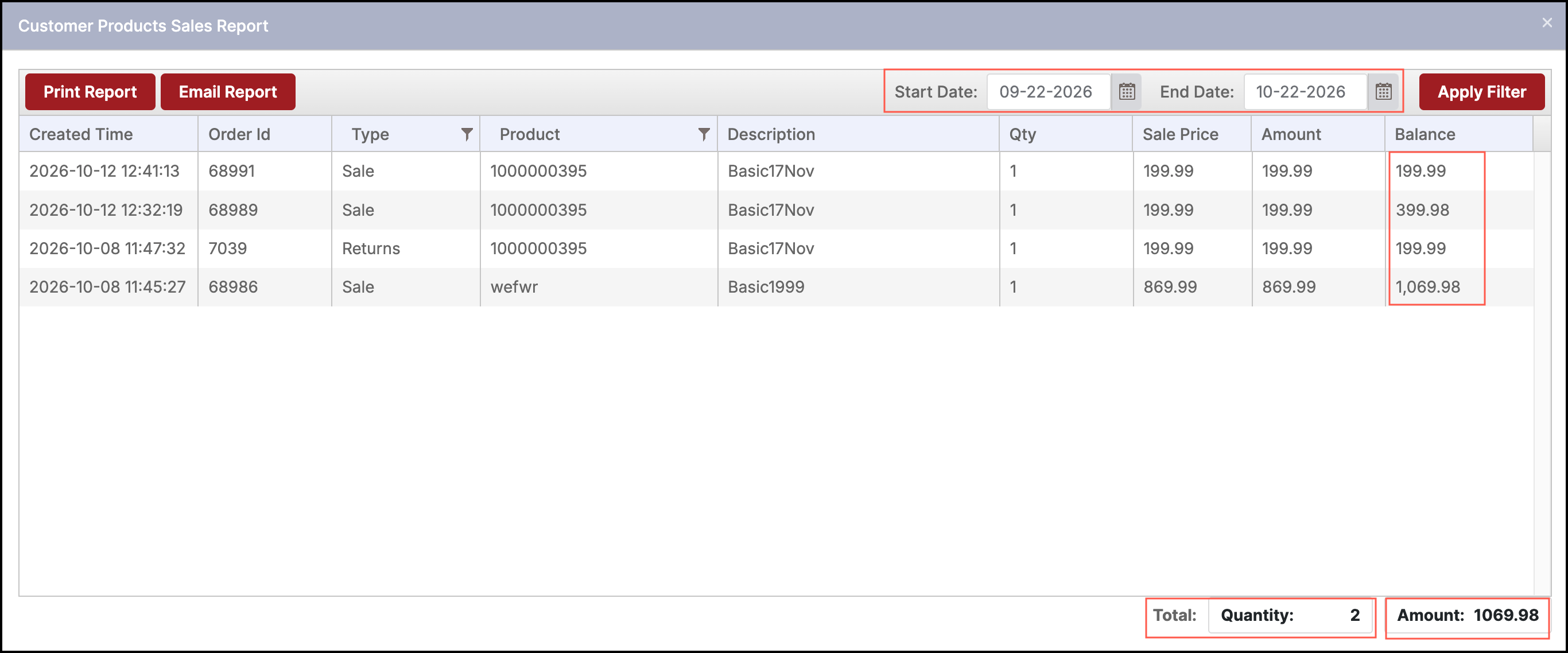
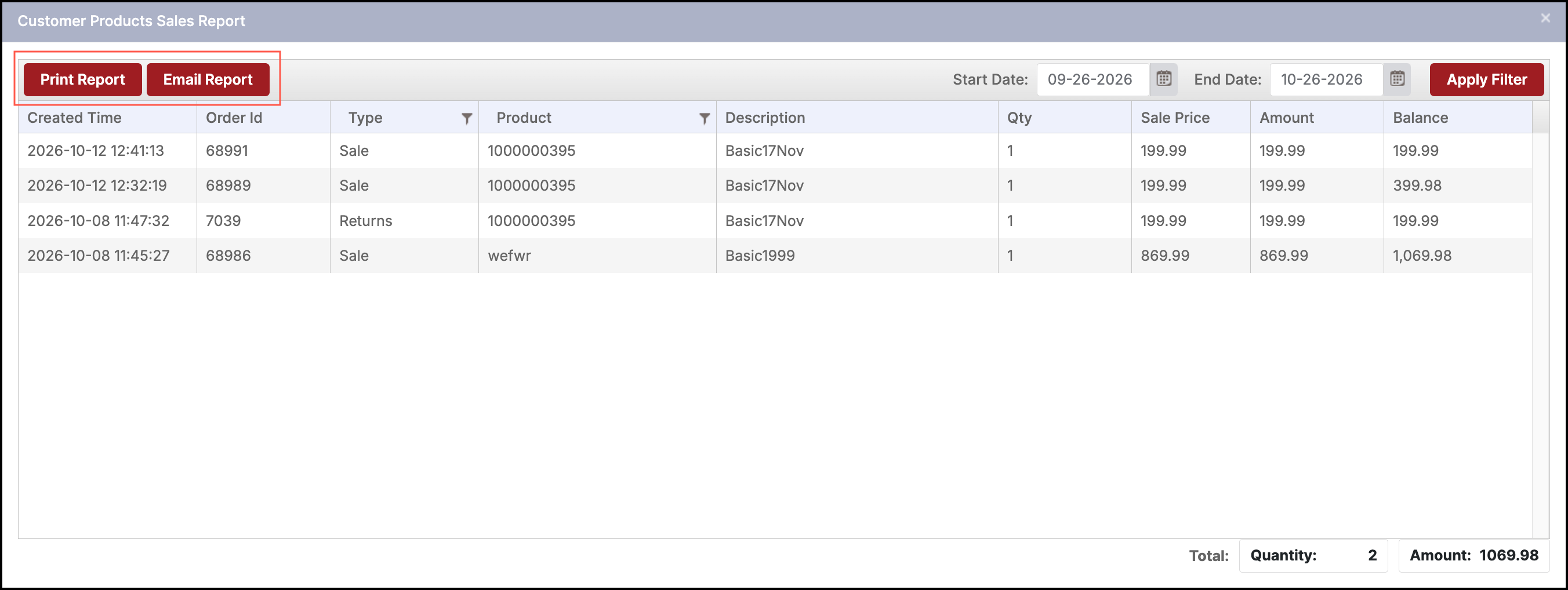
- By default, the past 1 month's Customer Products Sales Report will be generated (you can change the start and end date as per your requirement and click on Apply Filter).
- Under the Type column, you can see both Sales and Returns. According to the Product ID, here the Total Quantity is 2.
- The total Amount you see is calculated by adding all Sales items and subtracting Returns items (the calculation is visible in the Balance column)
-
There are also options to apply Filter and Sort the columns (ascending or descending order)
As an example, here we've done Sort for the Type column (ascending) and shown Product column Filter.
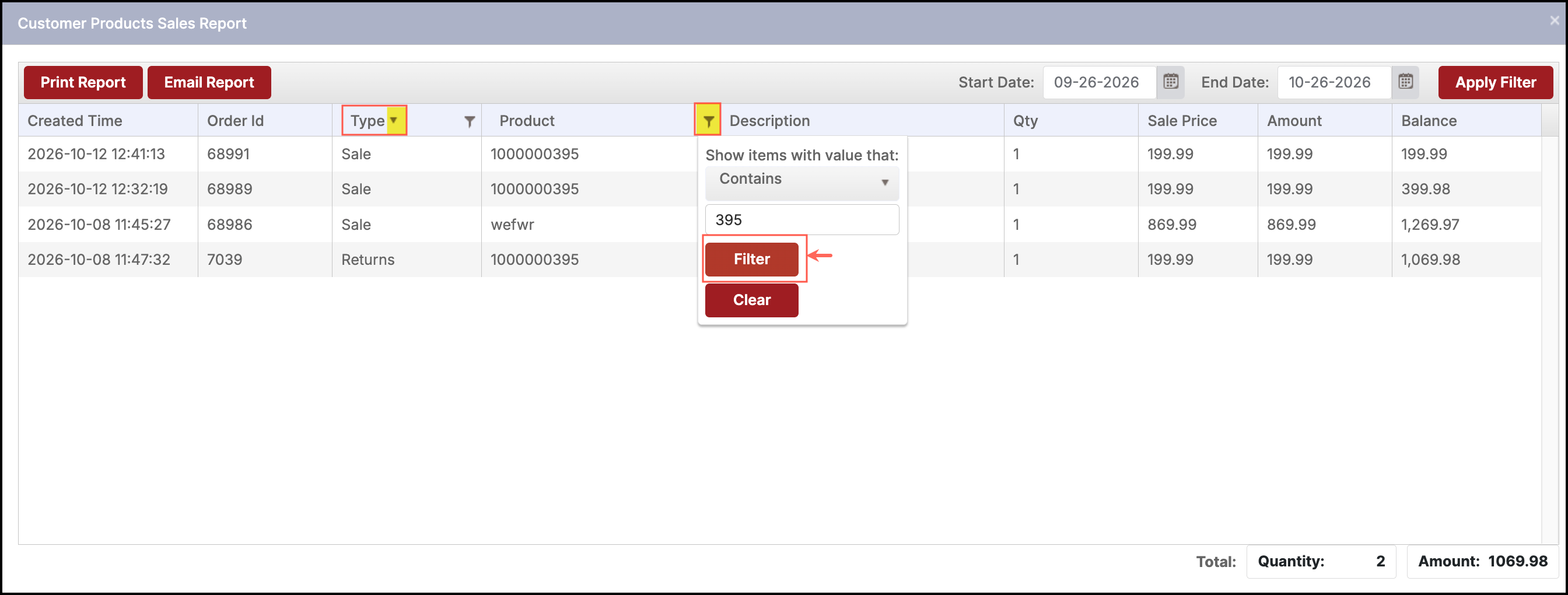
You can either Print Report or Email Report.
Updated about 14 hours ago