

-- Stripe Reader M2 Setup
Agiliron in collaboration with Stripe as the payment processor supports Stripe Reader M2
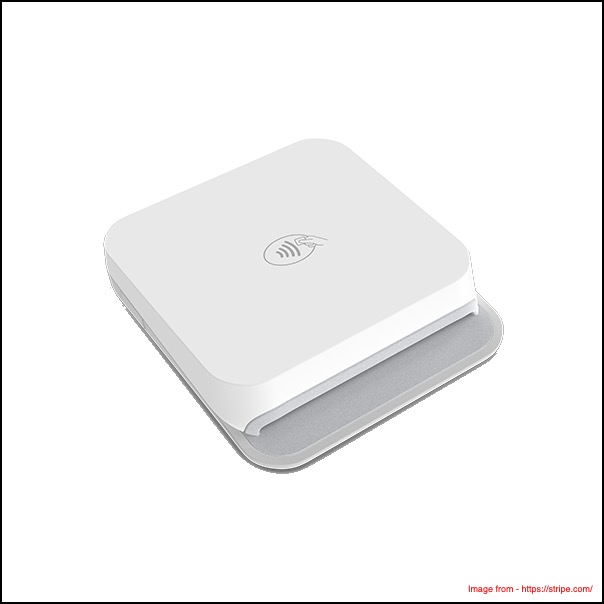
Stripe Reader M2 is a compact mobile reader used for accepting payments.
With this method, payment processing happens directly from the terminal to the payment processor (Stripe), and checkout communication takes place between Agiliron and Stripe's payment terminal.
Payment Types:
- EMV chip cards
- Contactless cards
- Magstripe cards
Connectivity Requirements:
- Bluetooth
Compatible with:
- iOS
- Android
Set up Stripe Reader M2
- Learn how to set up Stripe Reader M2 - https://docs.stripe.com/terminal/payments/setup-reader/stripe-m2
Note: If you do not have a Stripe account and want to set up a New Stripe payment Account, go to https://dashboard.stripe.com/login. Refer to Stripe Payment Processor for further details
POS Channel Setup
To enable Stripe Payment Processor in the POS Channel:
- Navigate to Settings -> Channels in the back office.
- Click the "Edit" button next to the channel.
- Verify that Stripe Payments is selected as a payment processor on the "Payment" tab.
Note -
- Refer to the Stripe guide to know how to enable the connection between Stripe and your Retail POS channel.
- Also, make sure that when the Stripe Payment Method is enabled, other credit card payment methods are disabled.
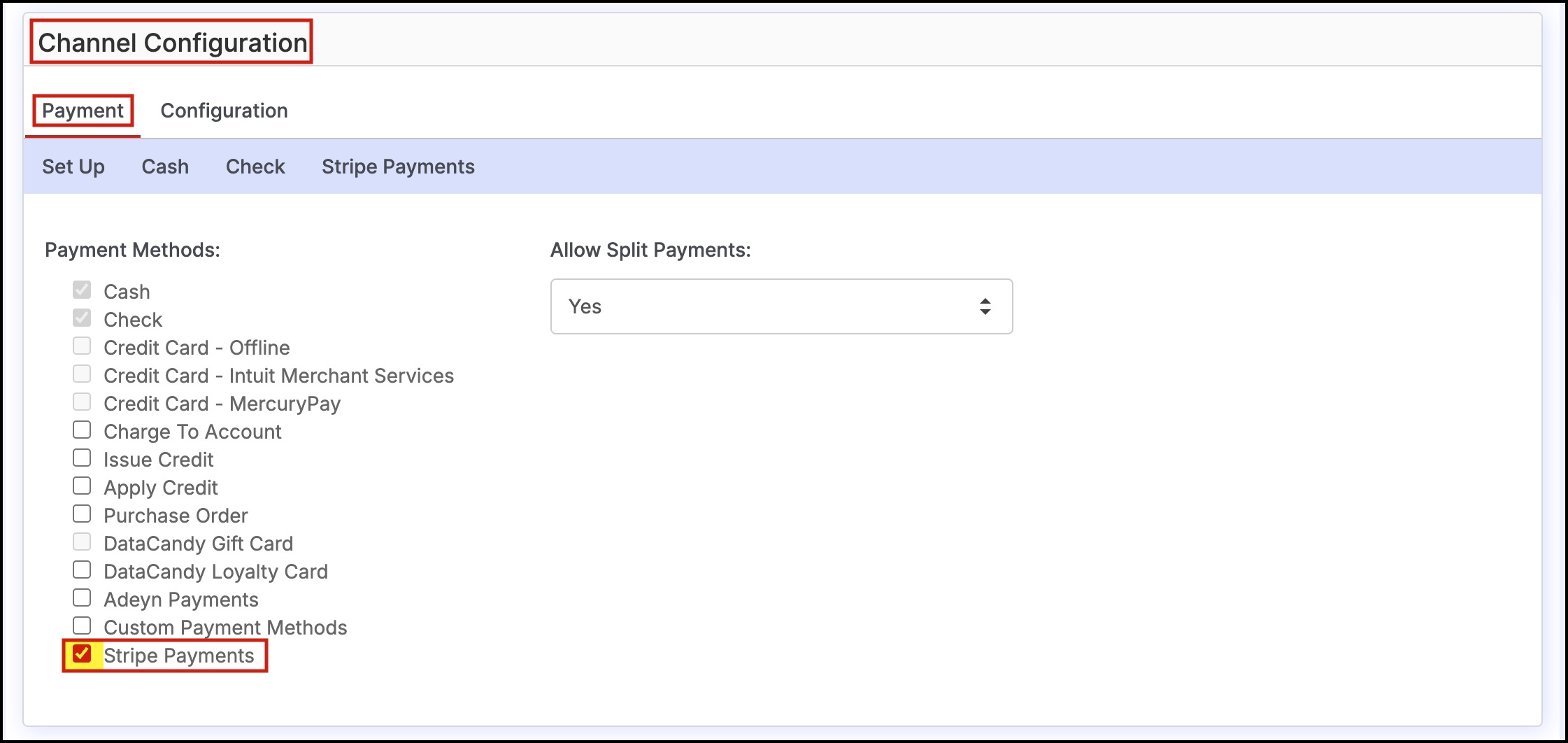
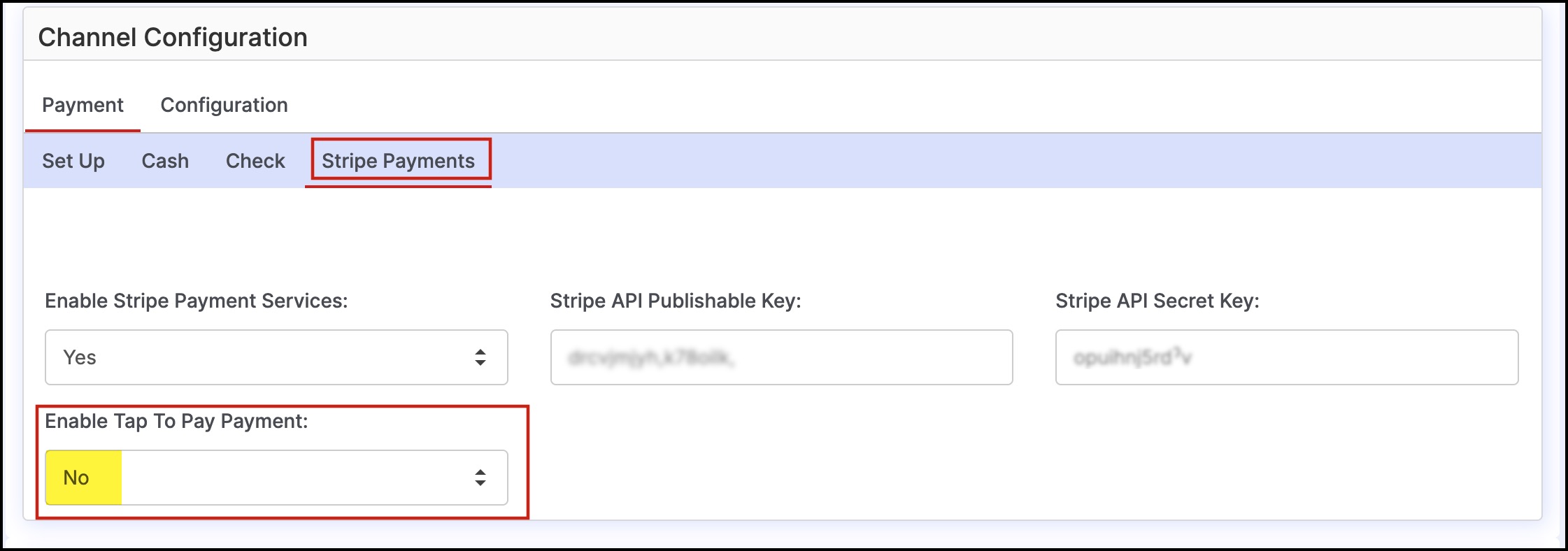
Since you want the payment to be made through Stripe Reader M2, ensure the Enable Tap to Pay Payment option is set to No in the Stripe Payments tab.
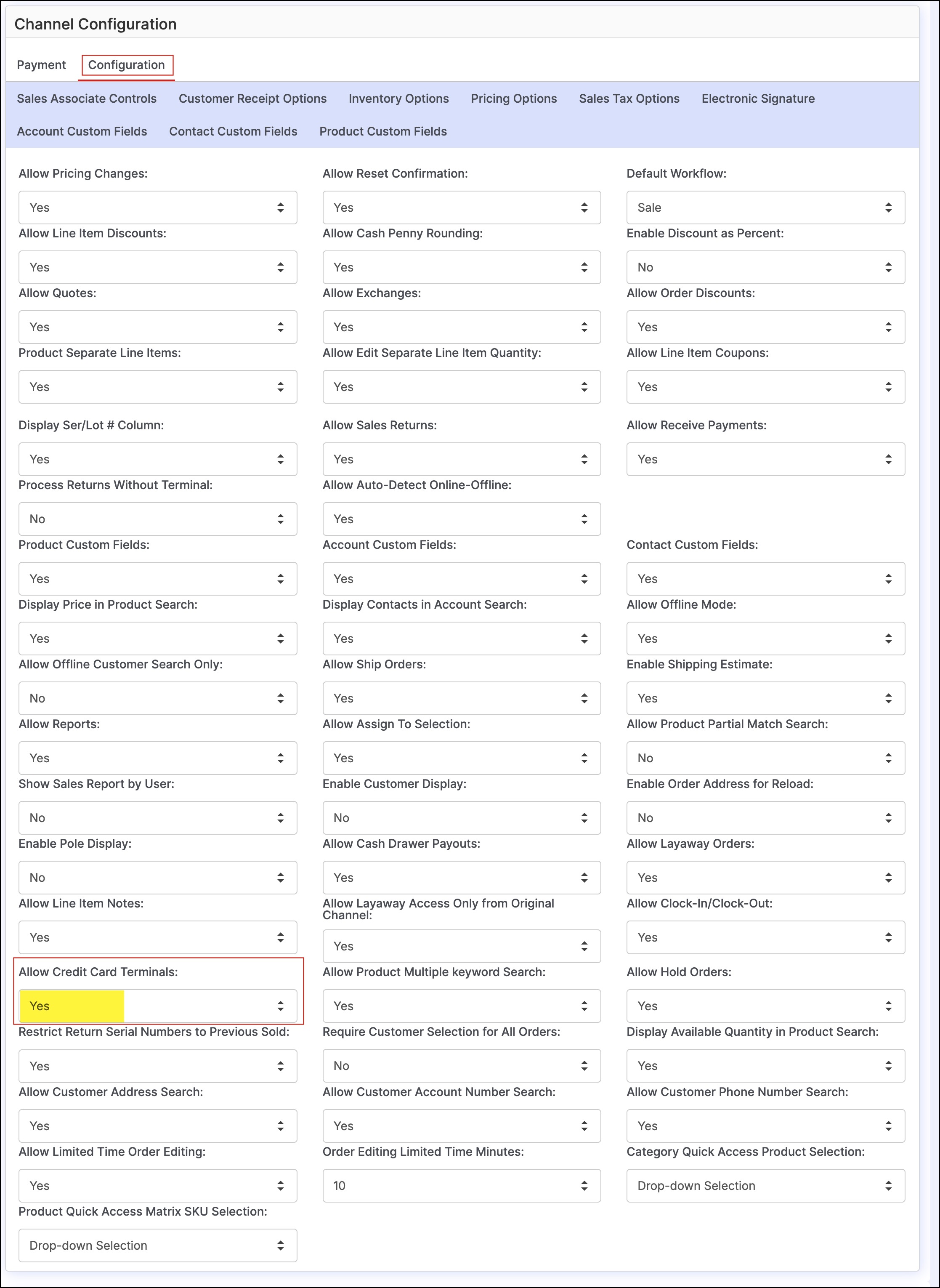
- Next, click on the "Configuration" tab.
- Scroll down to "Allow Credit Card Terminals" and set to "Yes".
- Click "Save" to finish.

Device Pairing and Setup
- Log in to the POS Channel to pair the device.
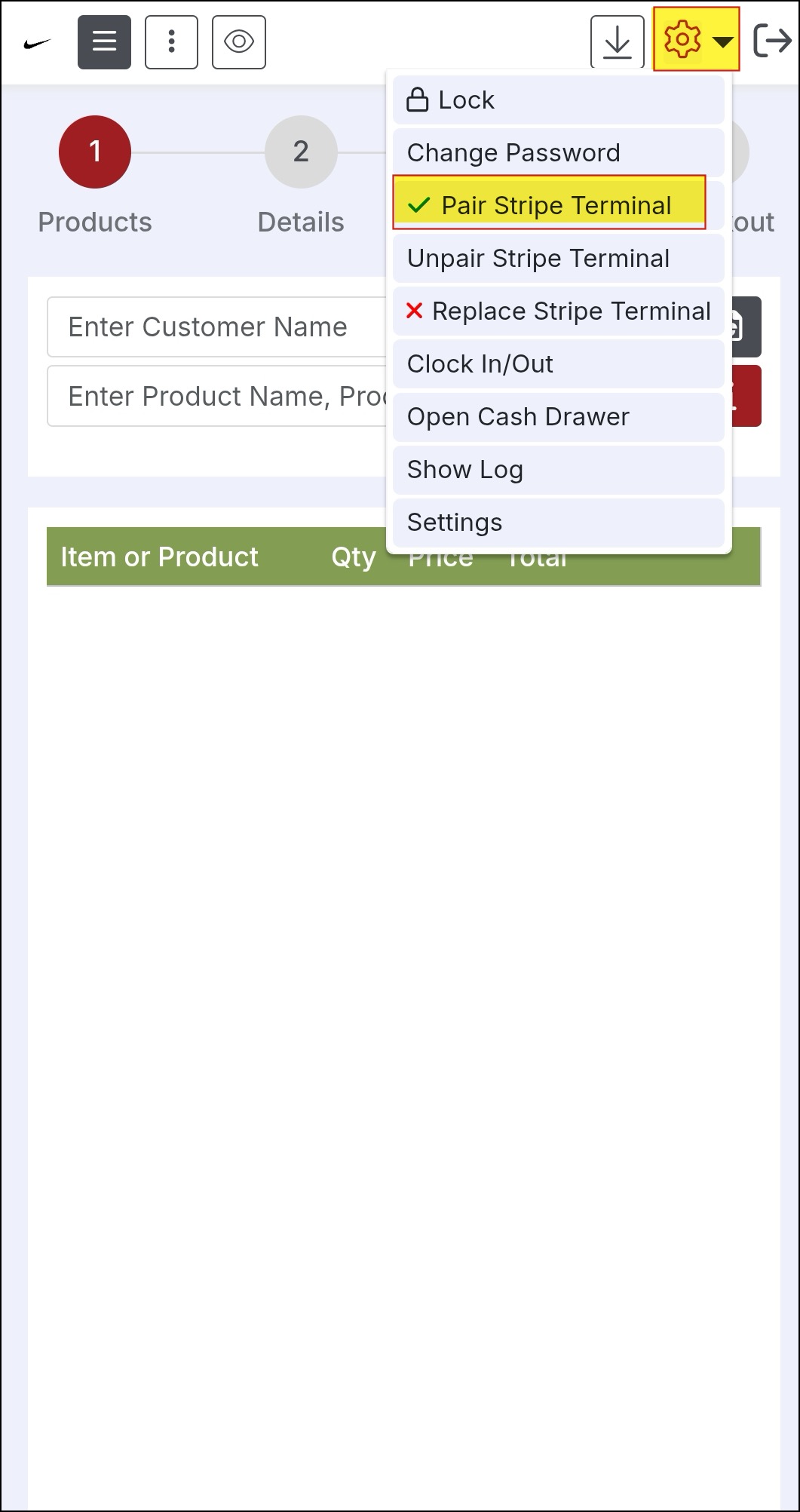
- Click on the gear icon on the top right side of the screen.
- Select "Pair Stripe Terminal".
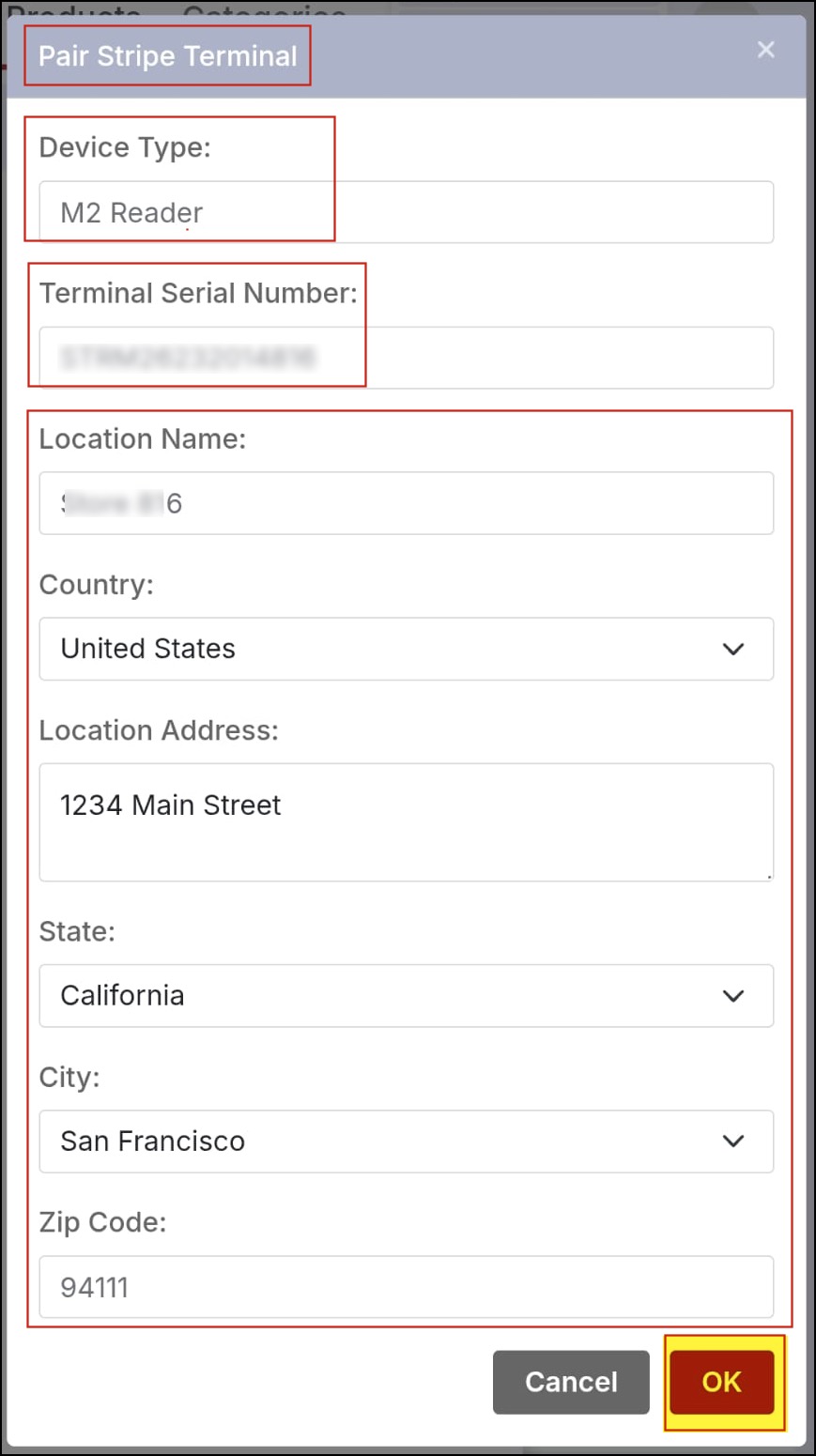
- A pop-up box will appear where you can see the Device type set to M2 Reader
- Enter the Terminal Serial Number generated during the pairing process.
- Verify your contact information (please make sure to enter the contact information that is the same as in your Stripe account).
- Click "OK".
Note
- Location Name can be user-specific (it does not necessarily have to be any actual location name; it can be anything in general, like a username).
- Make sure the Reader M2 device is turned ON and is within Bluetooth range. The reader waits for a Bluetooth connection for five minutes before turning off.
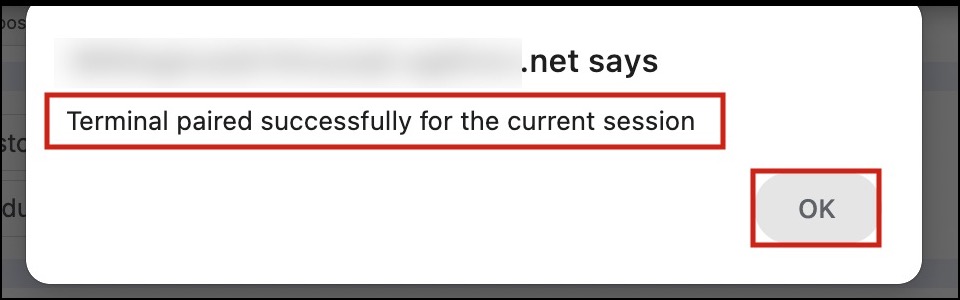
Pairing Successful message on POS
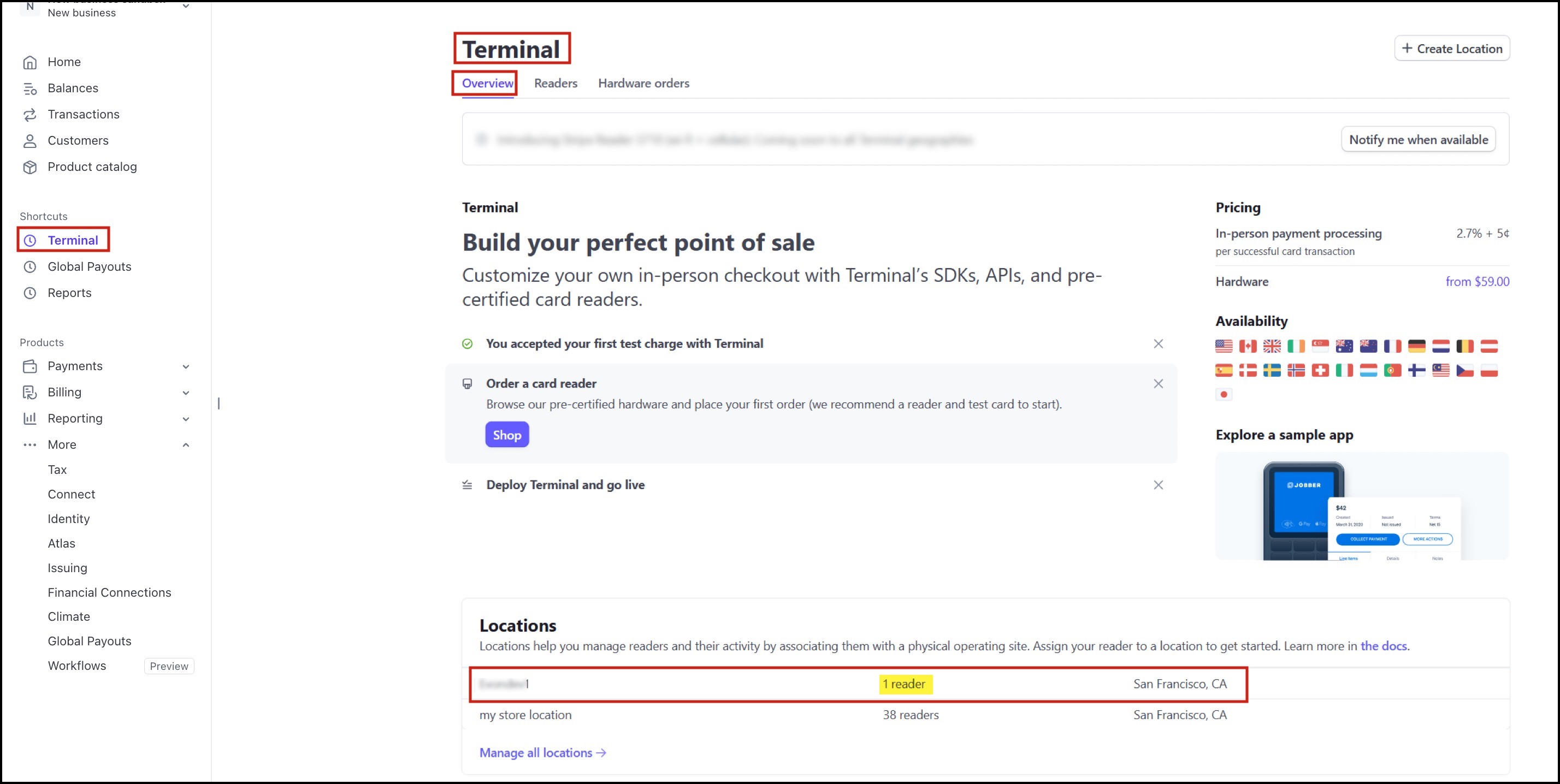
You can also check on your Stripe account, if the connection is successful.
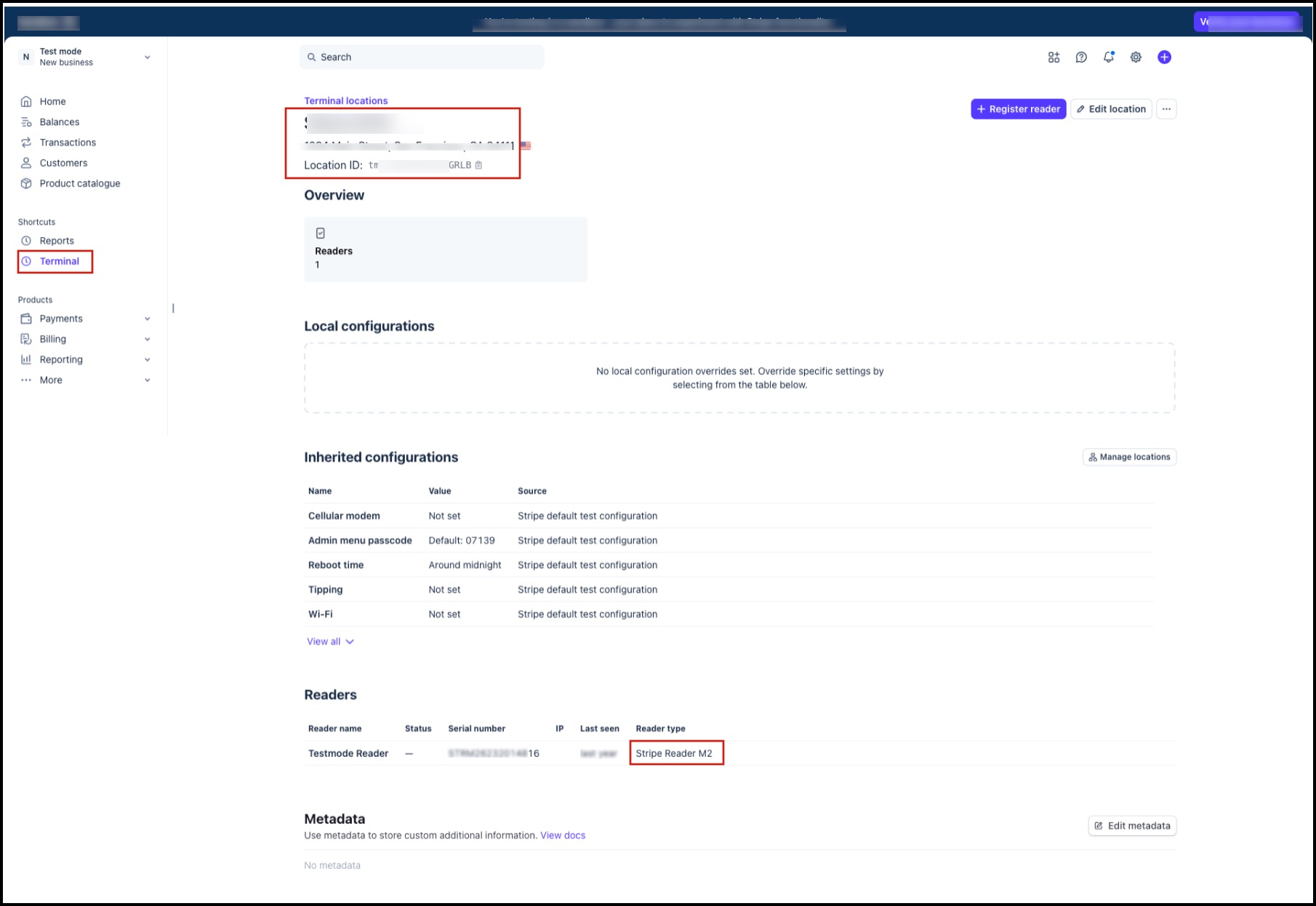
- On the dashboard, when you go to the Terminal tab, you can see the location you added and the assigned reader.
- Clicking on the location will display further details. Here you can see your registration code, listed under Readers-> Label. Click on it.
- This will bring up a screen with more information.
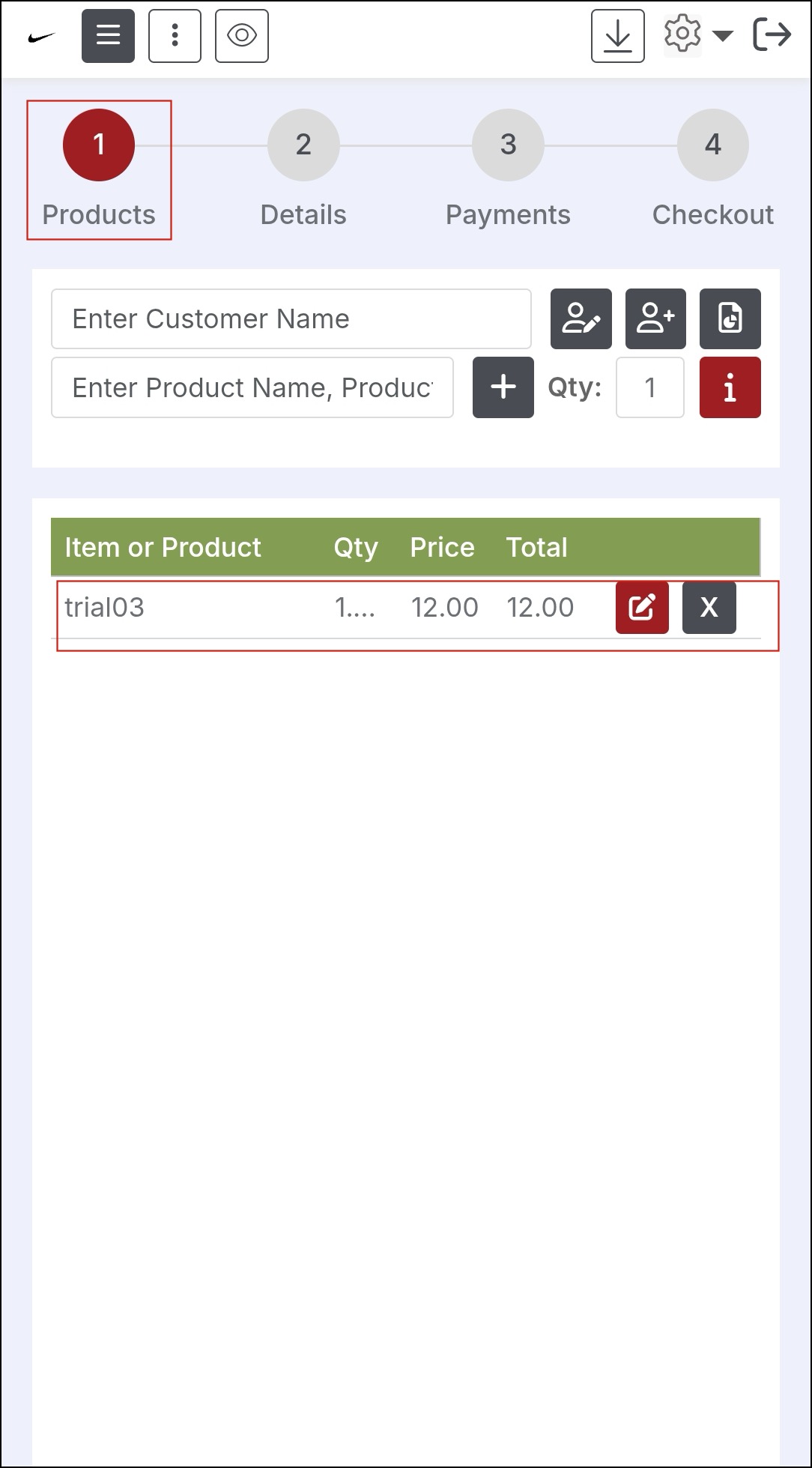
- Once the pairing is successful, you can add products, select a payment method (no need to enter the card details), and click on Checkout.
Note - You can also split the payments, for example, selecting the cash payment option for a certain amount, and for the balance amount, you can use Stripe payment. However, make sure Allow Split Payments is set to Yes under the Channel Configuration -> Payment tab.
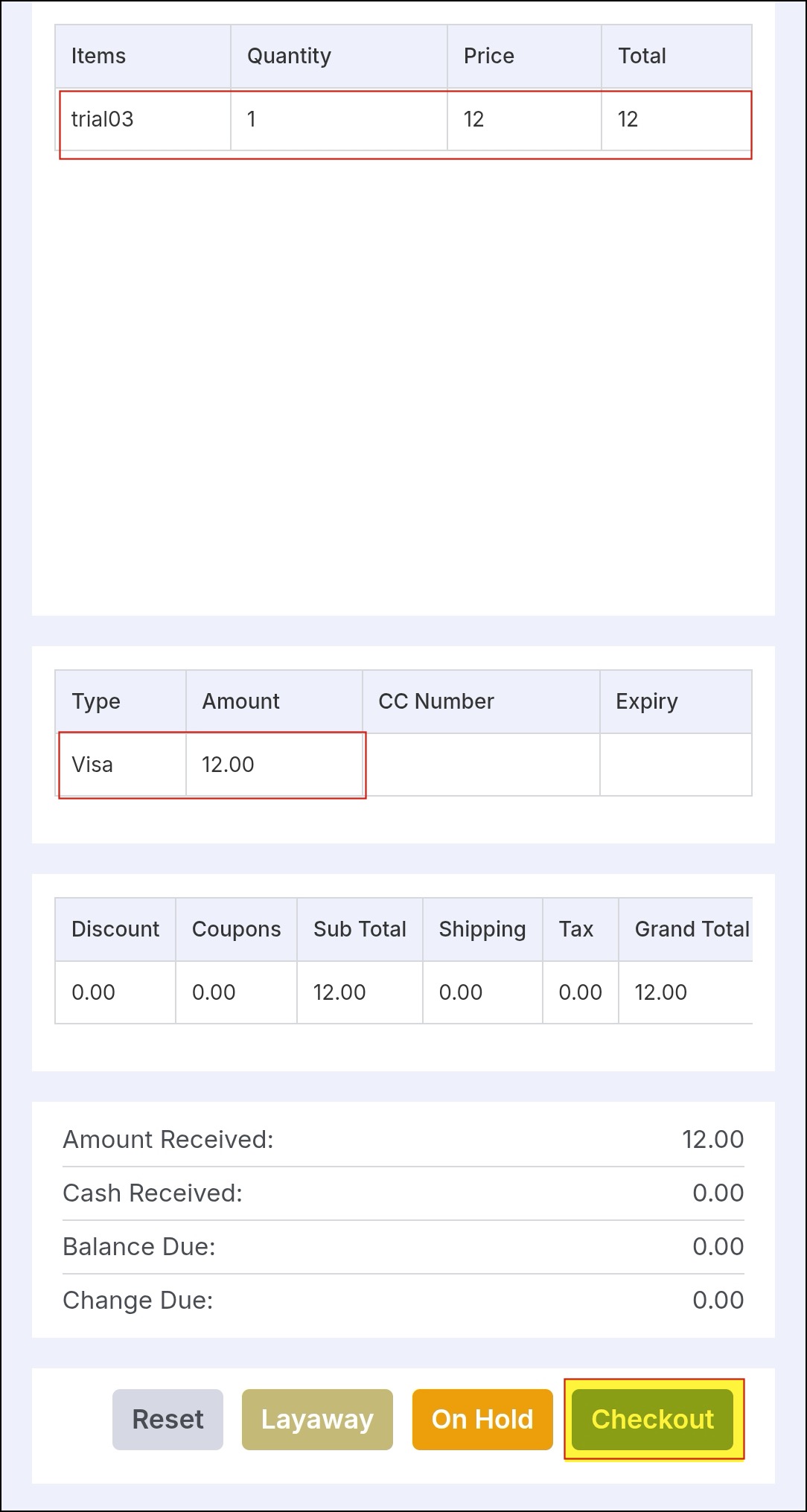
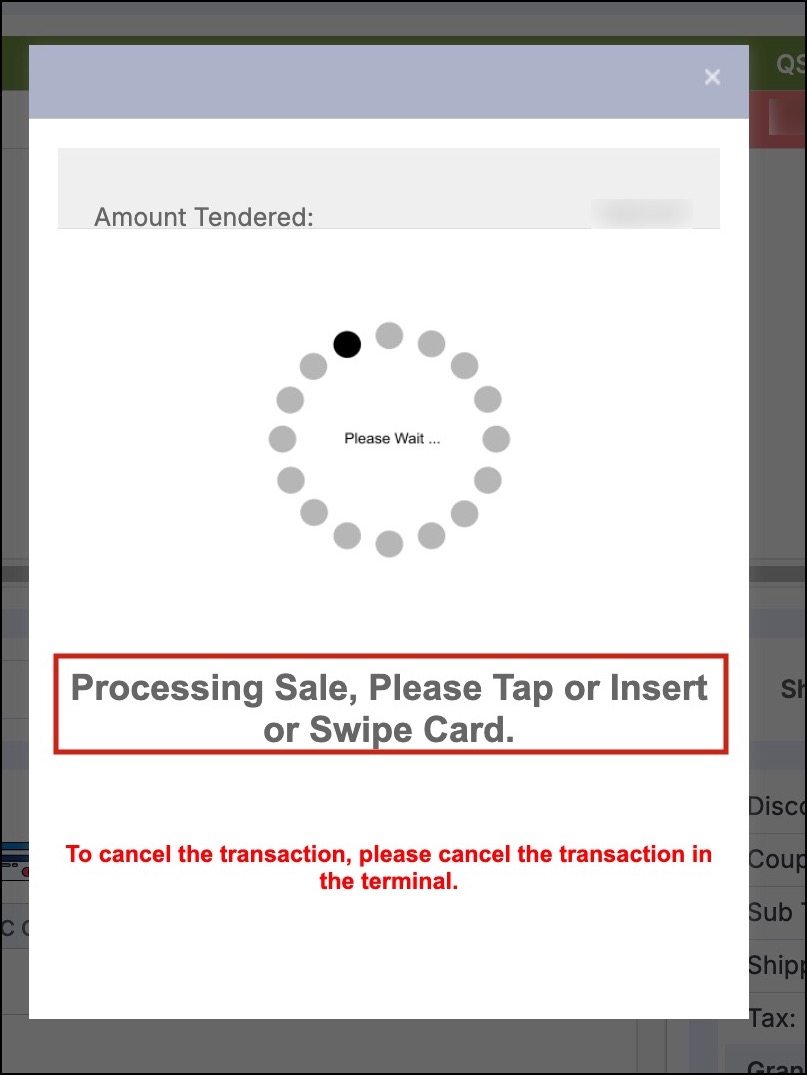
The sale will start processing. You can see a pop-up screen on the POS, and the request will be initiated on the Reader M2 device.
- Swipe/Tap the credit card on the Reader M2 device.
- The card will be processed from the terminal directly to your payment processor (Stripe).
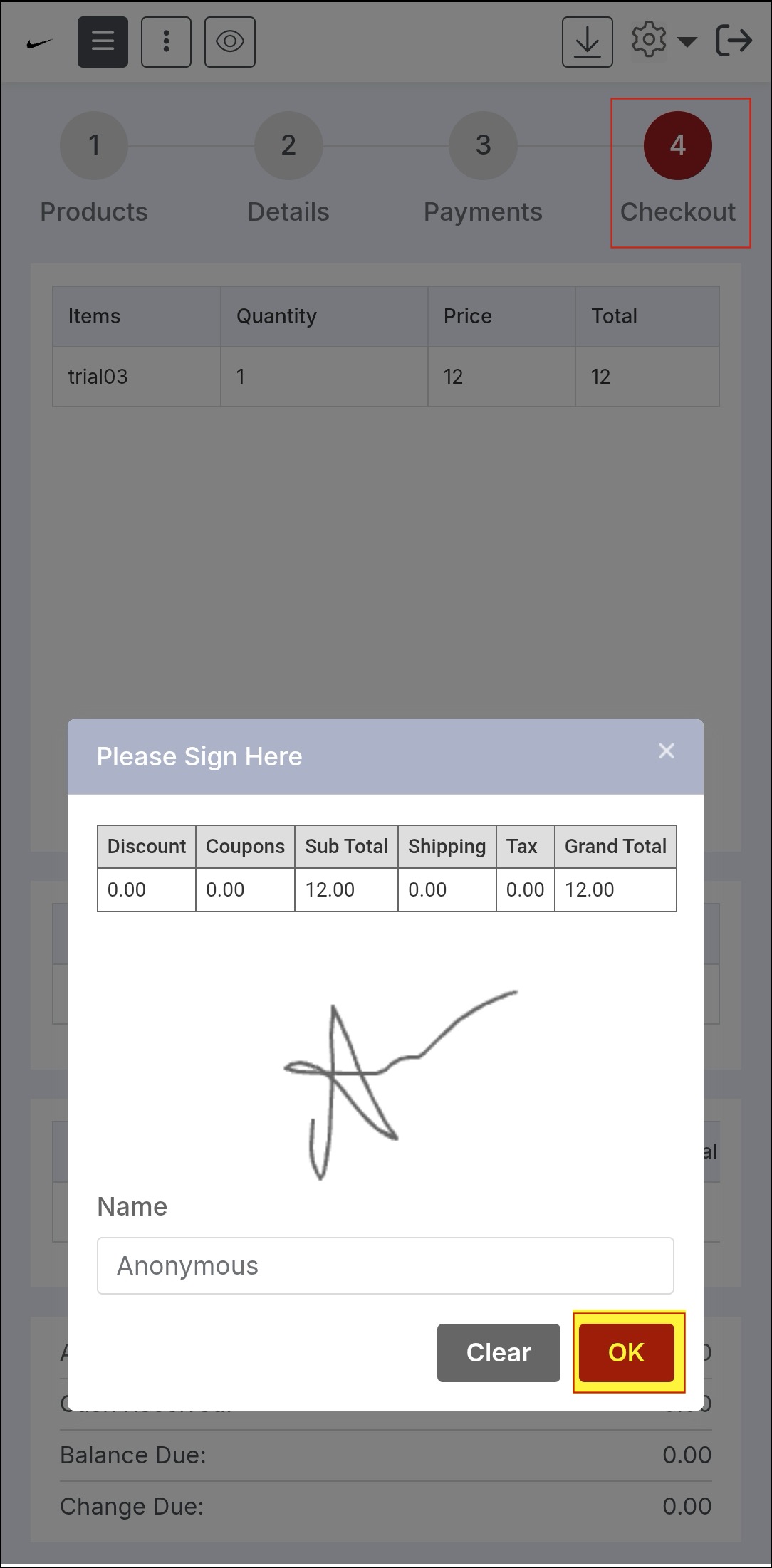
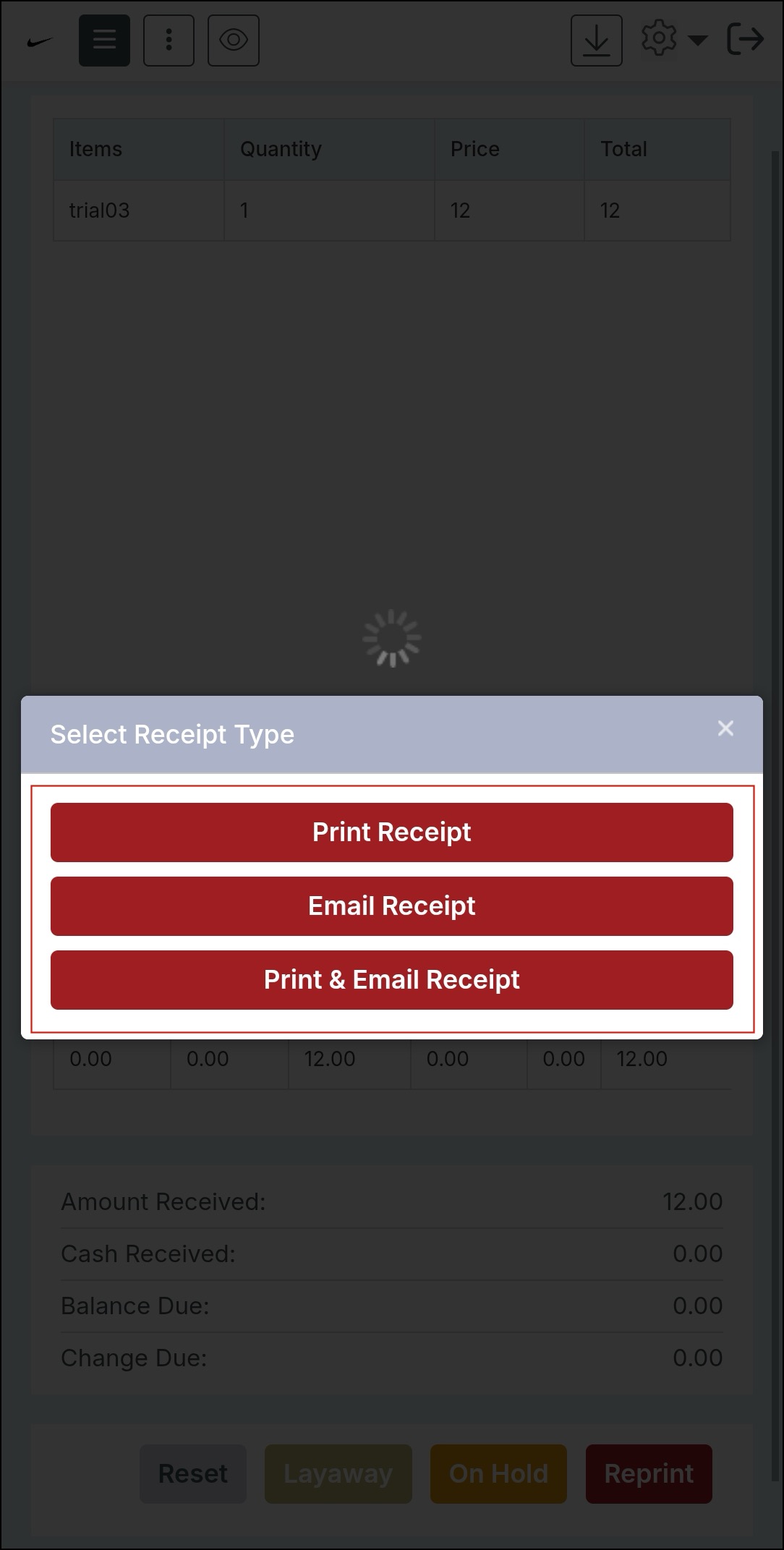
- After payment processing is complete, the POS dialogue will automatically close, and the usual signature and print/email receipt will be displayed.
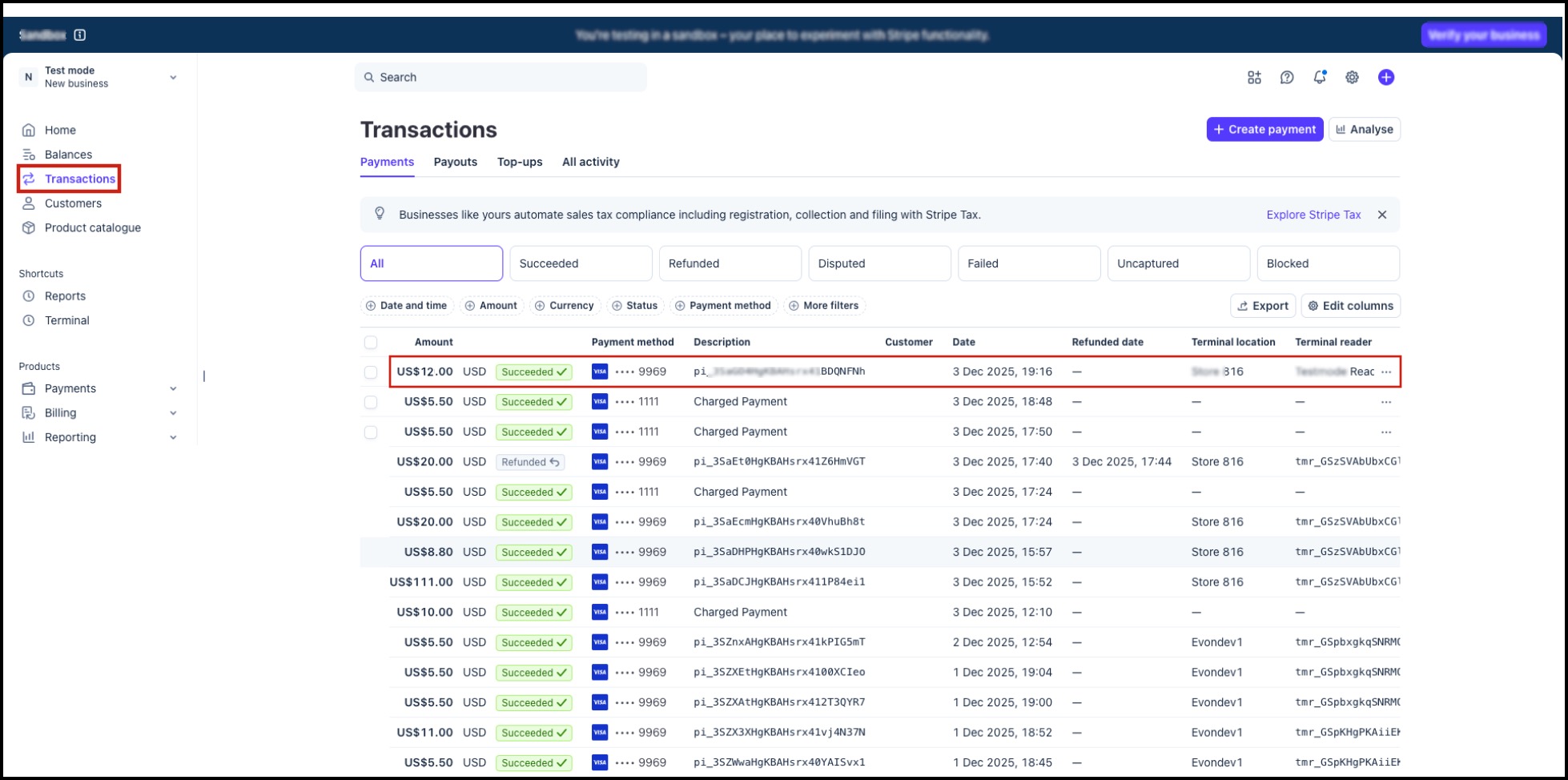
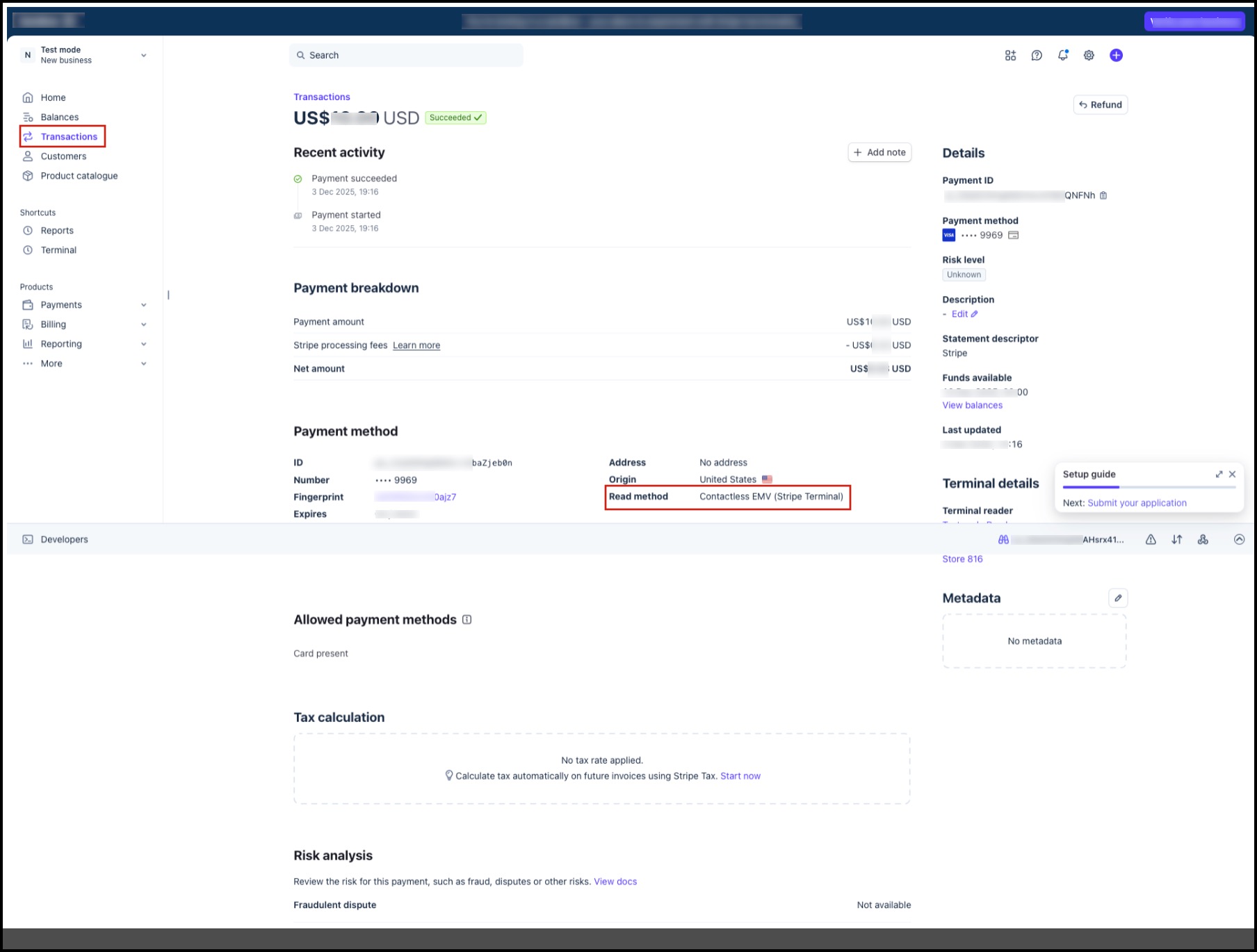
- To confirm the processed payment, log in to your Stripe account.
- Go to the Transactions -> Payments tab, where you can see the transactions processed through POS. The ones processed using Terminal will display Terminal location and Terminal reader.
Unparing and Replacing the Terminal
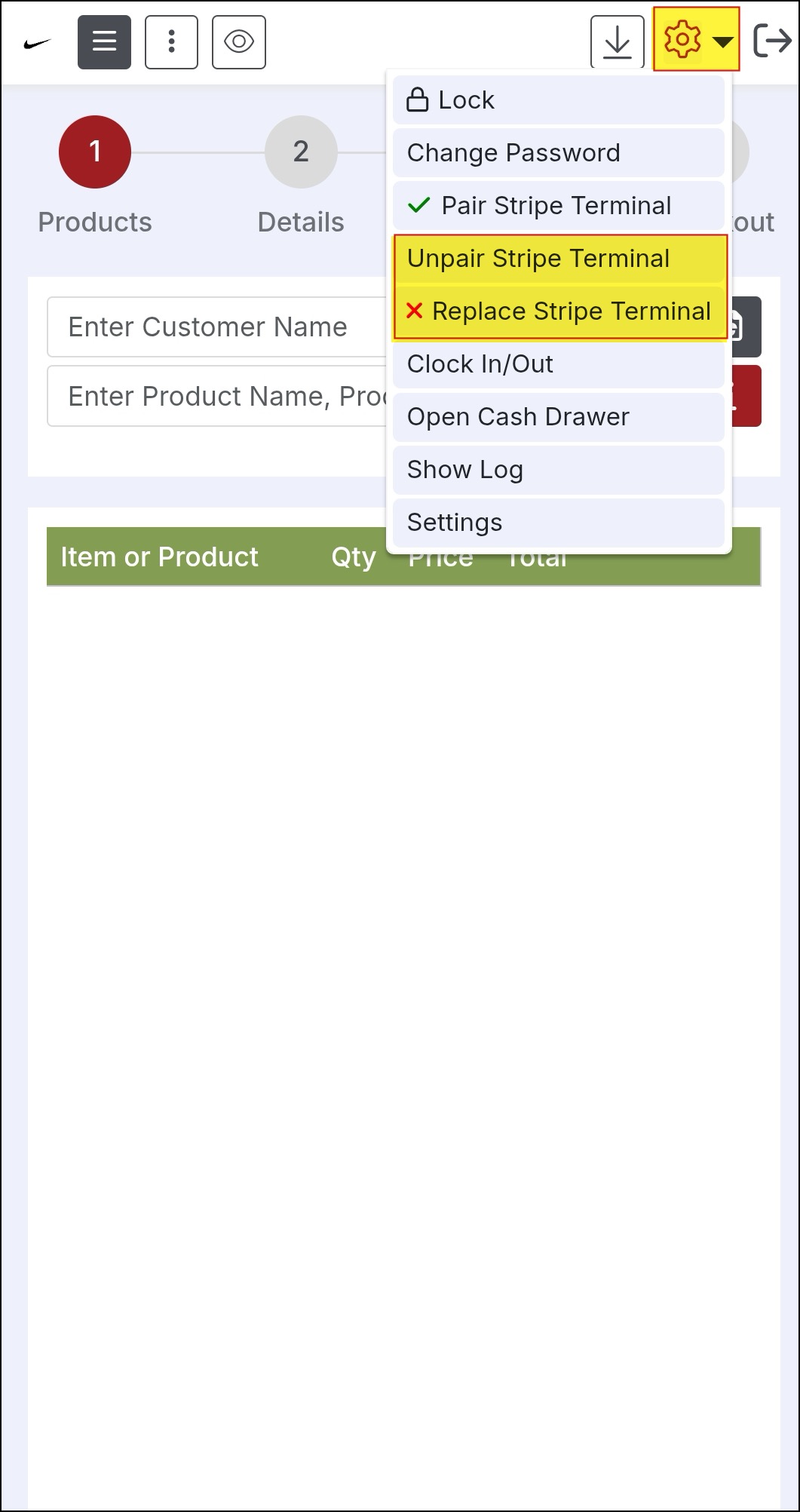
To unpair the Stripe Terminal, click on the Gear icon on the top right corner of the screen.
- Select "Unpair Stripe Terminal".
- A pop-up will appear stating that the terminal has been unpaired successfully.
To replace the terminal with a new one, select the "Replace Stripe Terminal" option and follow the wizard to complete setup.
Updated 6 months ago