

New Sales Order Wizard
Agiliron's 'New Sales Order Wizard' streamlines the process of creating sales orders for new or existing customers.
- To create a new SO, on the menu bar, click on New.
- Select 'New Sales Order Wizard' from the drop-down list.
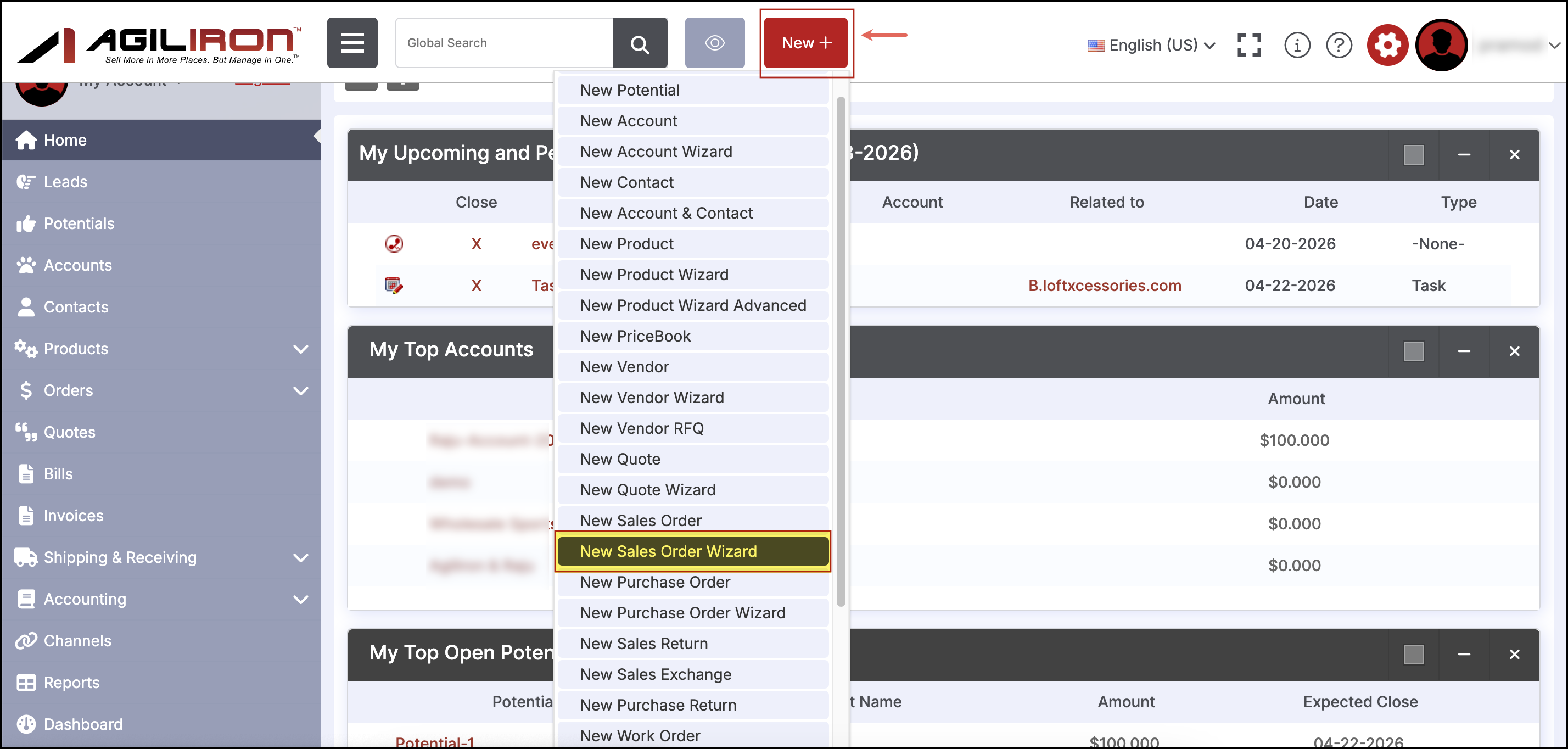
-
This will open up the New Sales Order Wizard window.
-
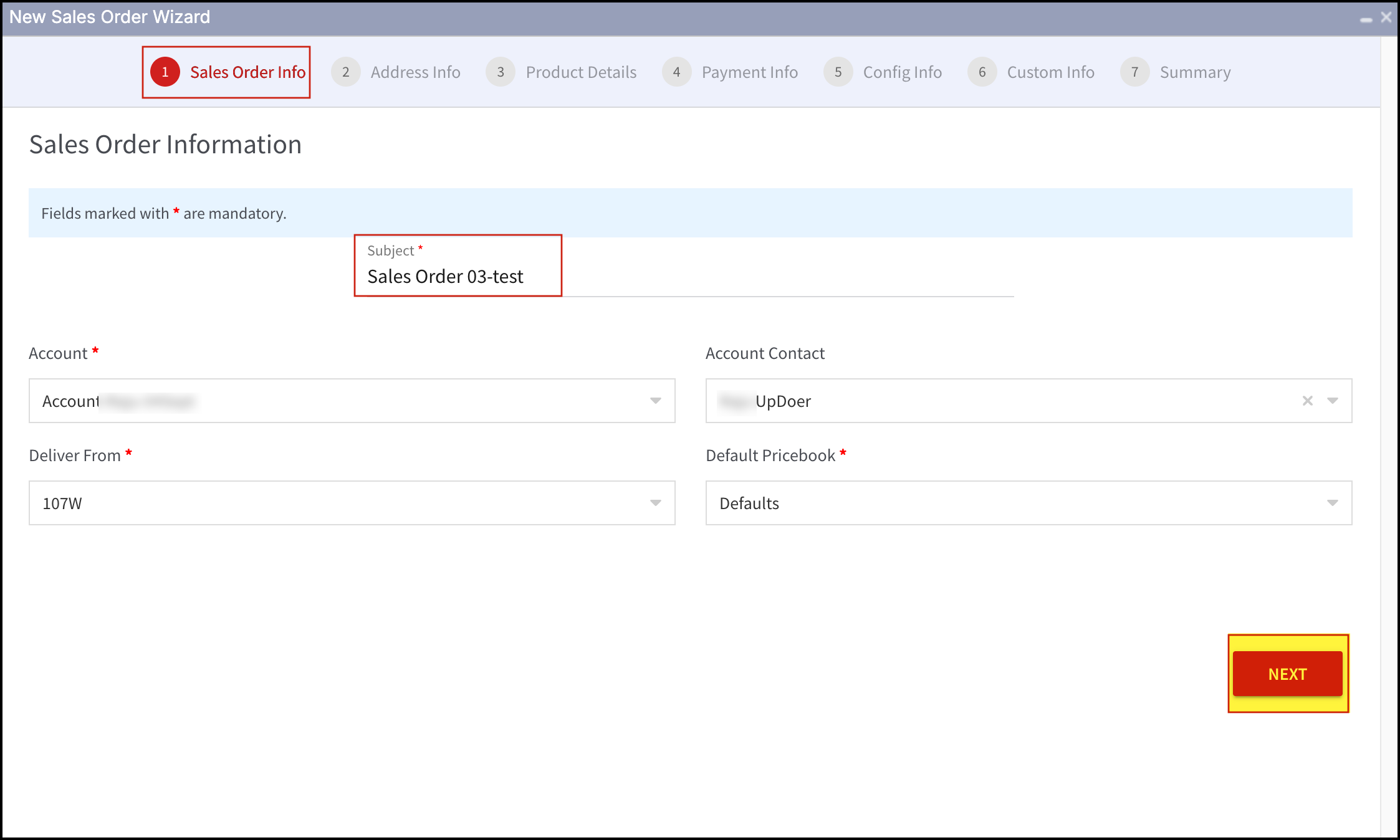
The Sales Order Information will appear first. All the fields marked with * are mandatory.
-
In the Subject field, enter a name that rightly describes the Sales Order. It could be a company name, customer name, product name, or description.
-
In the Account field, type to search the account name, and the field will get auto-completed. Rest all the fields auto-populate with default information related to the customer's account.
-
The account contact list is filtered while the Default Pricebook (price book to be used for this particular customer).
After all the necessary information is filled in, click on Next.
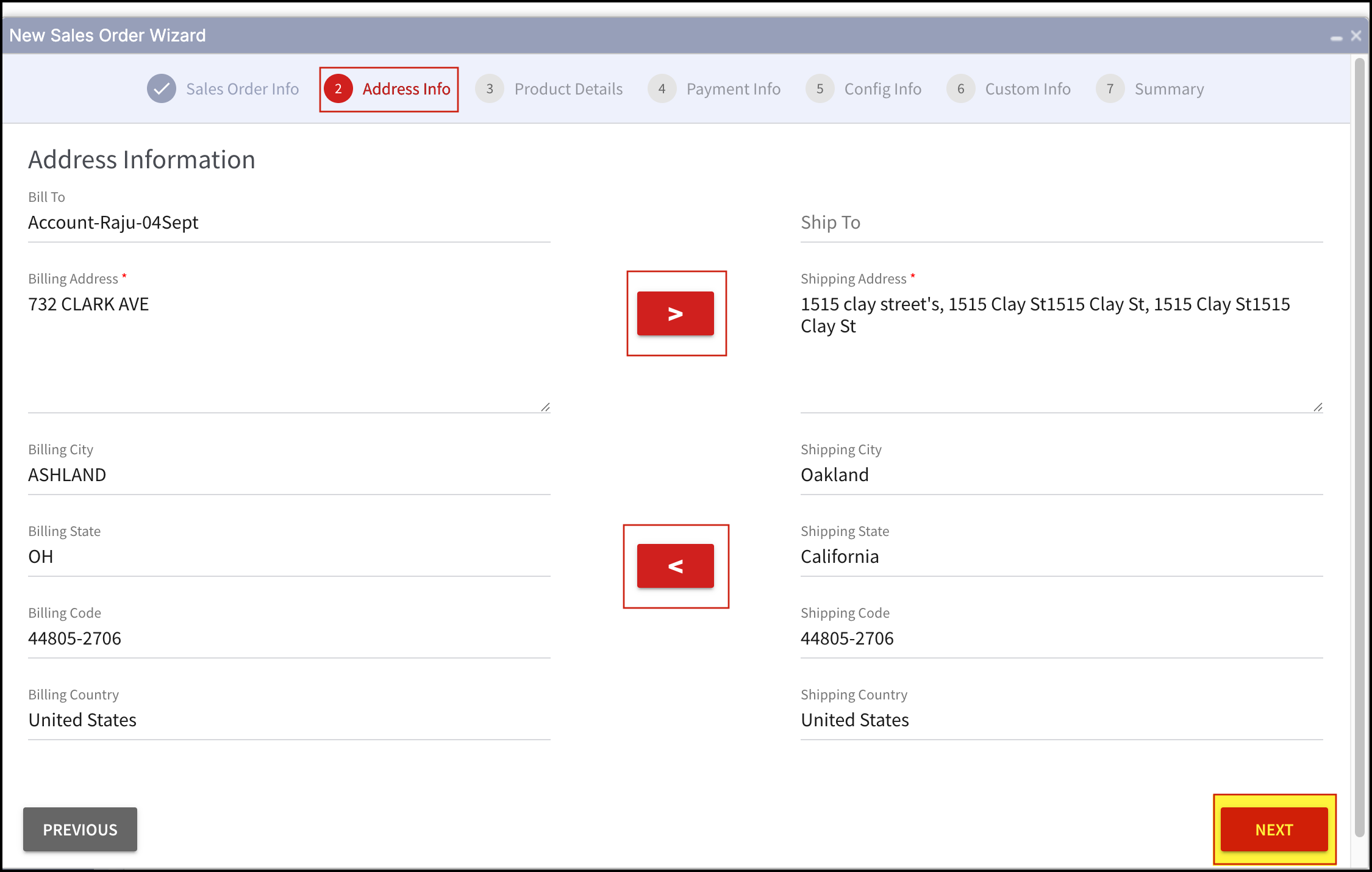
- Next comes the Address Info.
- Enter the name (it can be the same or different as per your requirement).
- The other fields related to billing and shipping automatically get filled on the basis of the account name. However, you can edit the billing address and shipping address details.
- Also, if both the addresses are the same, conveniently copy the information entered on one side to another by just clicking one button.
- Use ''>'' button to copy the "Billing Address" to the "Shipping Address".
- Use ''<'' button to copy the "Shipping Address" to the "Billing Address".
- Once all the necessary fields are filled, click on Next.
Then comes the Product Details. In this step, first add the product information of the products to be added to the SO by clicking on the + sign.
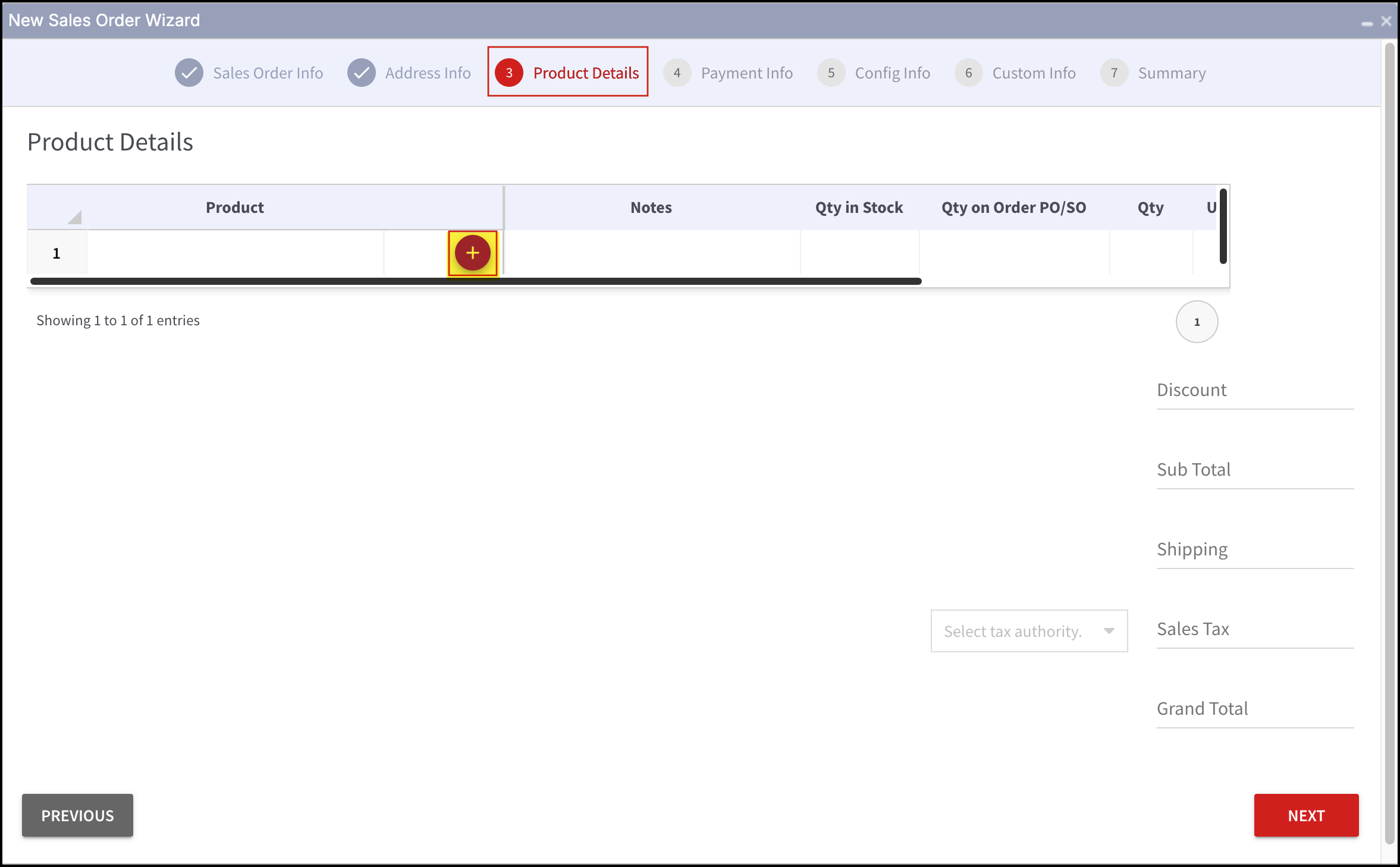
- Add Product to Sales Order pop-up window will appear.
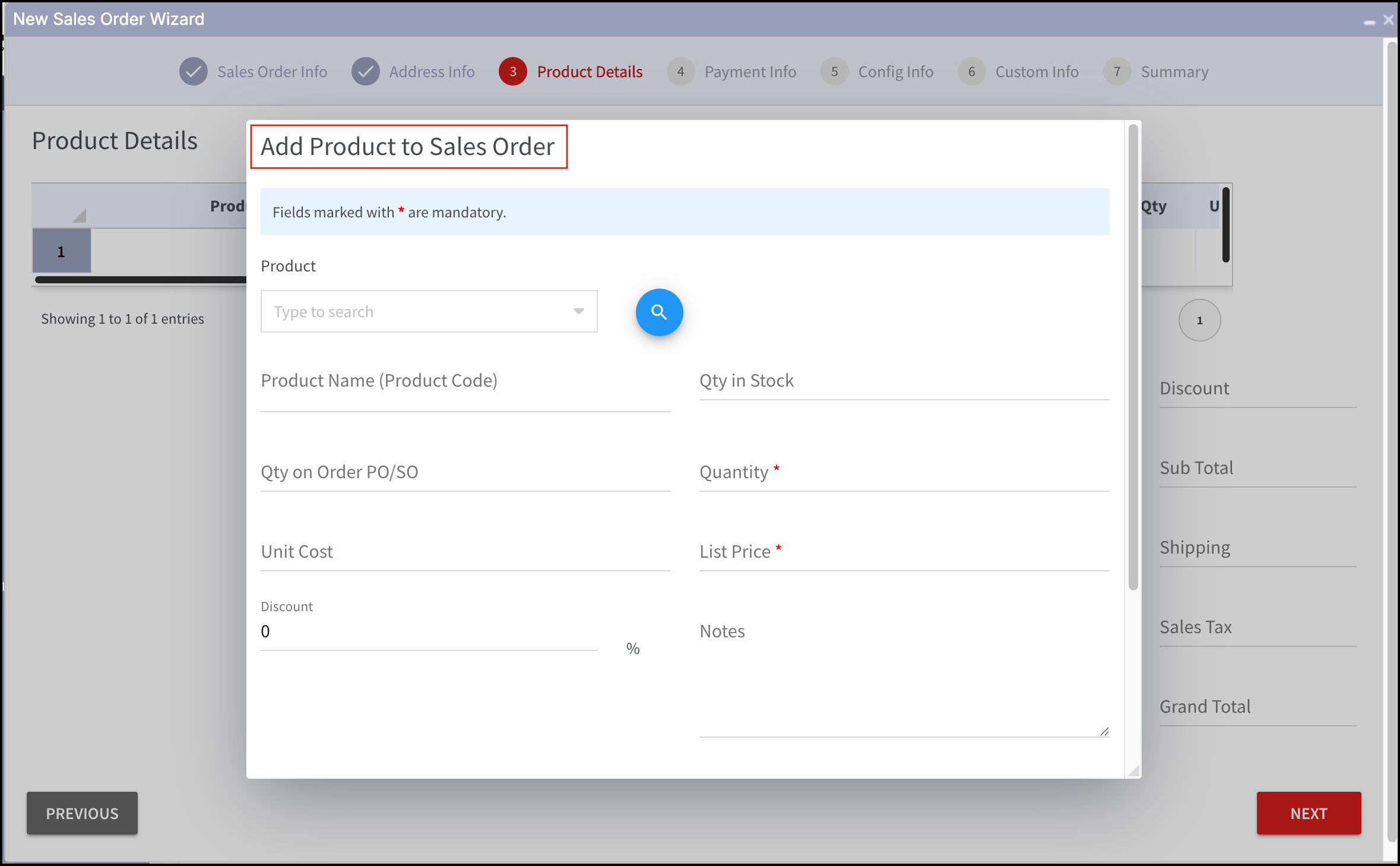
There are 2 ways for adding products:
Way 1
- Type to search the product/products. As soon as you begin typing in the text field, a drop-down list of products related to what you type will be displayed. Select a product from the drop-down list.
- Once the product is added, most of the fields automatically get filled, based on the product name. Make sure to enter the quantity of products that need to be added to the Sales Order, as it is mandatory.
- The pre-filled List Price and Discount fields can be edited as per requirement.
- The Total gets automatically calculated.
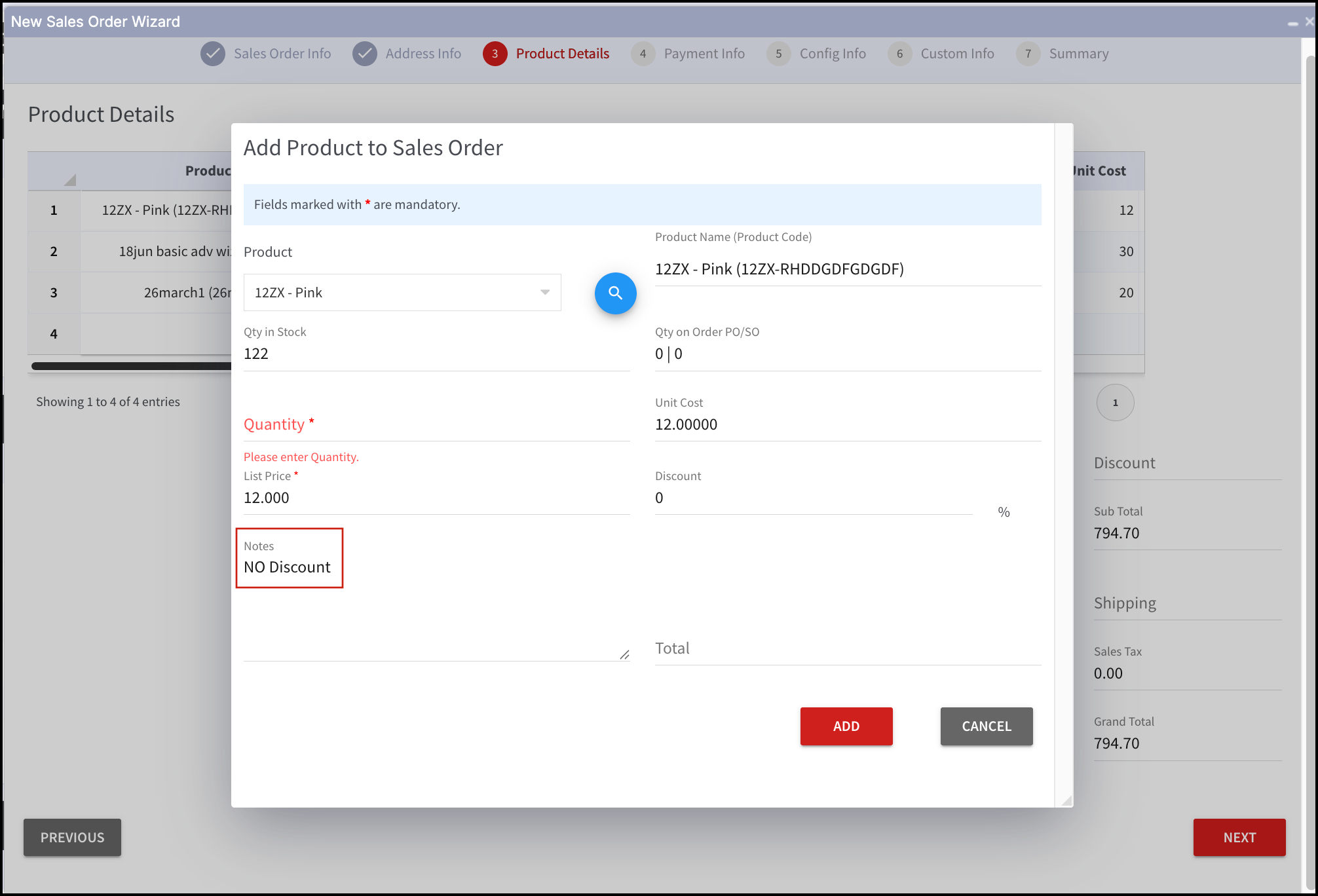
- If any necessary information needs to be included for the product, enter it in the Notes text field.
- Click on Add button once done. The product will be added to the spreadsheet.
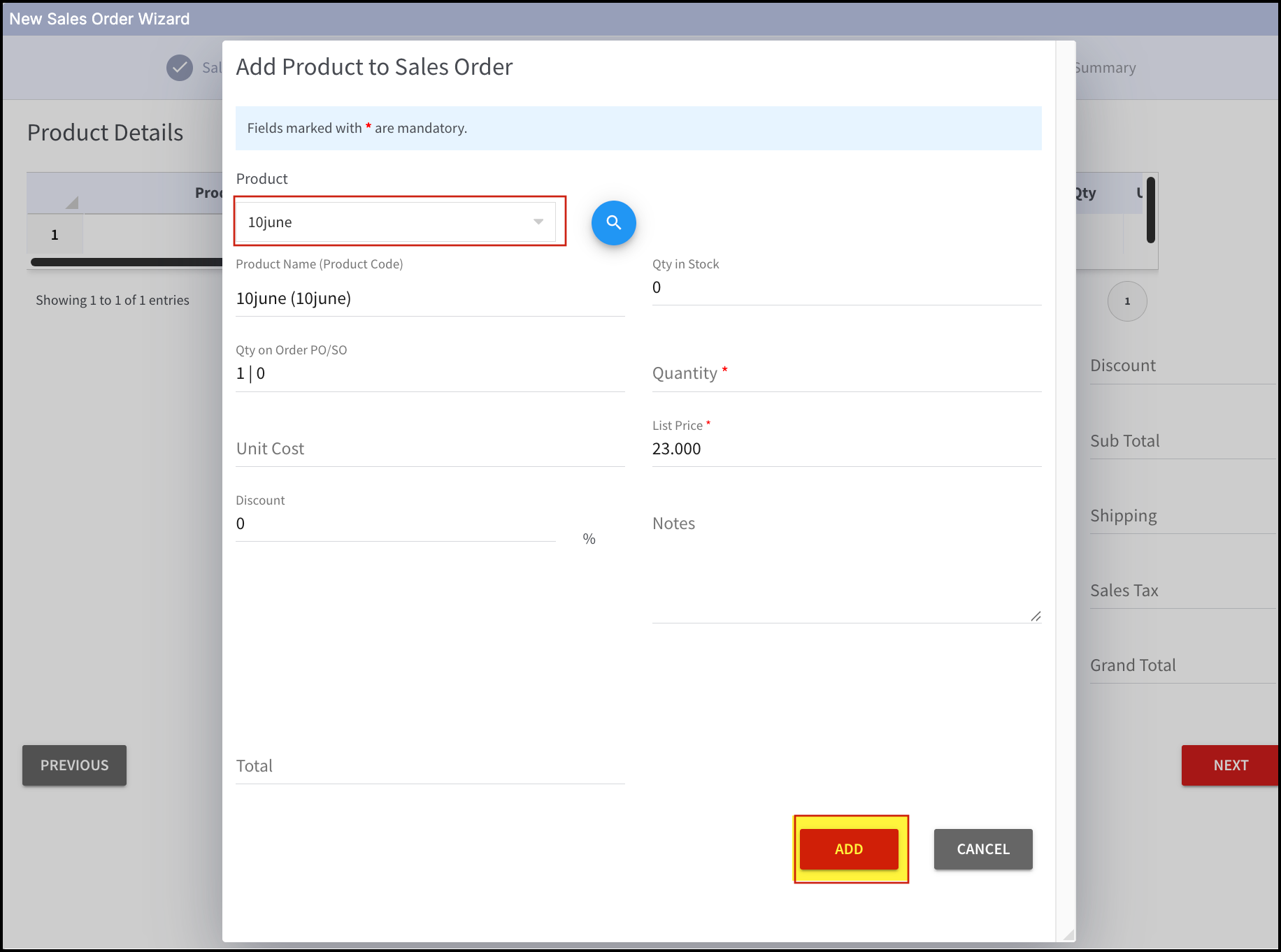
You can add more products by clicking on the + sign and repeating the above steps.
Way - 2
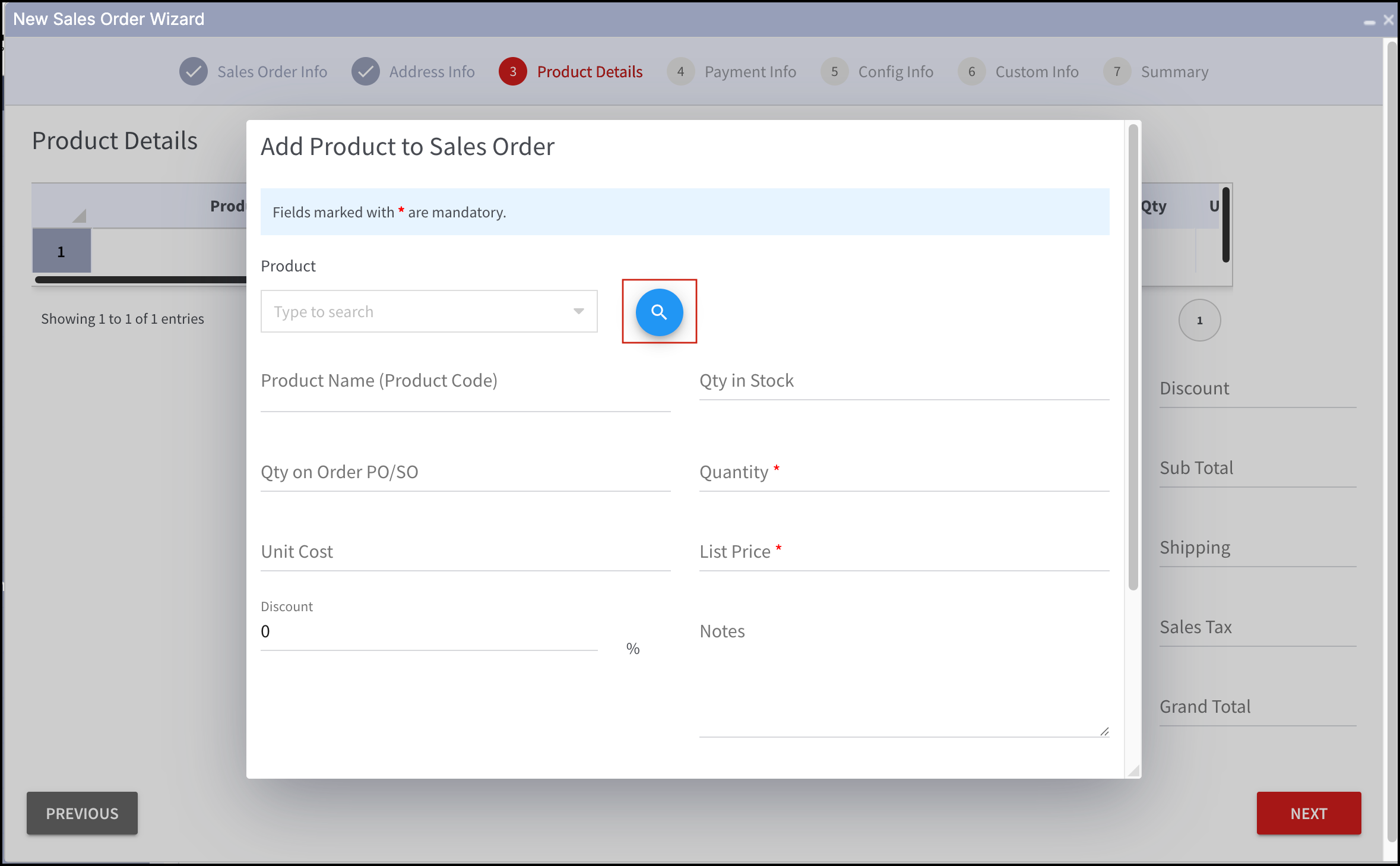
- The other way to add a product is by clicking on the 'magnifying glass' icon that appears in the Add Product to Sales Order window.
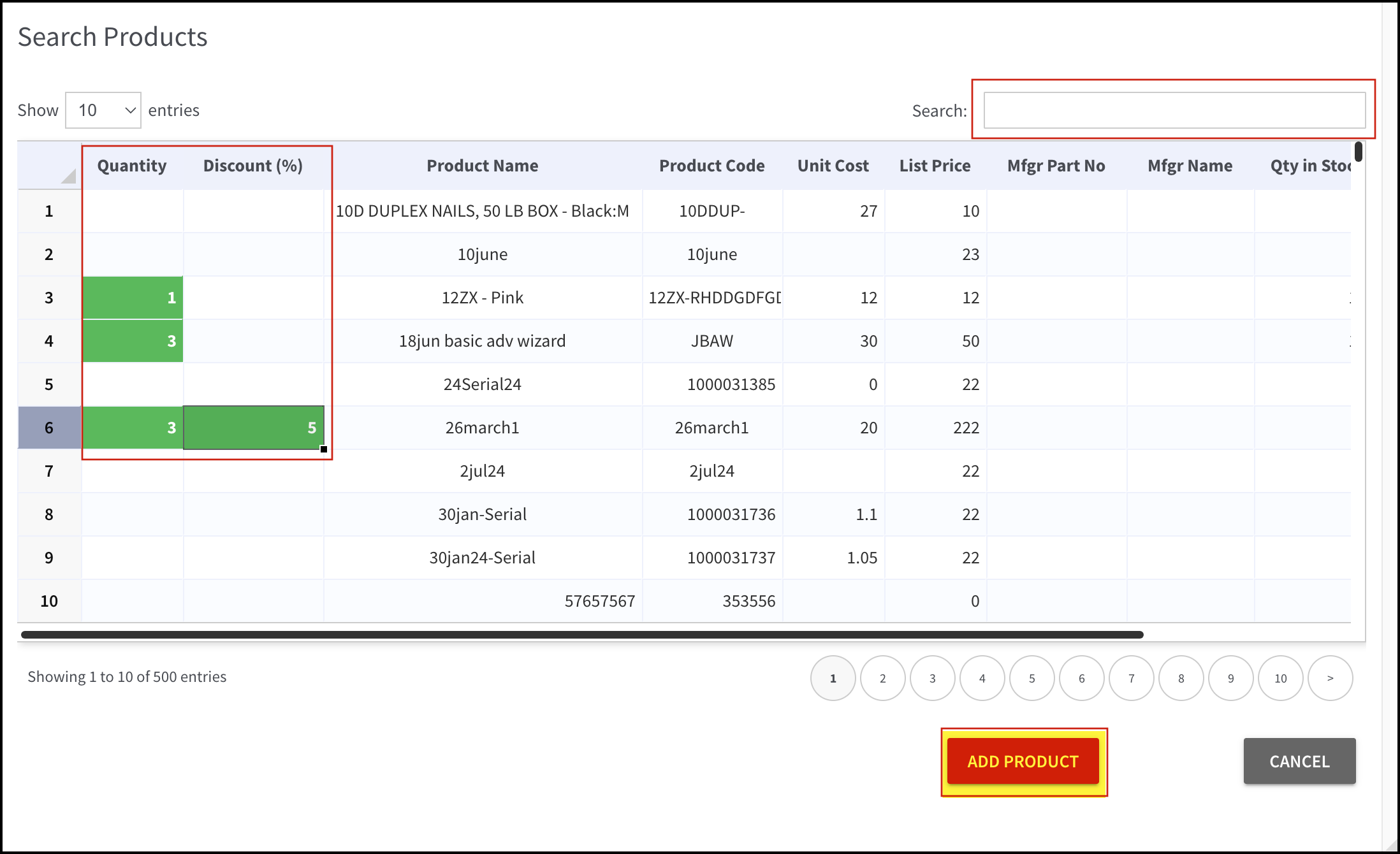
- In Search Products, either search for a particular product by typing the name in the Search field or select multiple products at a time by just entering the required quantity for each. The product cannot be added without entering the required quantity.
- You can also enter the discount for each product selected as per your needs.
- Click on the Add Product button.
- You can delete ("- "icon) or edit ("pen" icon) the added products in the sales order.
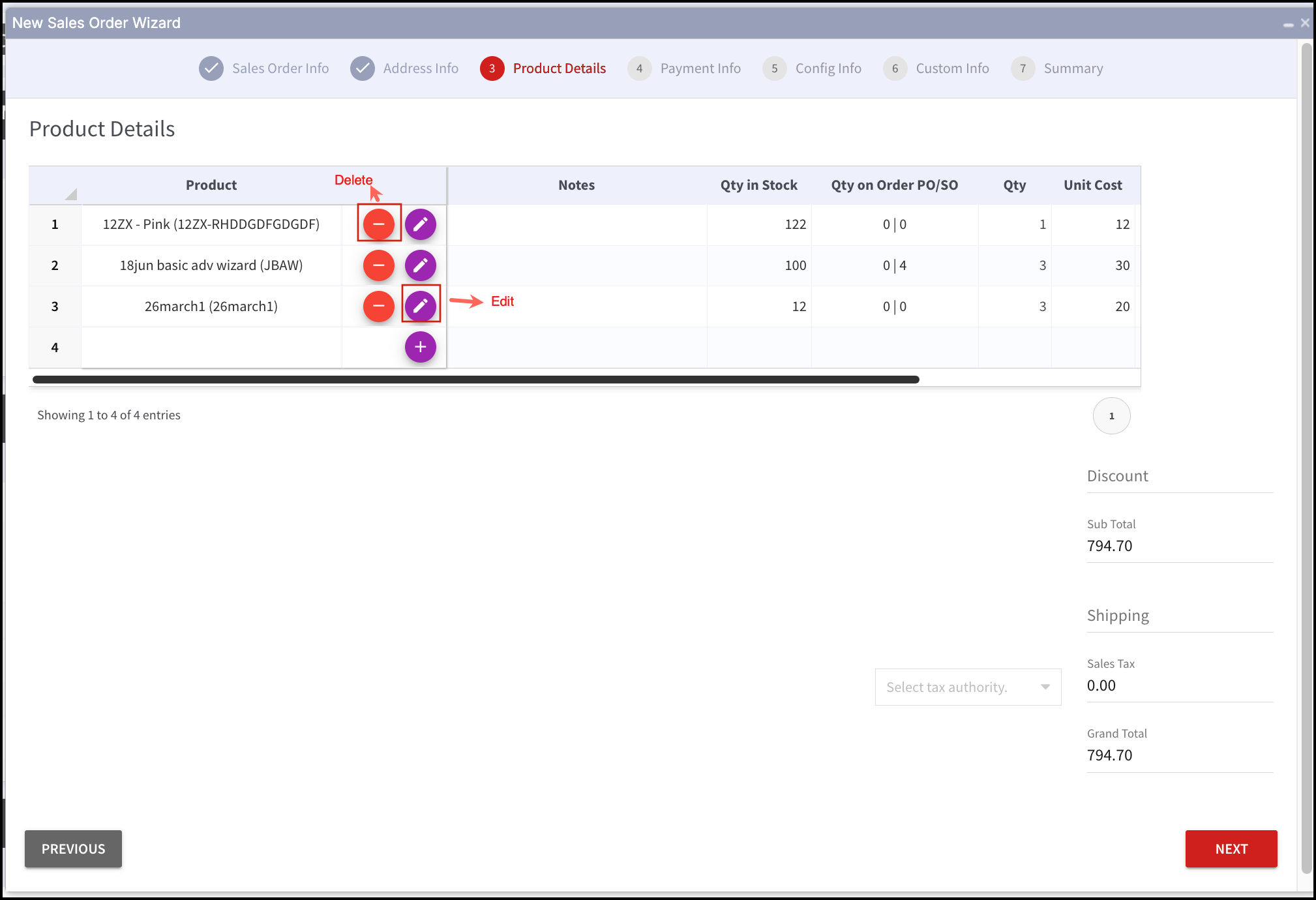
- In case you want to add duplicate products, write a Note in the Notes text field and then add.
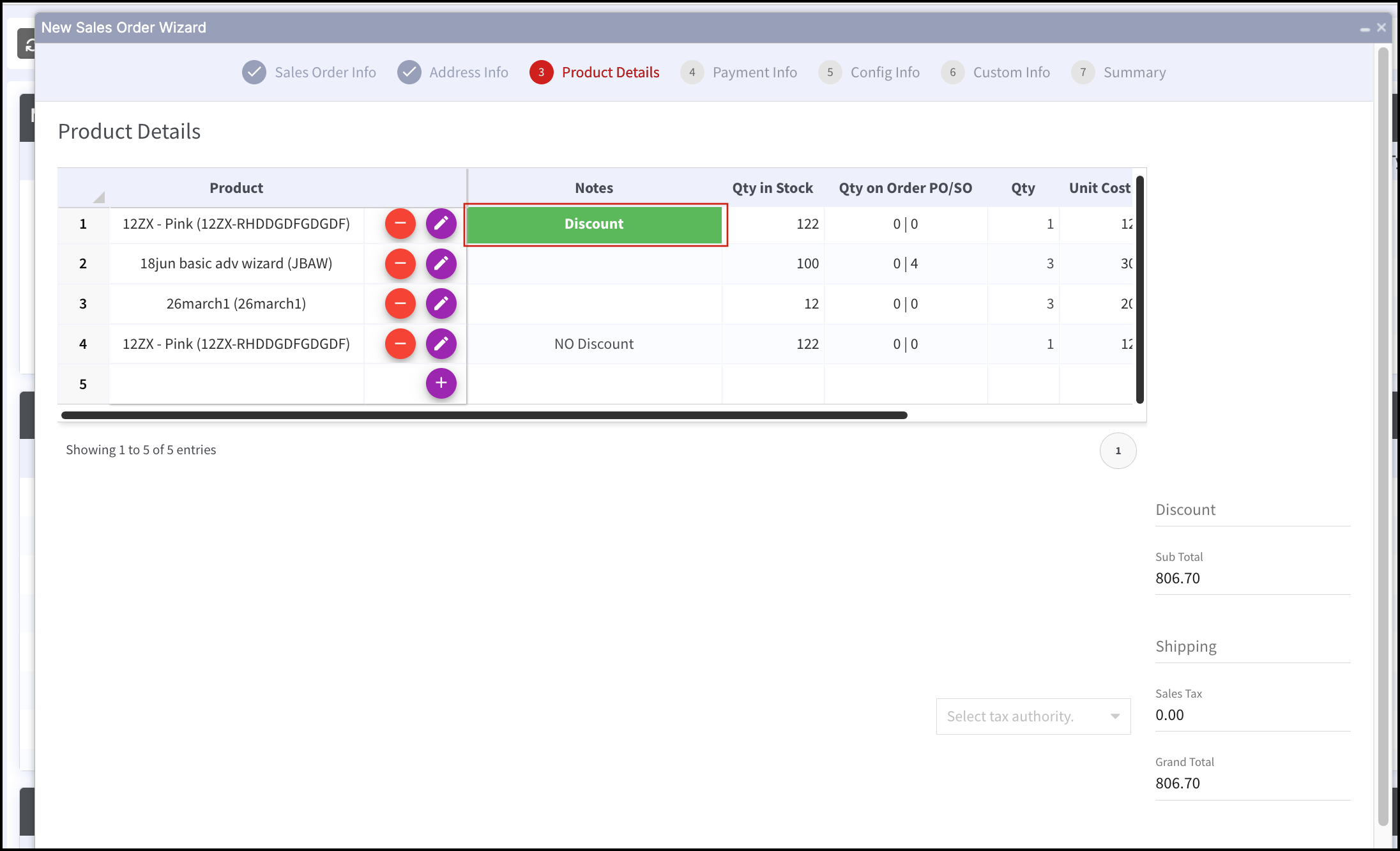
- You can even directly write Notes for the already added product in the Product Details spreadsheet and then add its duplicate.
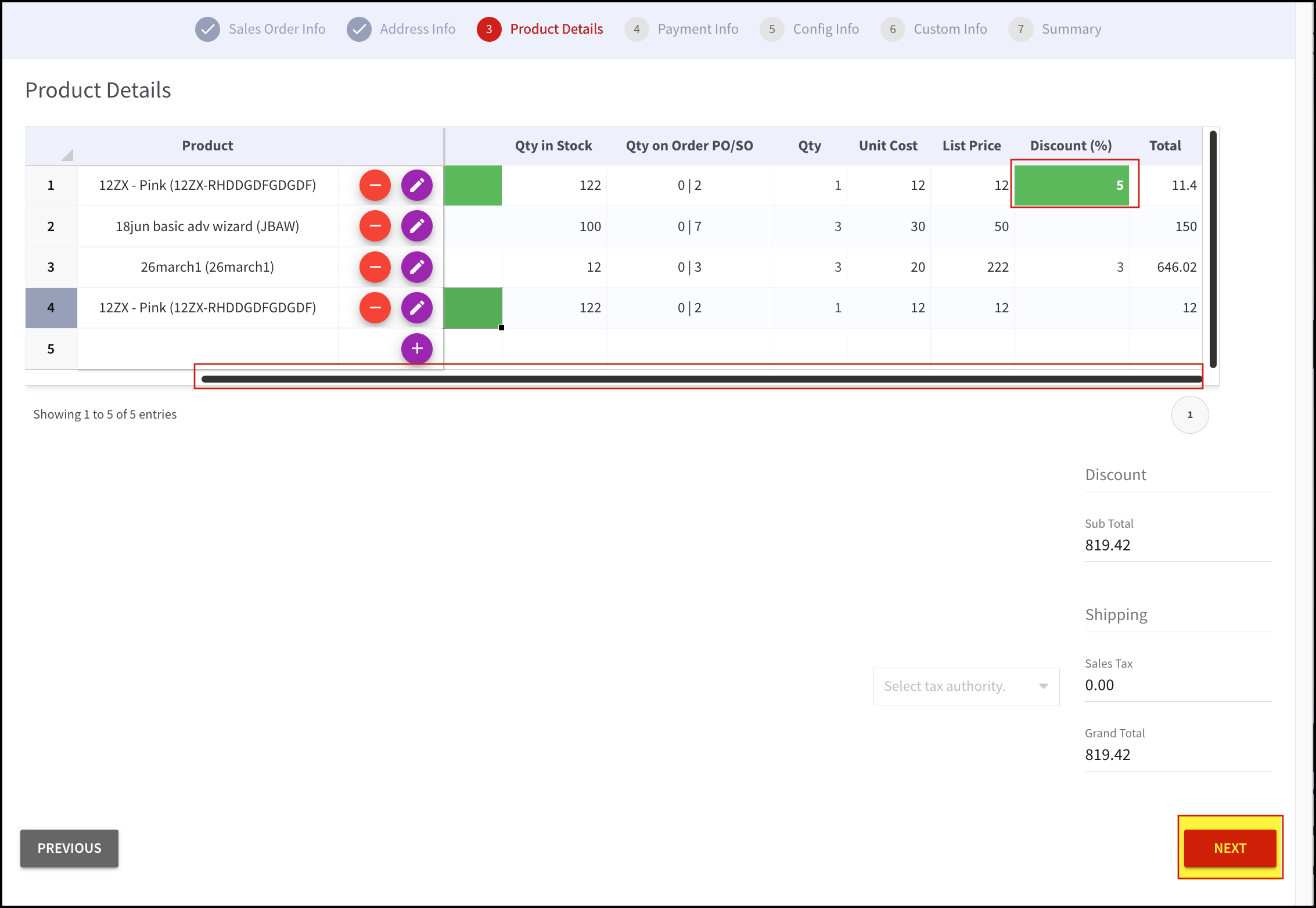
- If required, enter a discount for each product added to this Sales Order or enter an order discount that will be applied to the entire Sales Order, or apply both discounts. (Scroll the horizontal bar to view columns).
- Enter shipping cost applied, if any, for this Sales Order.
- Sales tax rate will be automatically calculated on the basis of the Tax Authority you select from the drop-down list.
- The grand total will be auto-calculated, including the shipping and taxes. It is the final Sales Order total for the customer.
- Click on Next.
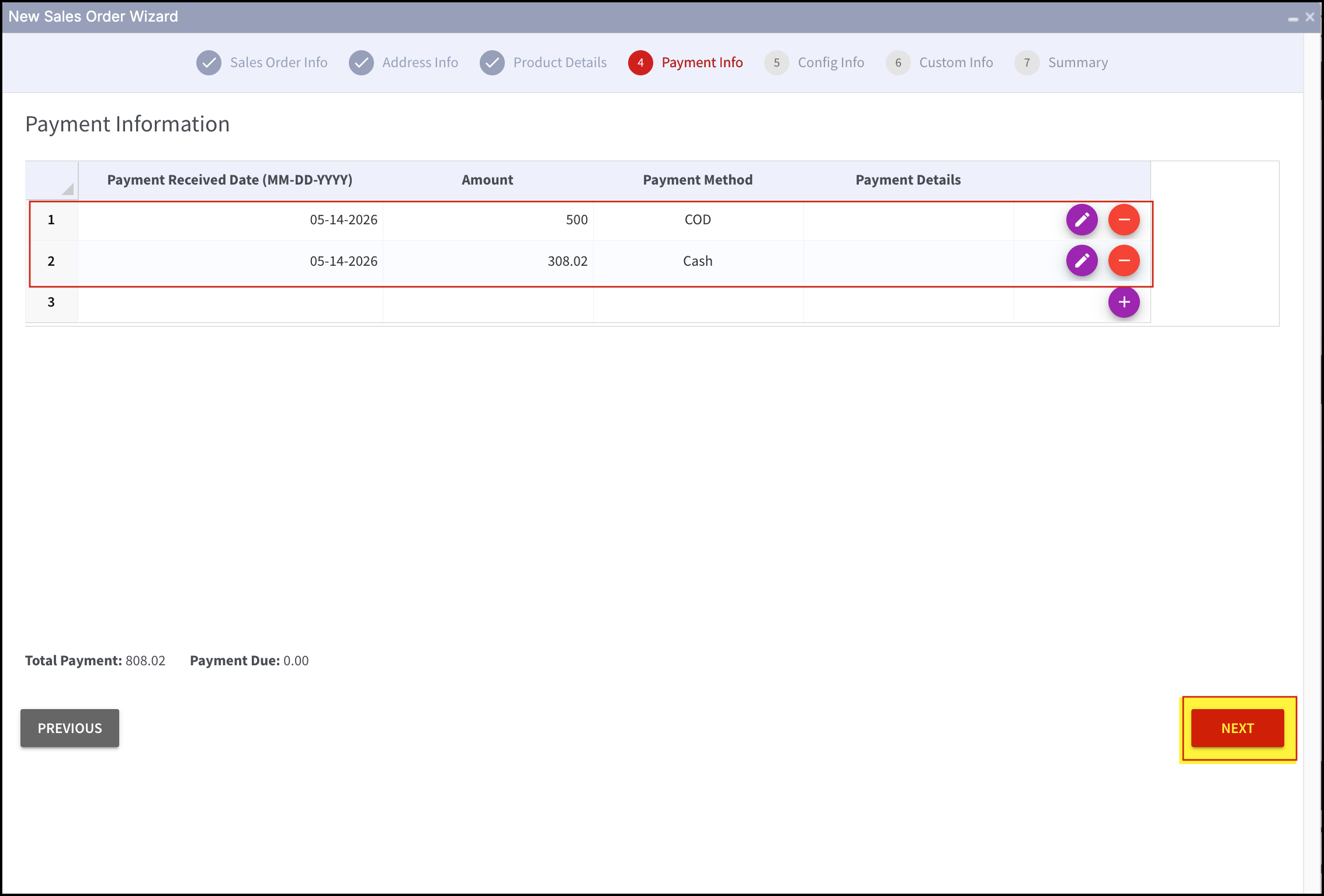
- Next comes the Payment Information.
- Here, you can select multiple payment methods for the sales order and fill in relevant information that will be shown, associated with each payment method. Click on Add.
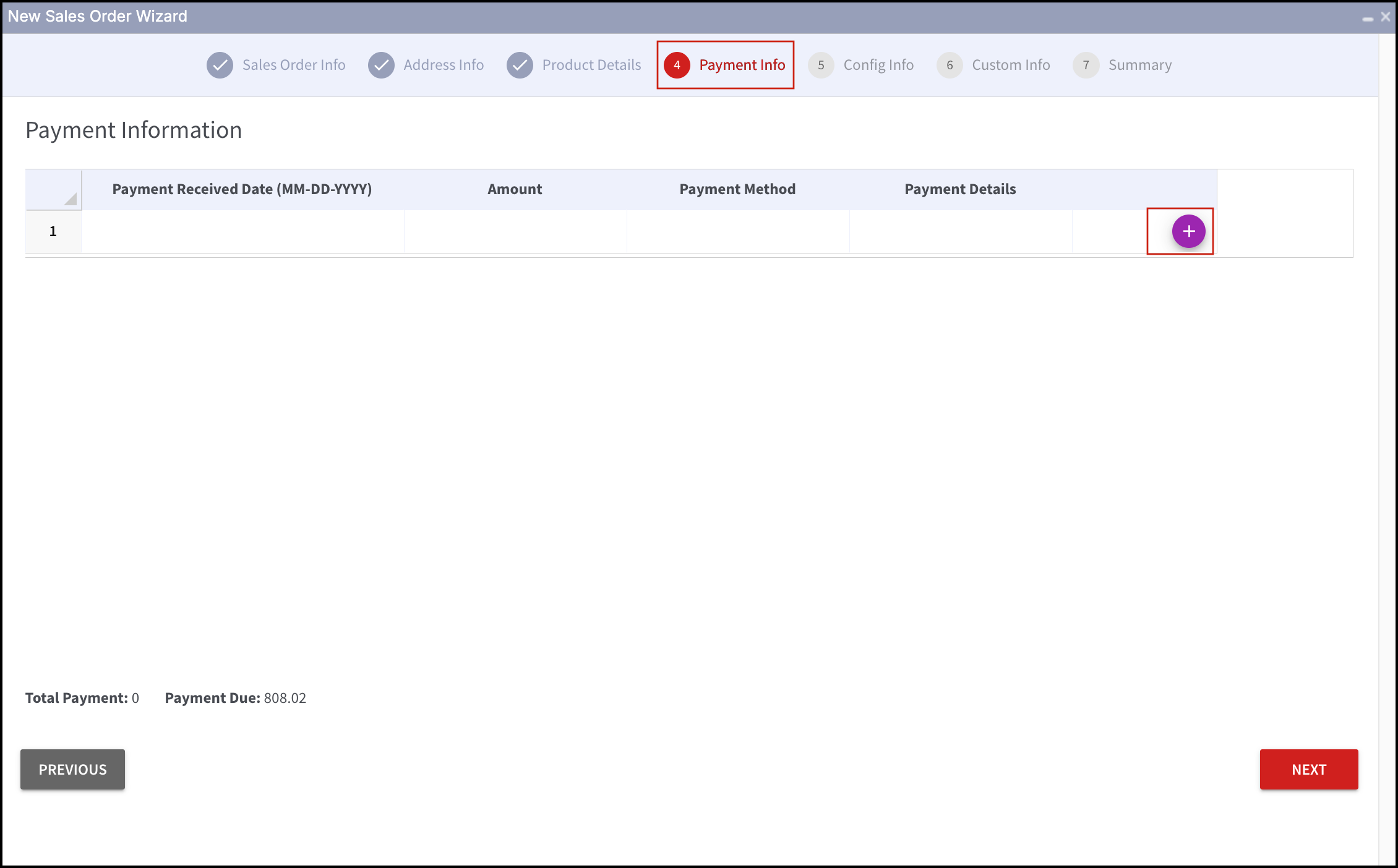
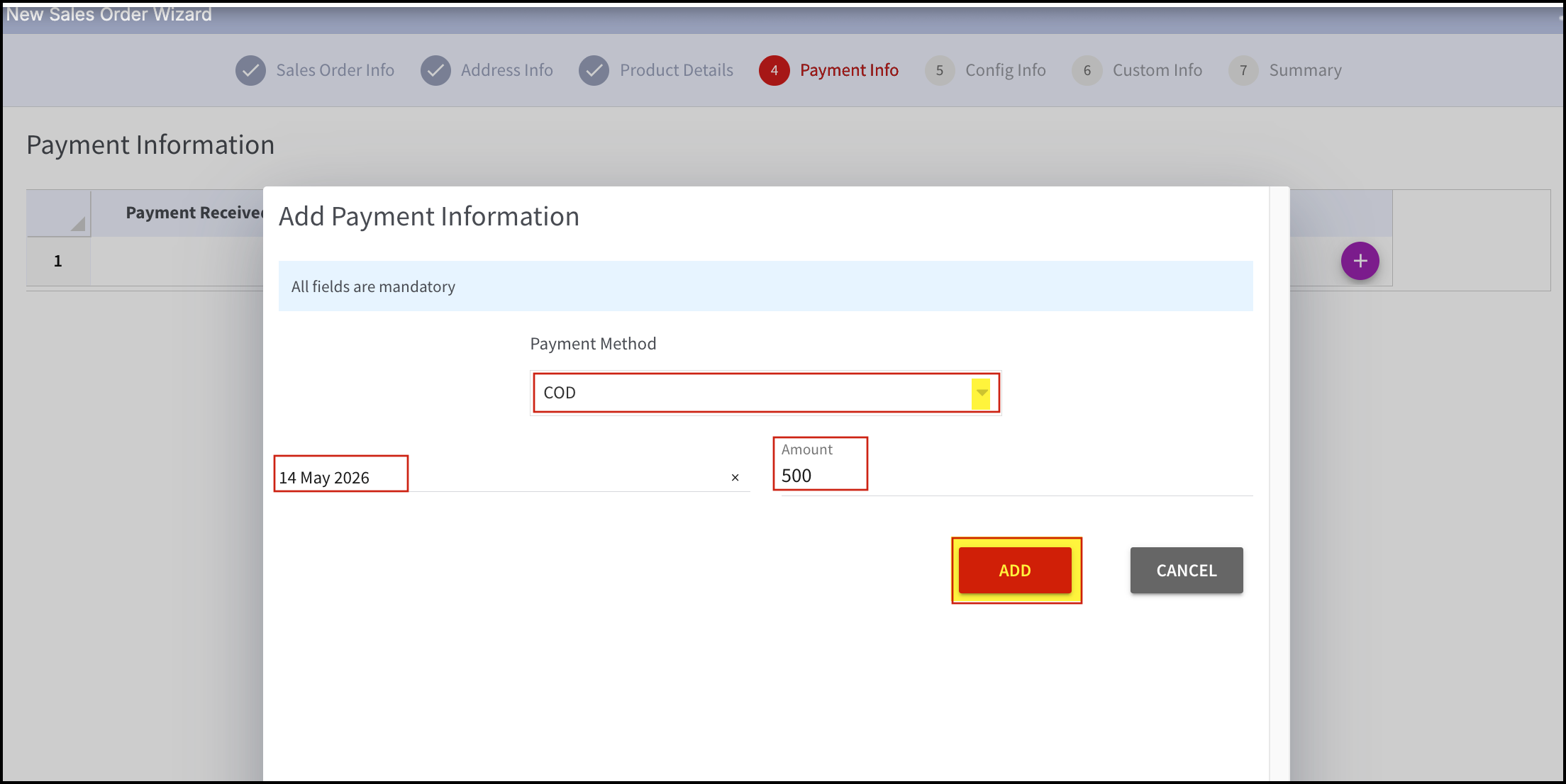
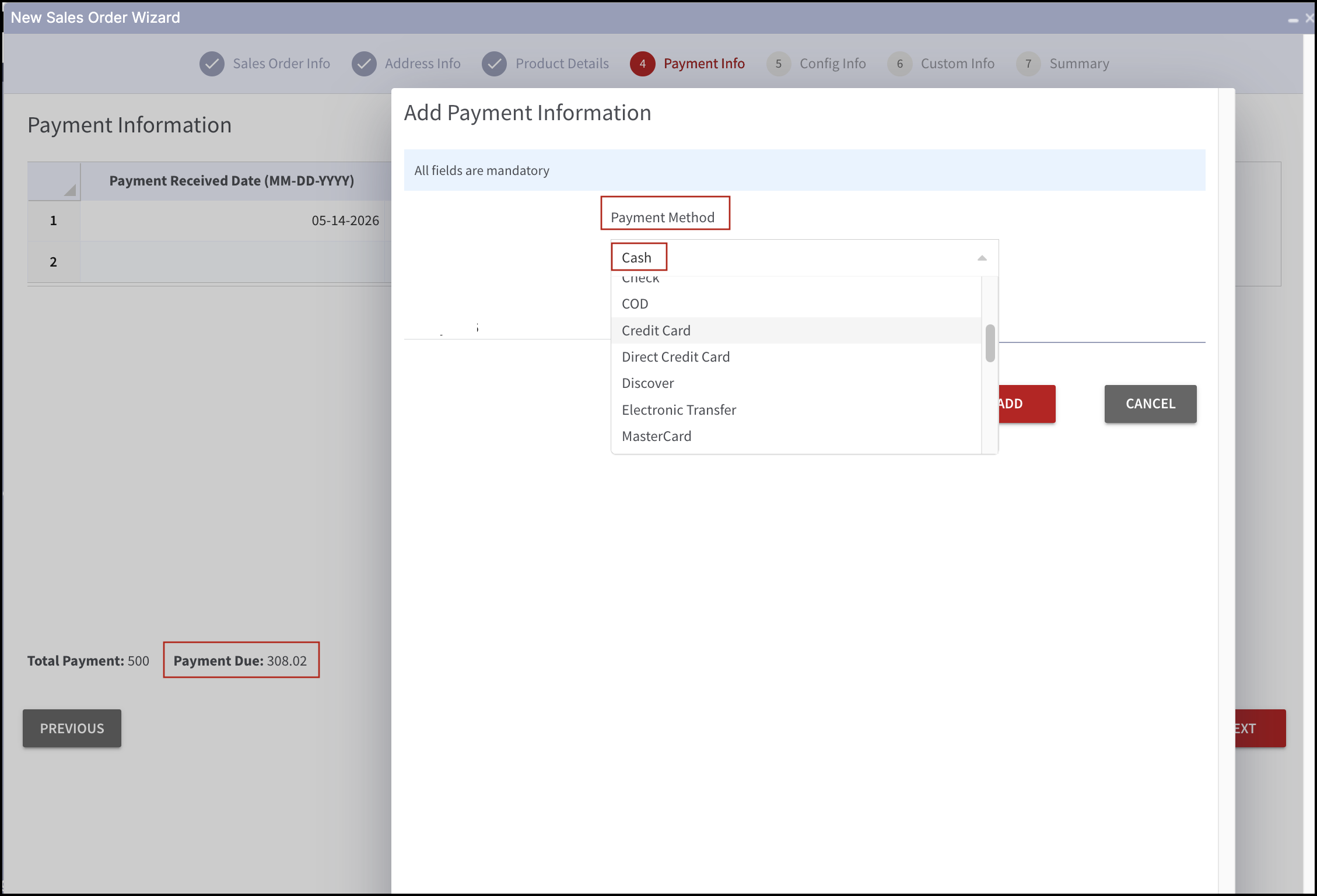
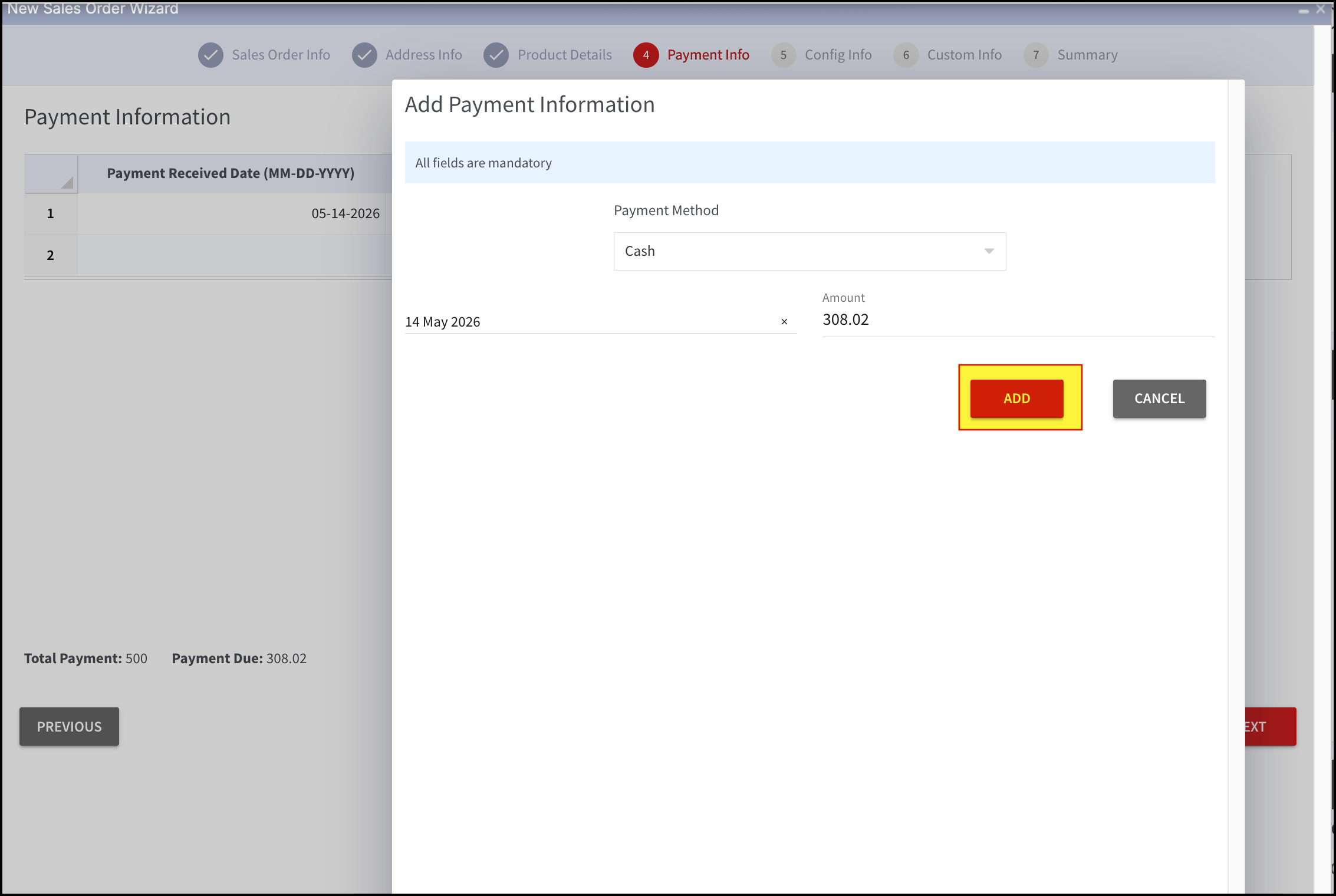
Once done, click on Next.
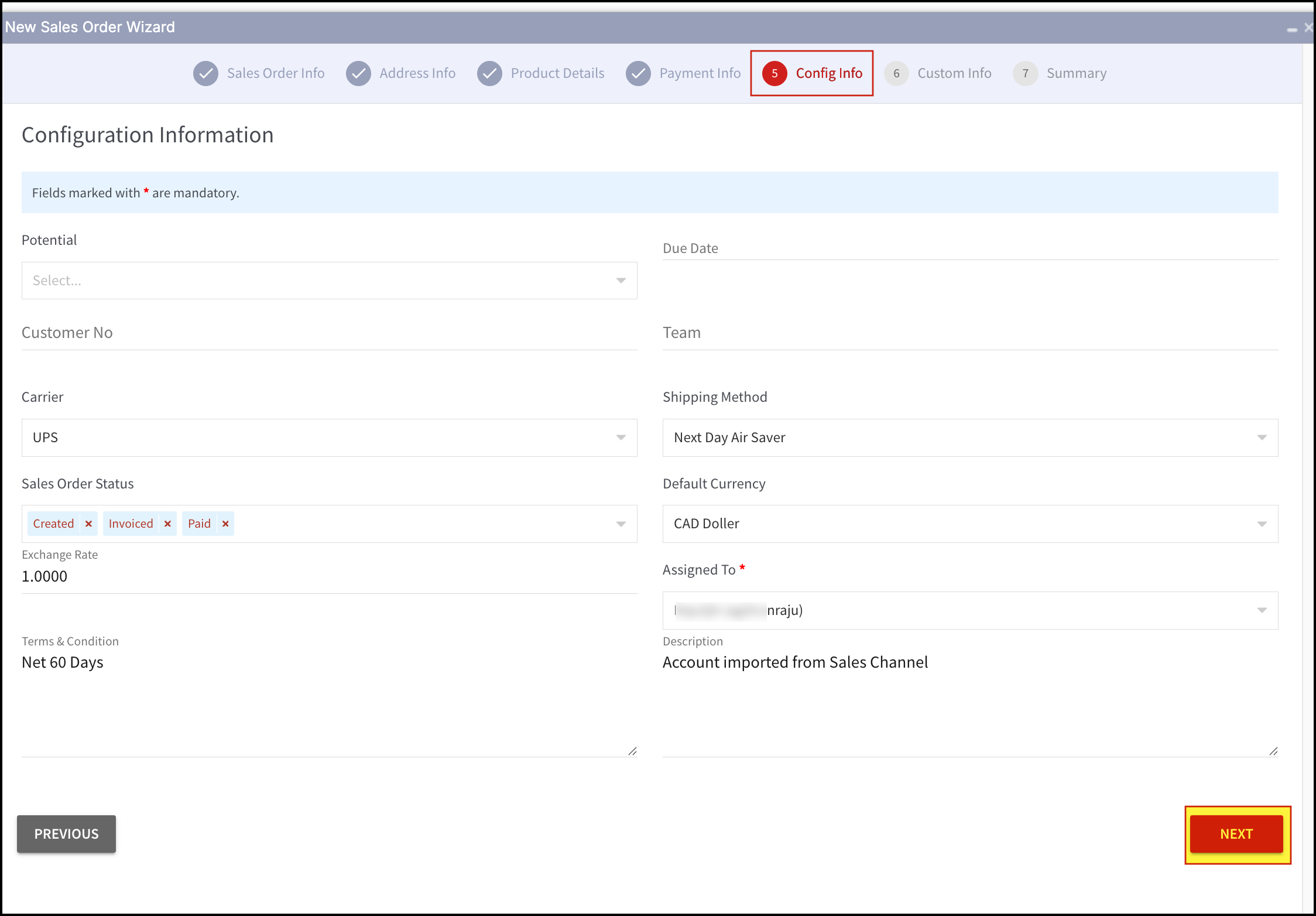
- Next comes the Configuration Information.
- If the recipient of the Sales Order is a potential customer, type to search in the Potential text field.
- In valid till field, a calendar will open. Select the date when the Sales Order expires.
- Enter Customer No. and Team name, if any, in their respective fields.
- When the account name is selected, fields like Carrier, Shipping Method, Default Currency, Exchange Rate, Assigned To, Terms & Conditions are automatically filled if a default has been set up for the customer's account. However, you can edit those fields.
- Choose the preferred Sales Order Stage from the drop-down list.
- In case of any additional information related to the Sales Order, specify it in Description.
- After all the required information is filled in, click on Next.
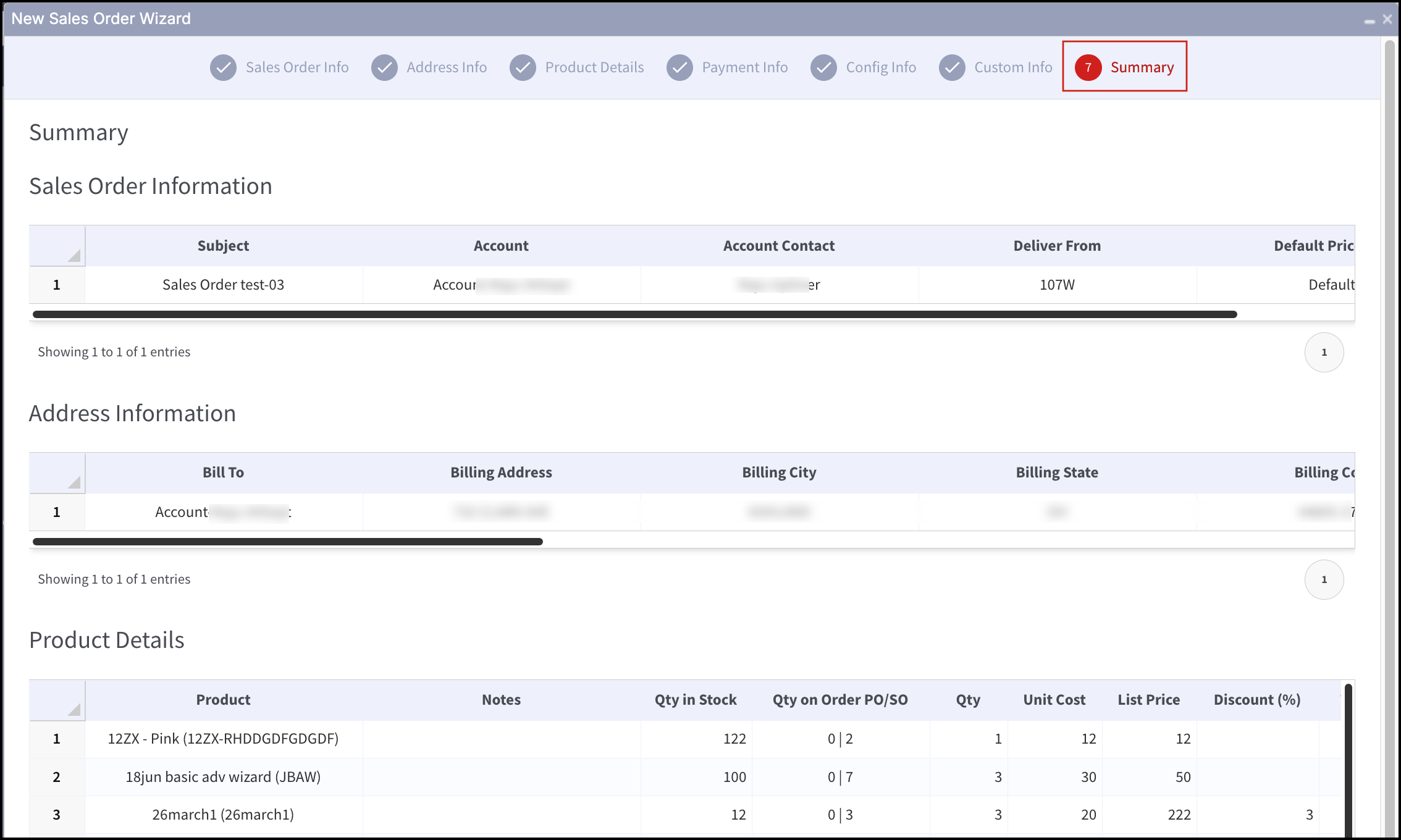
- All the information entered in previous steps/windows will be outlined in Summary.
- Click on Submit.
- You'll then see a Success message.
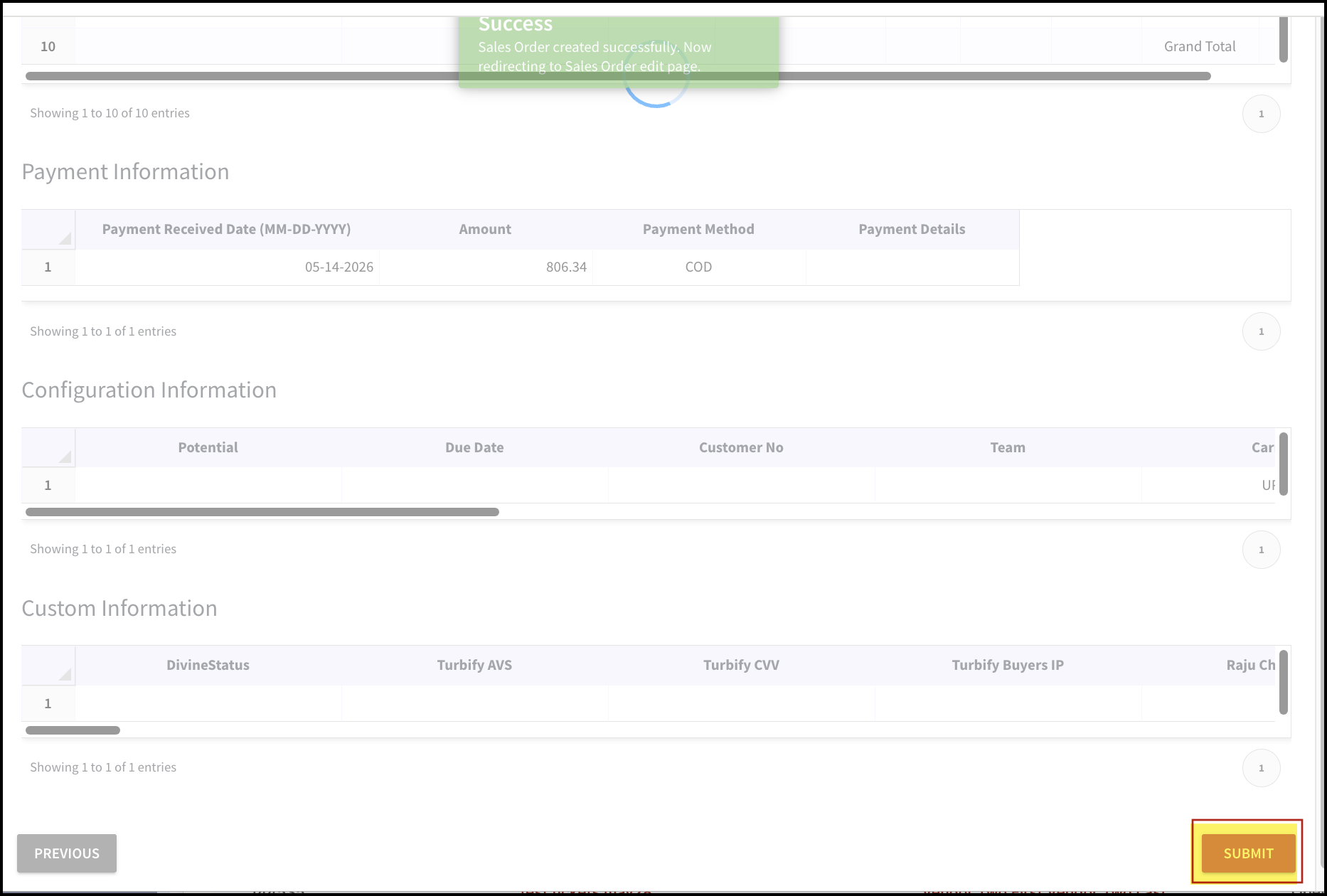
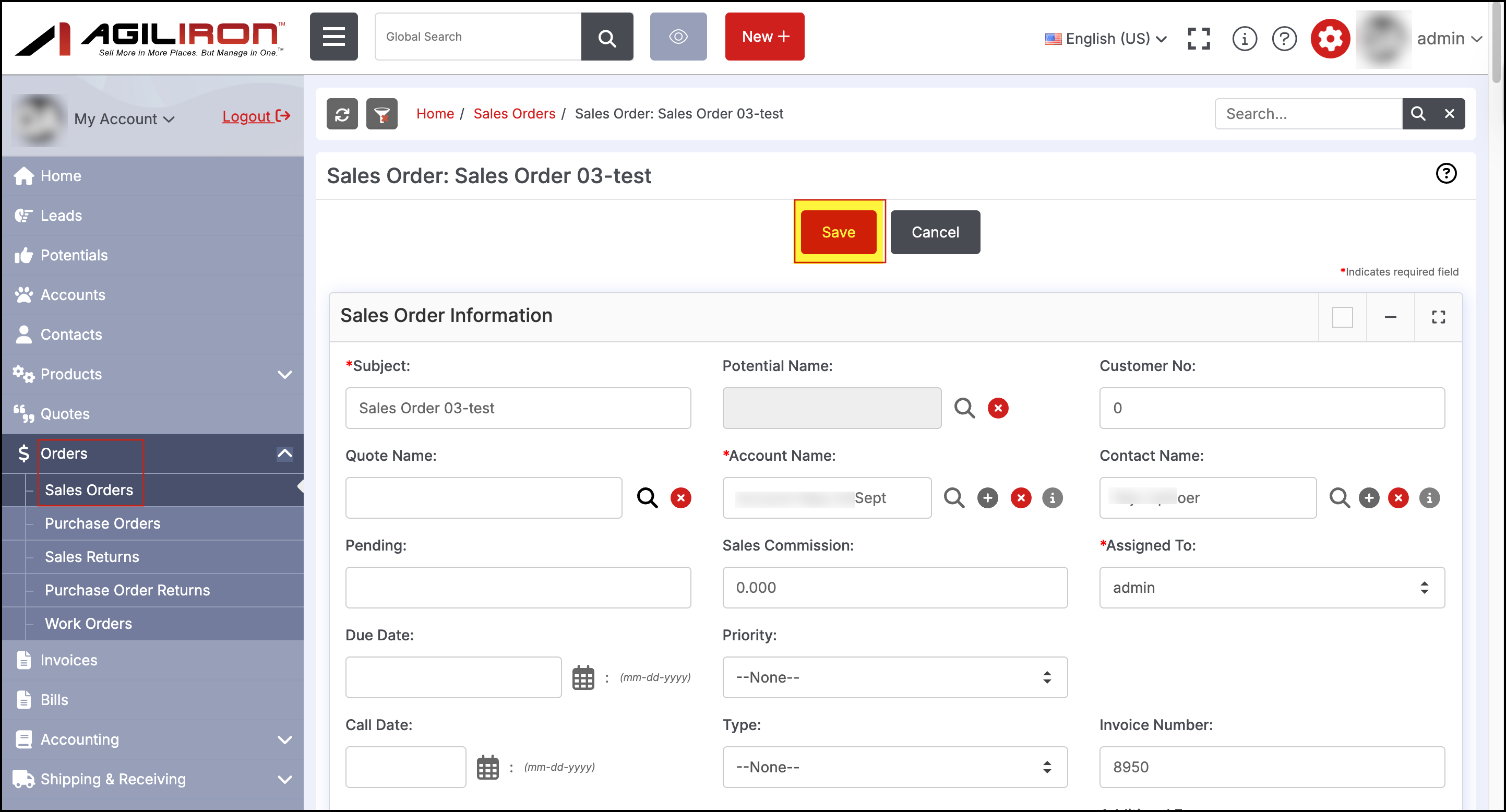
- When you submit, the Sales Order edit window will open, where you can make any additional changes you want and click on Save.
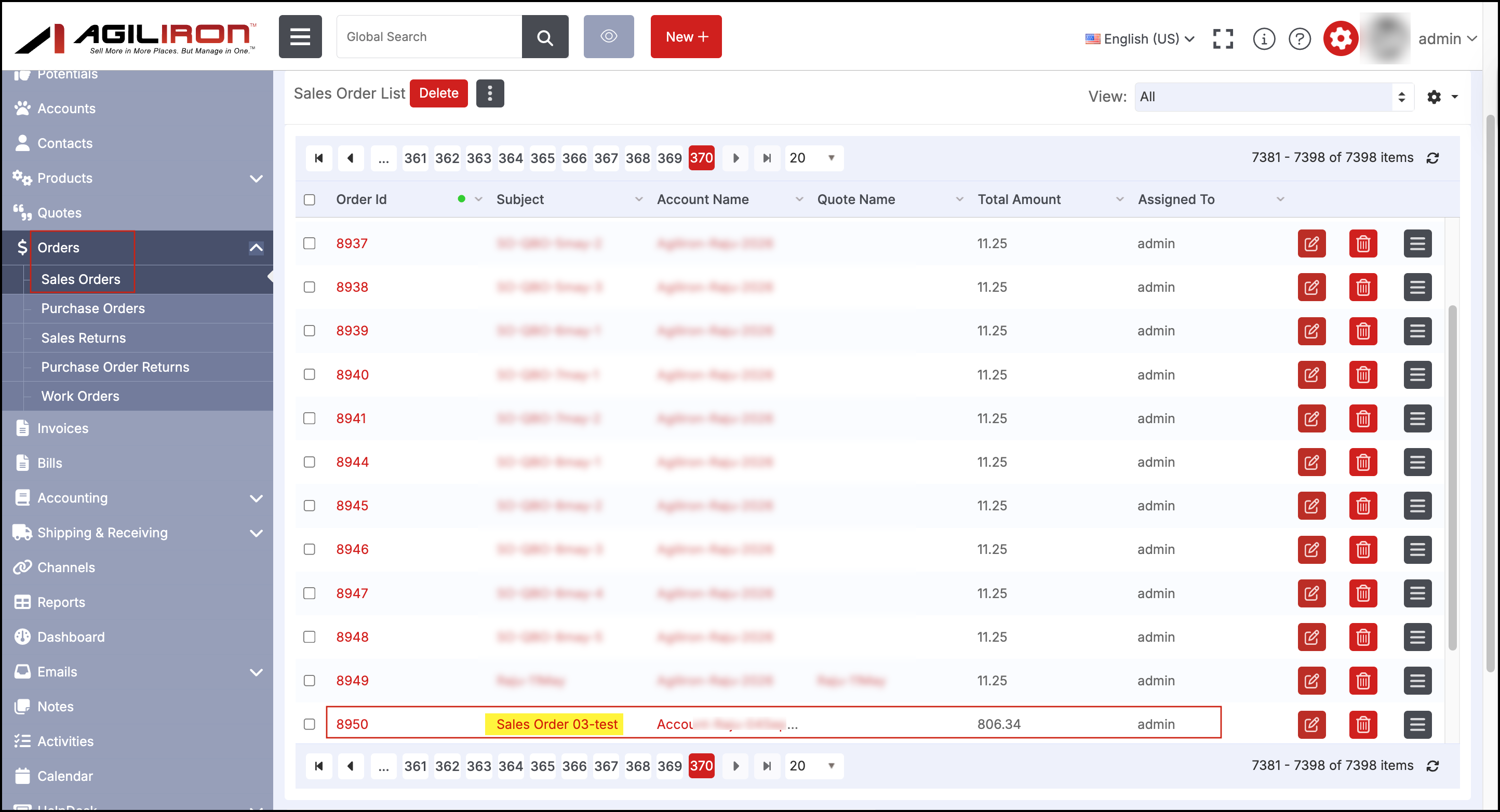
You can see the new SO created in the Sales Order list.
Updated 6 months ago