

Inventory Updates CSV Email
In the warehouse management app, it is now possible to send or receive Inventory Updates CSV file via email.
The inventory update is related to the cycle count process and the stock adjustment process. Let's say, for example, you are done with the cycle count process.
On the home page of the warehouse management app, scroll down and click on Email Inventory Updates CSV button.

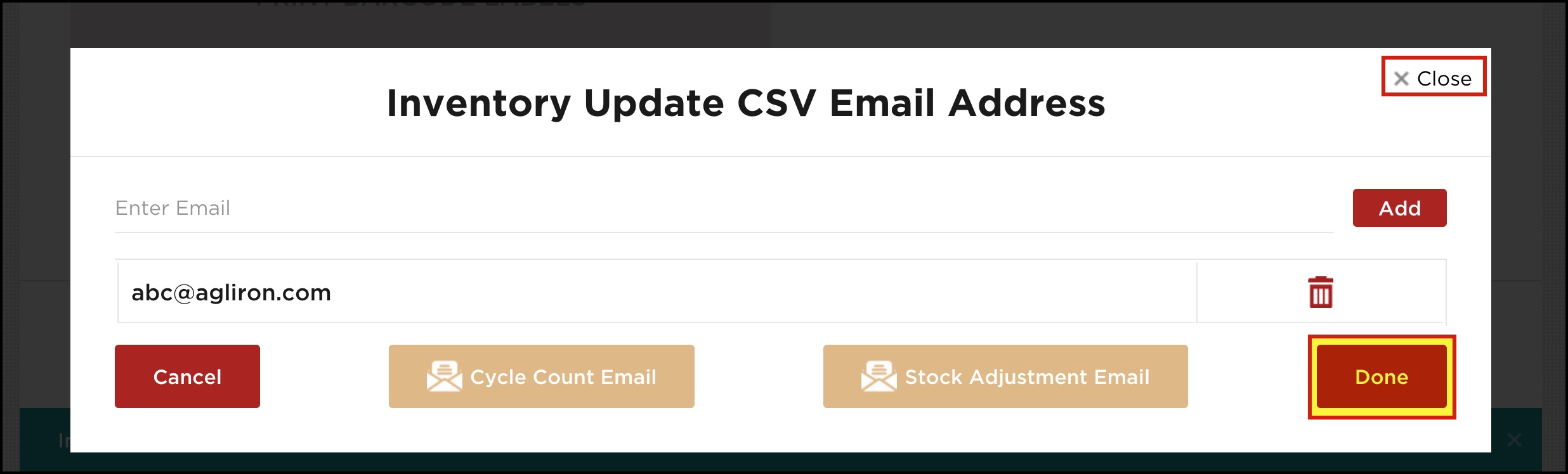
- A pop-up screen will appear where you need to enter the email ID/IDs to which the inventory updates need to be sent.
- If you want to add multiple email addresses, click on the Add button.
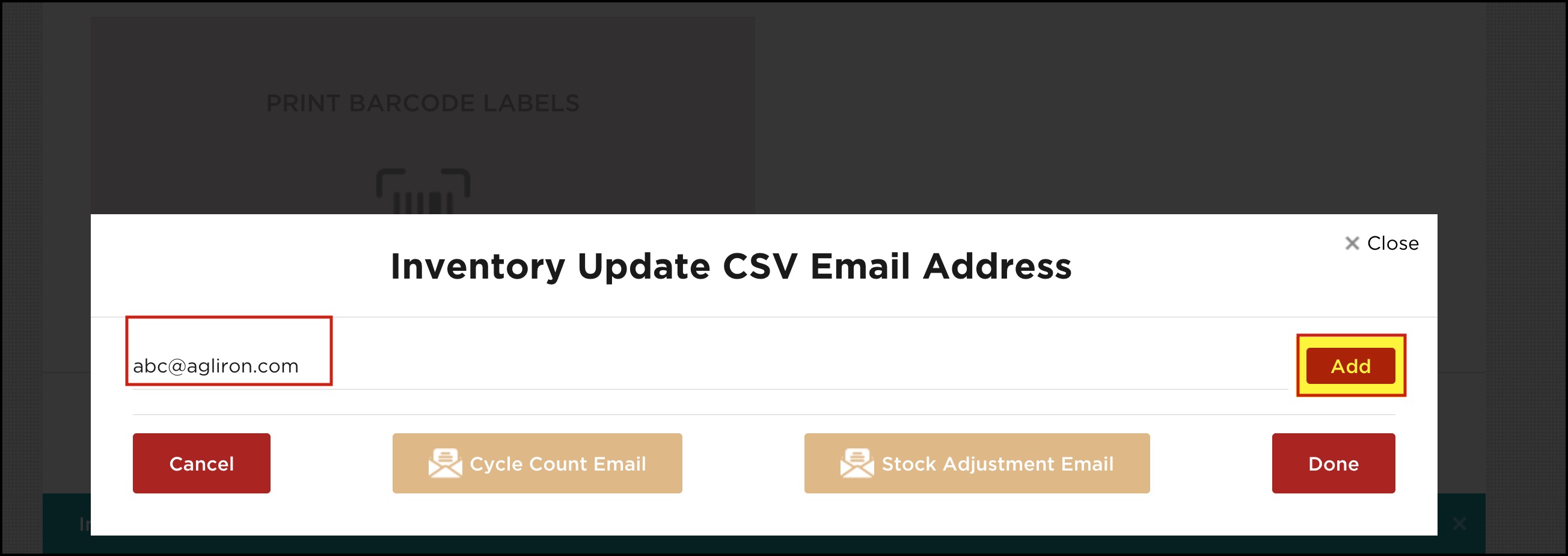
- After every email address you enter, click on the Add button.
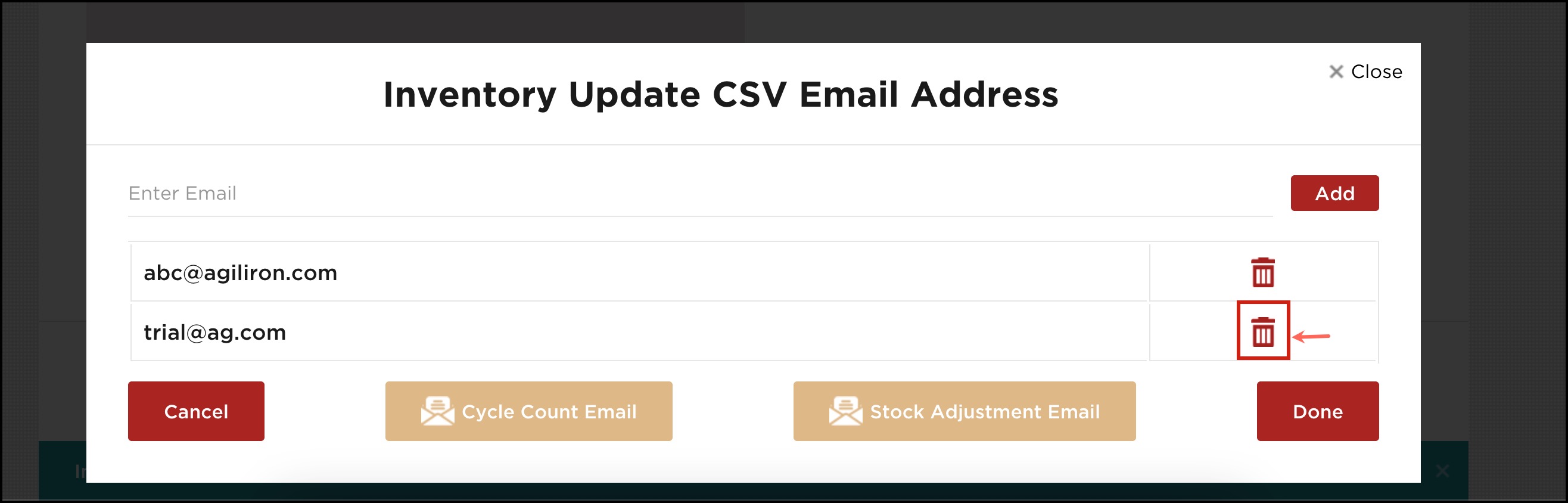
- There is also an option to delete the added email addresses. Click on the Trash icon to delete.
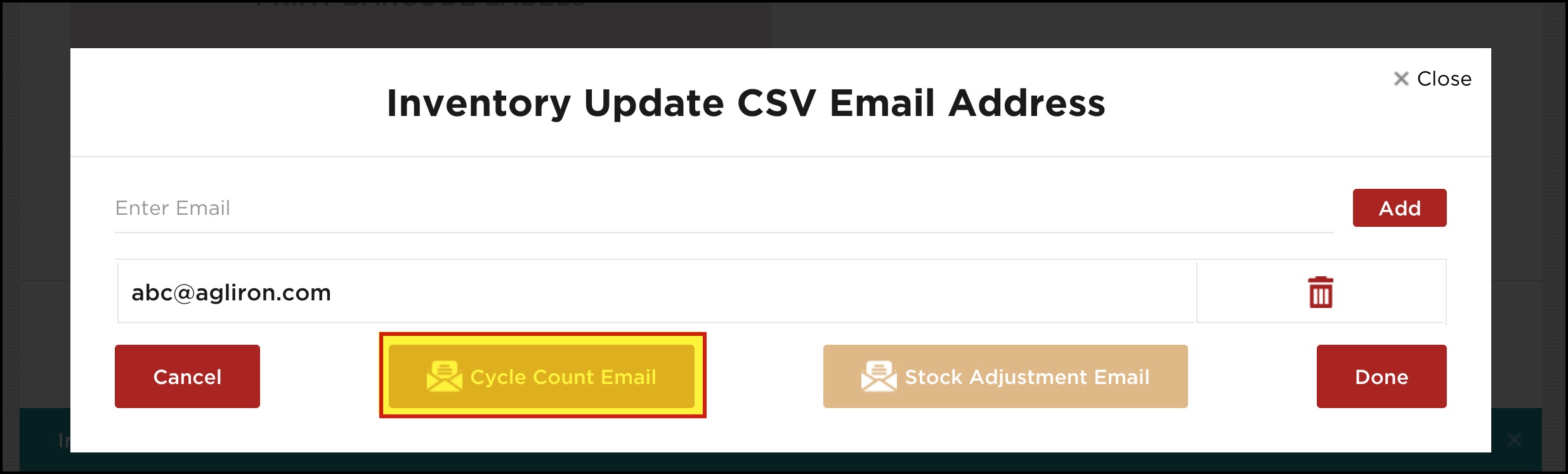
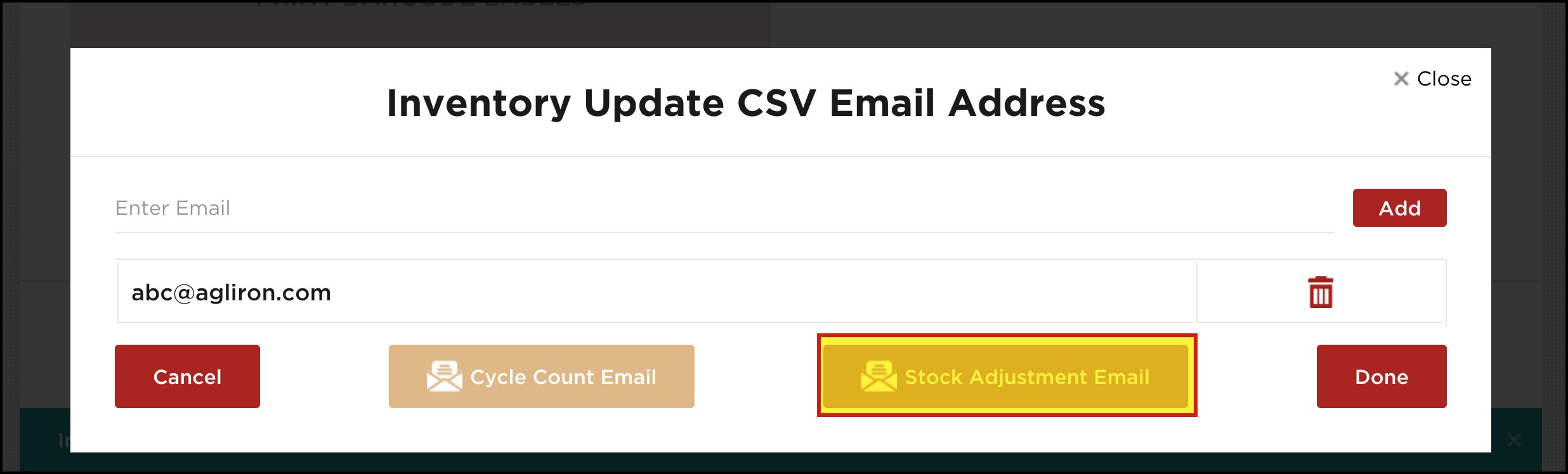
As an example, we have finished with the cycle count and need inventory updates for the same. Click the Cycle Count Email button.
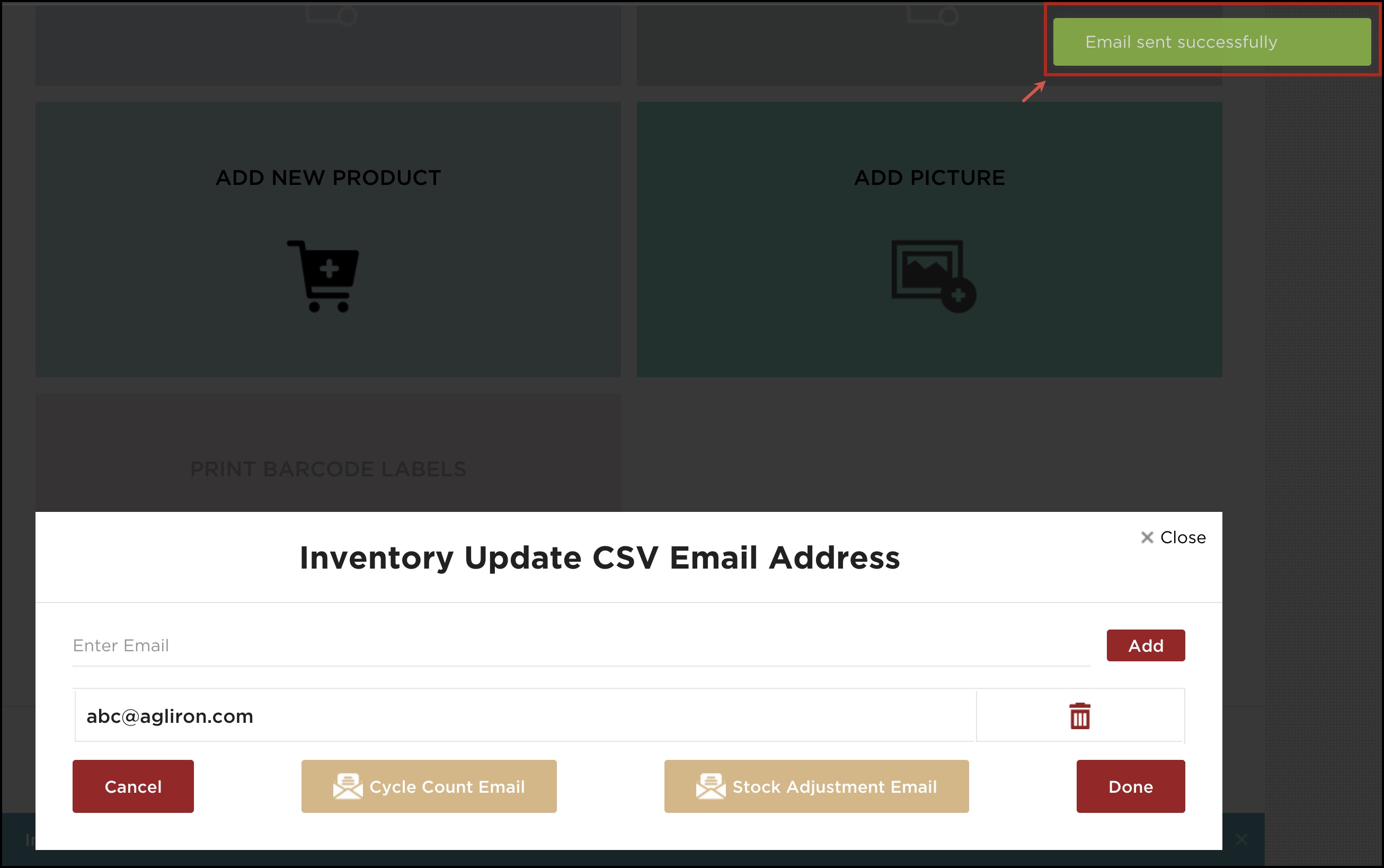
- The sending email process will start, once done you will see a message "Email Sent Successfully".
- Next, you can either click on Done or Close the window.
Similarly, you can send or receive Inventory updates CSV via email for stock adjustment. After you are done with the adjustment process, follow the same steps as above.
- Only here, after adding the email address, you will have to click on the Stock Adjustment Email button.
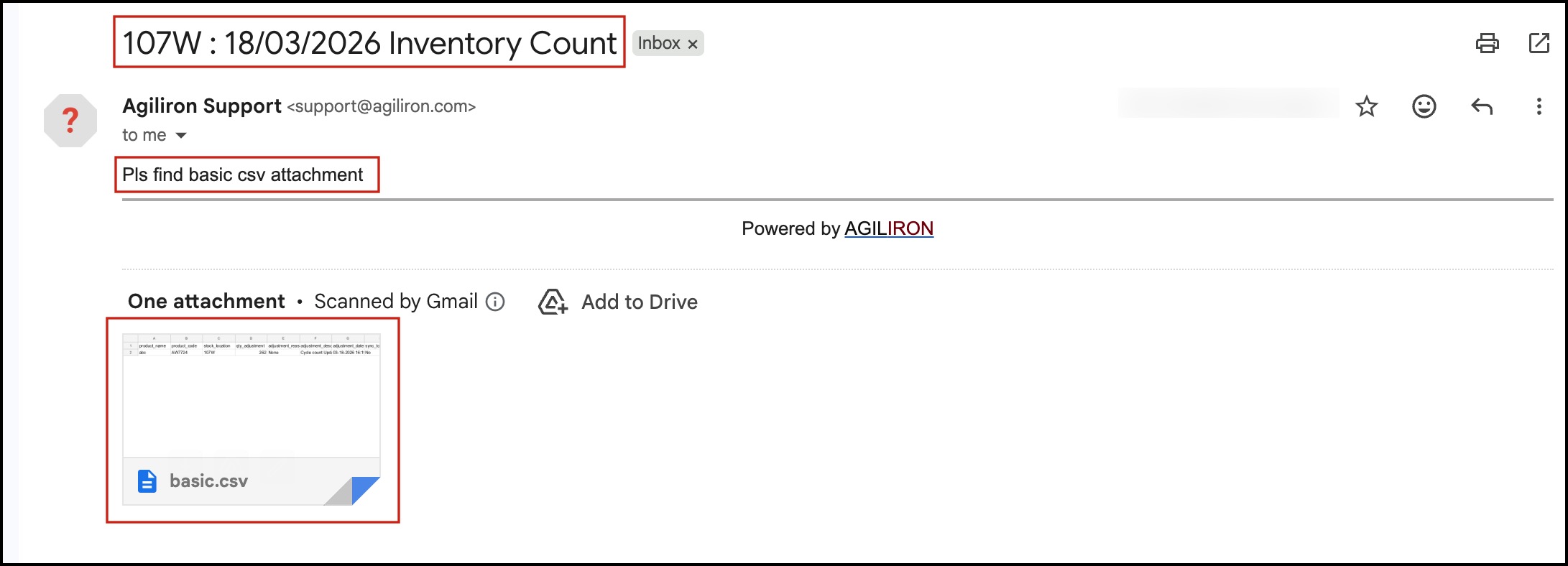
This is how the email might appear:
Cycle Count Email

Stock Adjustment Email
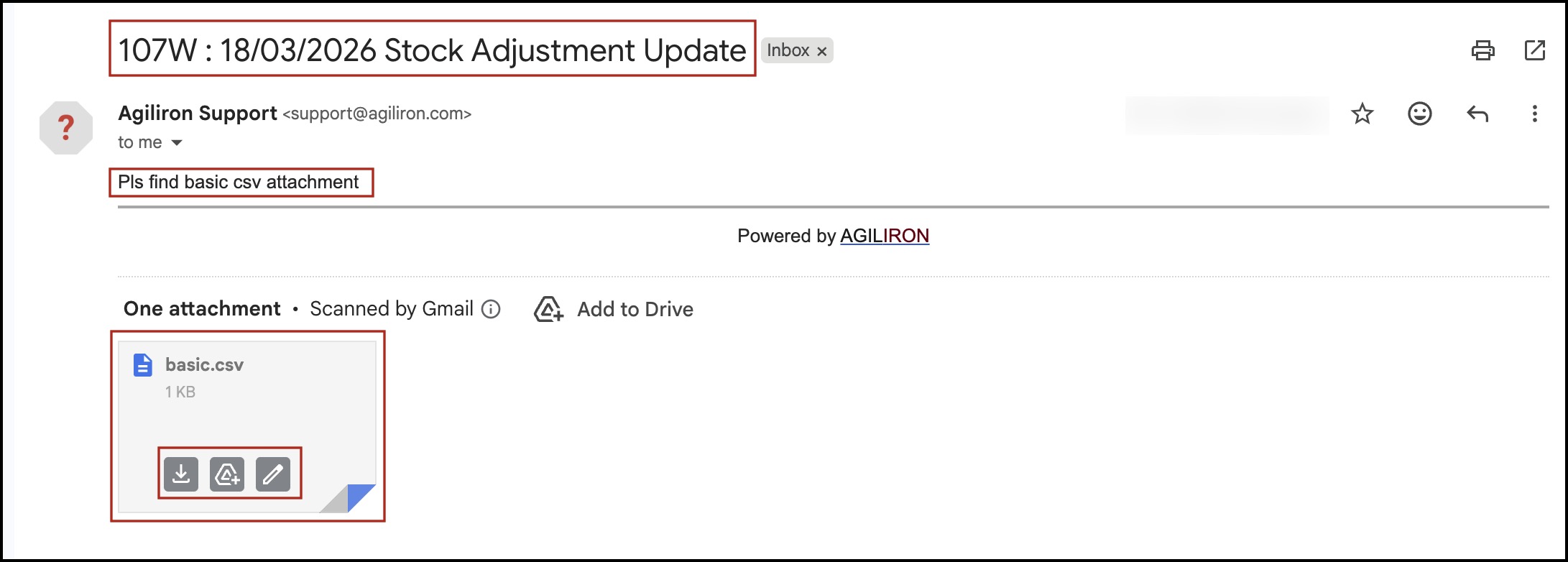

The CSV file can be downloaded.
Updated 7 months ago